# Emulated Device
Under the Emulated Device Tab, you can set your preferred emulated device display size for Responsive web tests.
> Check here how to open the **Project Settings** window.
## Device
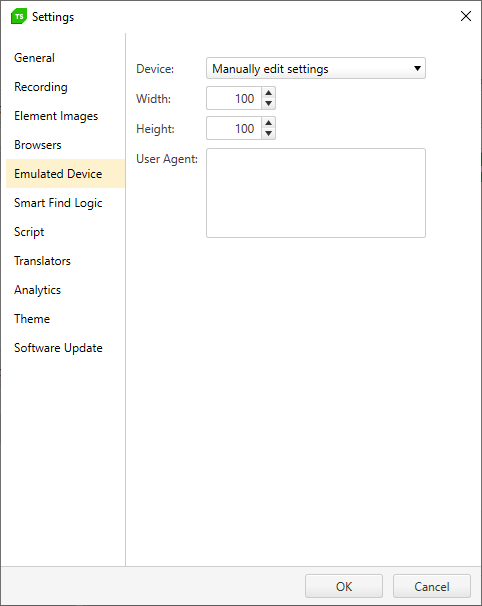
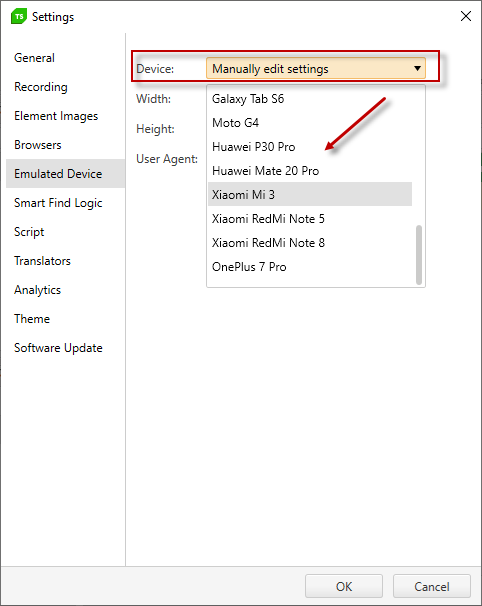
Choose a device type to simulate different device display size. You can choose to manually enter the *Width* and *Height* values or select any of the predefined device types.
## Width and Height
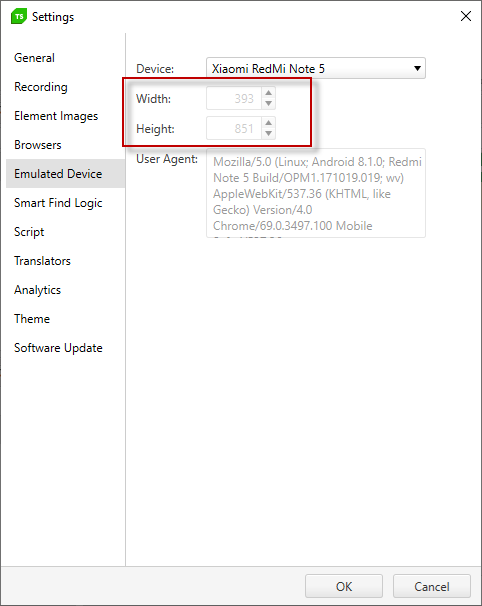
By selecting any of the predefined device types, the *Width* and *Height* text fields are set to the respective selection and cannot be modified. If you need to set custom *Width* and *Height*, select the *Manually edit settings* option from the *Device* dropdown.
## User Agent
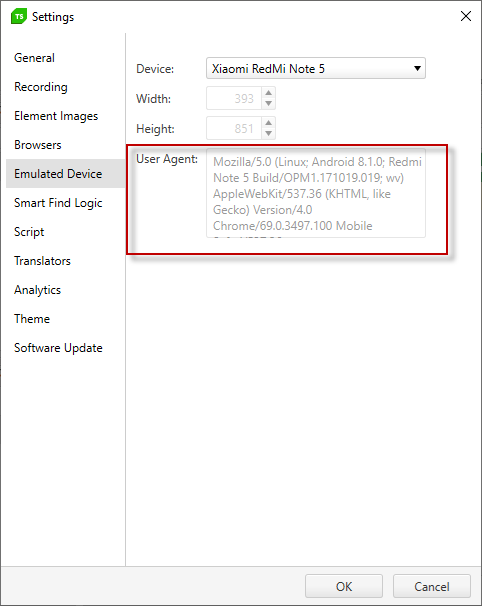
The *User Agent* gets automatically set when a predefined device is selected. If you need to set custom *User Agent*, select the *Manually edit settings* option from the *Device* dropdown.