# Element Images
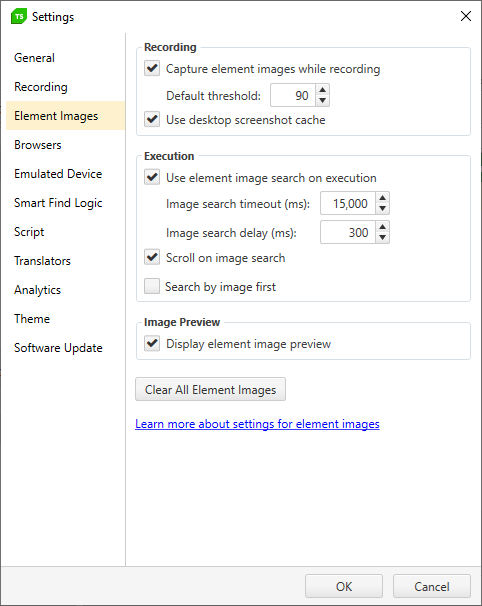
Apply specific element's image related settings on project level.
> Check here how to open the **Project Settings** window.
## Recording
* Enable/Disable image recording for elements and set the default threshold value to match the images.
* Enable/Disable the usage of the desktop screenshot cache.
## Execution
* Enable/Disable the usage of recorded element images as backup search during test execution.
* Set the timeout for searching the image on page.
* Set the timeout to wait before starting the backup search by image.
* Enable/Disable scrolling of the page when searching an element by image.
* Enable/Disable searching the elements by using their image first. The setting is used on project level and applies for every test step, unless it is otherwise specified in the Test List Settings or Test Step Properties.
## Image Preview
Enable/Disable displaying the image preview in the Elements Explorer.
## Clear All Element Images
This button allows you to delete the element images recorded for the whole project.