# Browsers
Under the **Browsers** tab in *Project Settings*, you can set your preferred browser, check if an update for latest browser versions is available, and calibrate the supported browsers.
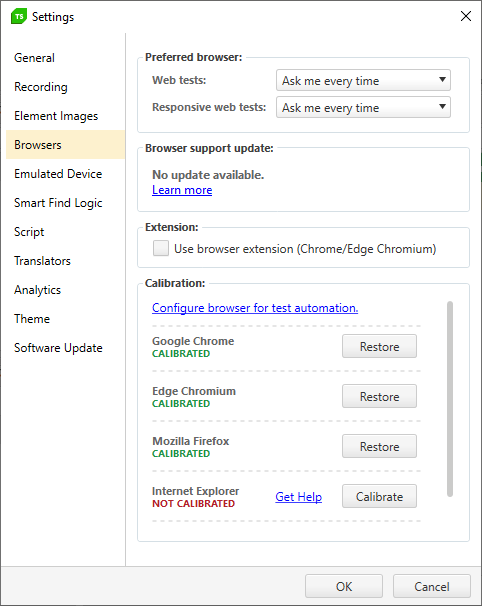
> Check here how to open the **Project Settings** window.
## Preferred Browser
Select an installed and supported browser from the **Preferred Browser** section to set it as the default test recording and quick execution browser for web tests and responsive web tests (responsive web tests support only Chrome and Edge Chromium).
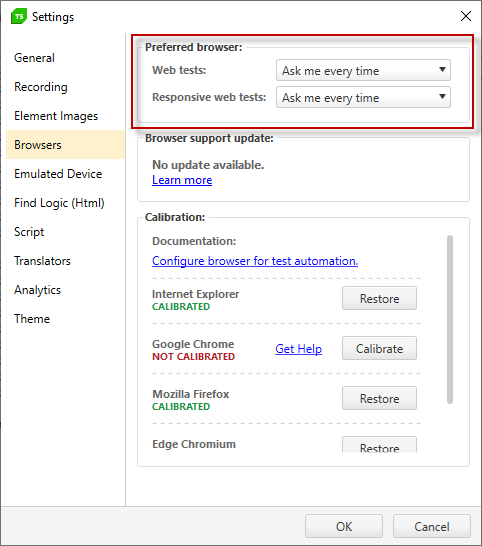
> *Preferred browser* for web test can be set from the Test ribbon.
## Browser Support Updater
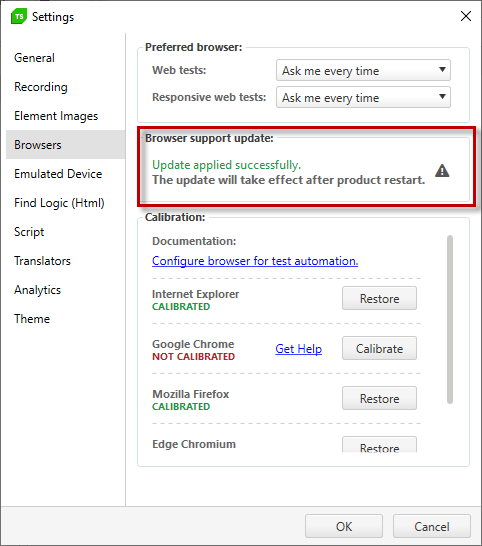
Striving to be up-to-date with the latest browser versions, Test Studio regularly updates the support of any recent changes in browsers' new releases. A notification that there is an update appears, when one is available.
## Extension
Enable/Disable using extension for Chrome browser automation.
## Calibration
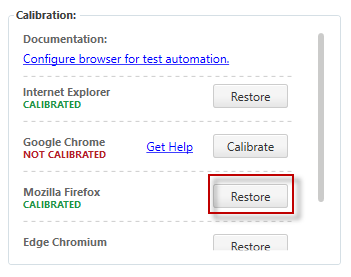
The *Calibrate Browser* section allows the configuration of supported browsers for use with Test Studio. Click **Calibrate** next to a browser to update its settings to be compatible for test recording and execution.
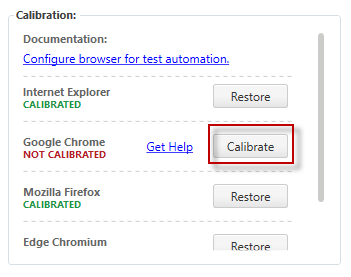
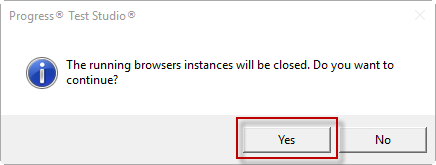
A warning message appears that any running instances of the selected browser will be closed during the calibration. Confirm, if you want to proceed, or cancel, if you need to save any data in the running browser.
To restore the original browser settings that were in place before calibration, click **Restore**.
> **Note!** If your Chrome browser has an active Google Apps session (for example, you are logged into GMail), automatic calibration will not work as expected. To use automatic configuration, log out of your Google account first.