# Loop

Walk--through of creating a loop process.

1. Create a Web Test and click **Record**.

2. Navigate to <a href="http://www.random.org/integers/" target="_blank">[www.random.org/integers](http://www.random.org/integers)</a>.

3. Click Get Numbers.

4. Click Again.
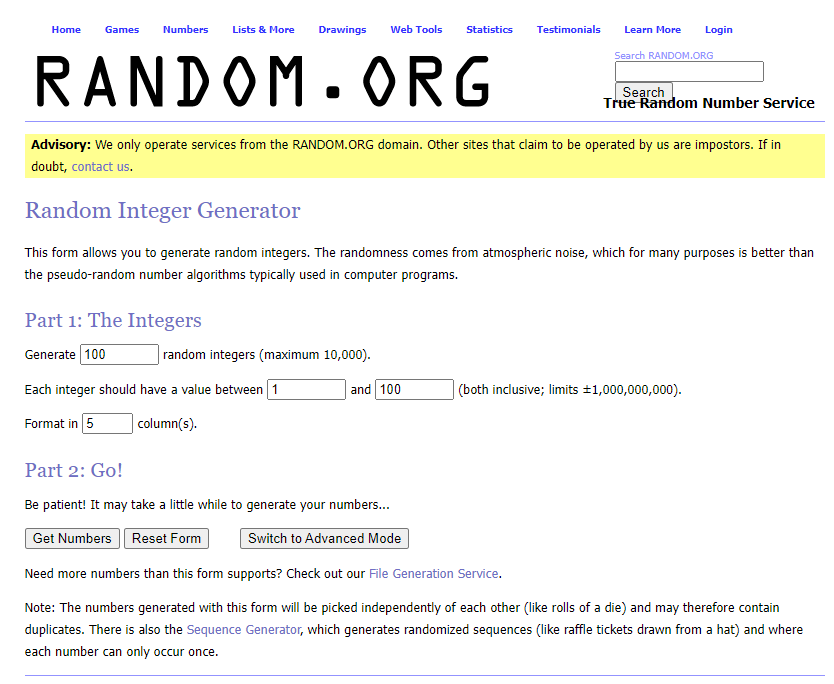
   ![Random](https://www.telerik.com/teststudio/documentation/assets/84a66bacc8f81e2bec9d7c539e5f115c/fig1.png)

5. Pause recording and minimize the browser.

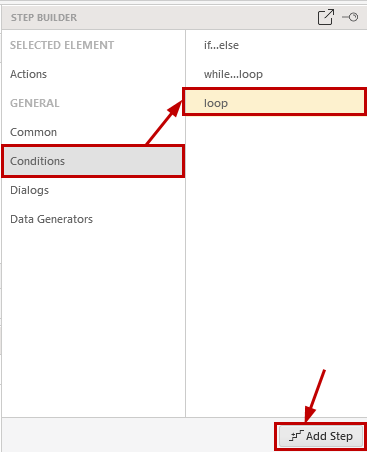
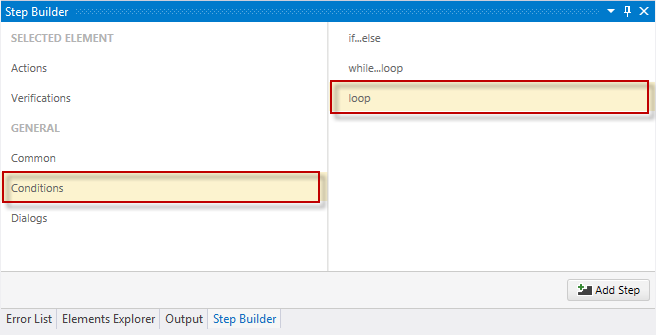
6. Choose **Conditions** in the <a href="/getting-started/test-recording/step-suggestions" target="_blank">**Step Builder**</a> and add **loop** step.

<table id="no-table" style="border:none;">
<tr style="text-align: center; background-color: transparent; border:none;">
<td>

<img src="/teststudio/documentation/assets/969d4550748ca6327a0cde2648322a49/step-builder-loop.png" alt="Standalone" /><br>**Standalone version**</td>

<td>

<img src="/teststudio/documentation/assets/34c1258ba6afaba28efa565b0050e945/vs-step-builder.png" alt="VS Plugin" /><br>**VS Plugin**</td>

<tr>
</table>

7. Set the *Count* of the Loop step to 5.
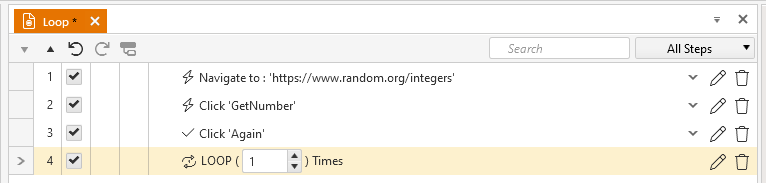
   ![Loop step count](https://www.telerik.com/teststudio/documentation/assets/6d66019bc74f1e890b649341449291cb/extended-menu-loop.png)

8. Drag the second Click Submit step into the *LOOP* step.
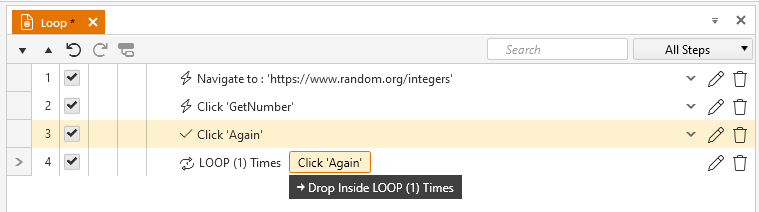
   ![Drag Submit](https://www.telerik.com/teststudio/documentation/assets/aefa4d88c09e0b18c089541f88ed5869/drag-drop-loop.png)

9. Save and Execute. After the initial set of integers is generated, the process is repeated 5 times.