# Oracle Database Example
This example is completed using an **Oracle Database Express** (Oracle Database XE) installed and configured instance.
> To be able to connect and work with the database from Test Studio it is necessary to install **Oracle Data Access Components**.
Next step is to create a database in order to use it for data binding. One way to do it is by using Oracle SQL Developer. On the following image there are SQL queries that will create table **Employees** and insert there two rows of data.
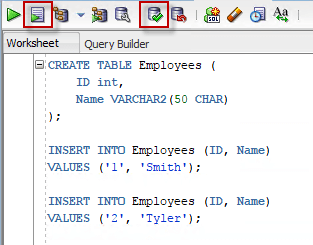
Once the table is created it is possible to connect to it and use it for data-driven testing:
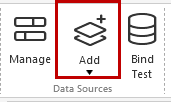
1. Click on **Add** from **Data Sources** menu:
2. In the **Create new data source** dialog - for **Data Source Types** choose **Database**
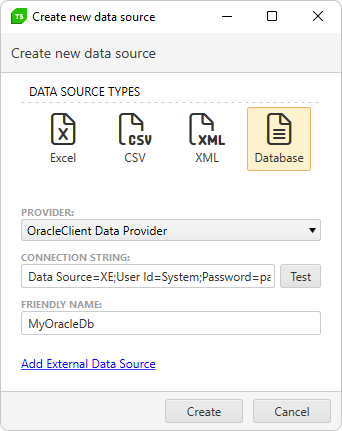
3. For **Provider**, select **Oracle Data Provider for .NET**
4. Here's an example for **Connection String**:
```
Data Source=XE;User Id=SYSTEM;Password=pass;
```
It is possible to create many different connection strings. See here for more examples.
5. Customize the **Friendly Name** as desired.
6. Click **Create** and the new data source should appear in the Data Sources list.
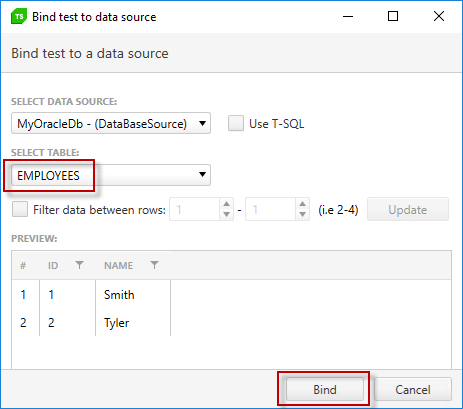
When a test is bound to this data base the table to be used will be specified: