# Manage Built-In Data Source
Test Studio provides internal data table, which can be used to data drive a test. A built-in data table is available in each web test and can only be used from this particular test.
This article describes what options there are in Test Studio to **maintain the content of the built-in table** in order to drive test steps as desired. Follow this link for a complete end-to-end scenario how to data drive a test using the built-in table.
## Open the Local Data in Web Test
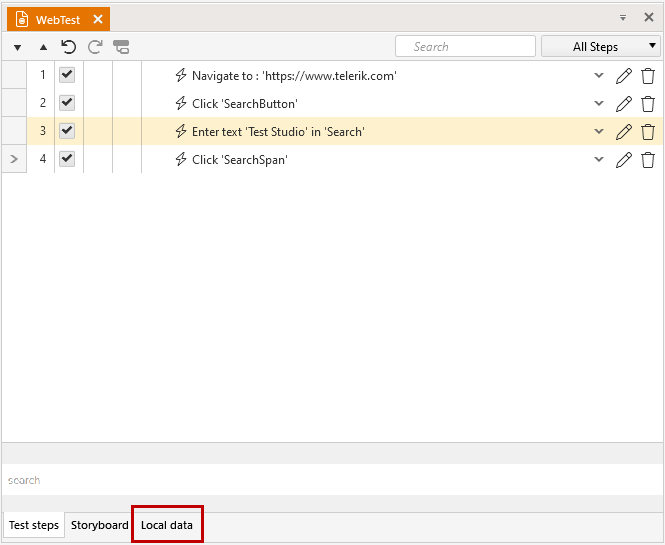
At the bottom of the test steps pane in the project you will see an additional tab named **'Local Data'**. Click this one to switch to the built-in data table.
## Create a New Data Table
At the top of this pane there are few buttons and currently only **Create a new data table** is enabled. To add a new data grid, click this one. The default created grid has five columns and a single row.

Along with this, the rest of the buttons get active and allows you to modify the grid.
## Modify the Data Table
Test Studio provides few options to easily modify a data table.
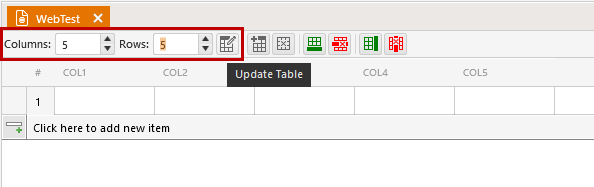
* **Set number of rows and columns** (columns are limited to 50) and update the grid
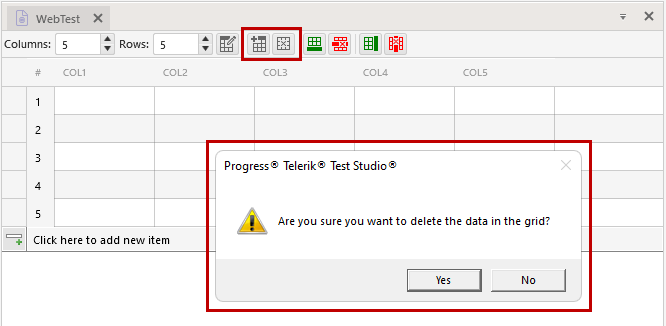
* **Create new data table** or **remove current data table** (both will prompt you the current data will be lost if you proceed)
* **Add a row/Delete the last row** or **Add a column/Delete the last column**
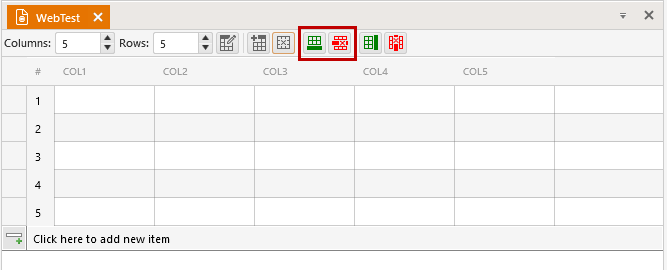
Add/Delete Row |
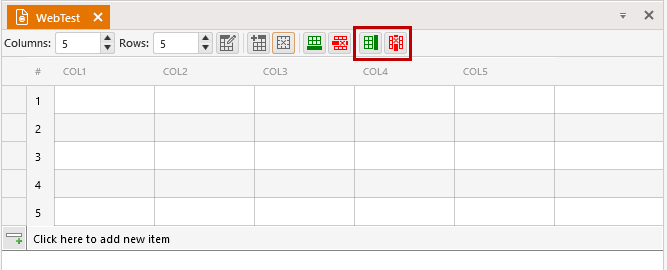
Add/Delete Column |