# Manage External Data Source
When a data source is added in a Test Studio project, it is actually copied to the ***ProjectRootFolder*\Data** sub-folder. This is the location, from where the file is accessed in test run-time, and any required changes in the data source must be applied to the file in this location.
In order to modify any external data file, you can directly open it from the mentioned folder, or you can easily access it through Test Studio.
> **Tip**
>
>
> The project's root folder can be accessed through the Project Explorer Context menu using the option *Open Folder in Windows Explorer*.
## Access the Referenced External Data Sources
Click the **Manage** button from the *Data Source* section in the *Project* ribbon to open the *Manage Data Source* dialog.

## Choose an External File to Edit
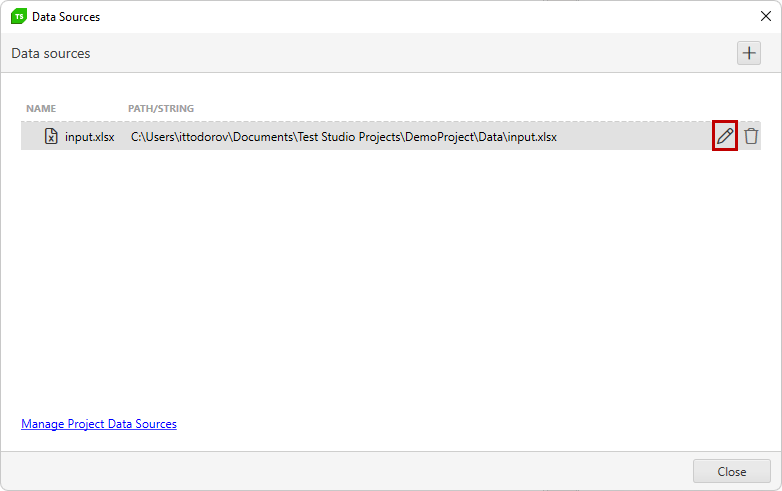
If there are more than one data source file added to the project, there will be a list of all these files. Choose the one you need to modify and click the **Edit** icon to edit that data source.
## Delete an External File
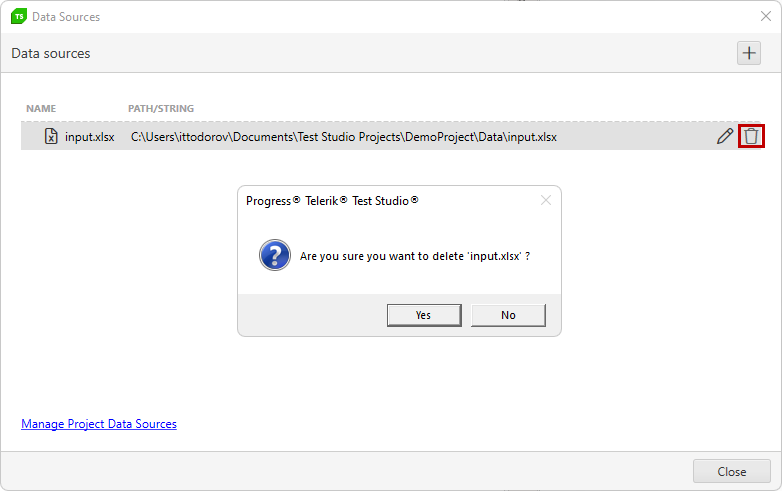
If you need to remove a data source from a Test Studio project, you need to remove its reference as well.
> **Note**
>
>
> Before you delete an external data source from the project, ensure to remove its binding to any of the tests.
Then, you can open the *Manage Data Source* dialog, choose the data file to delete and click the **Delete** button next to it.