# Bind Test to External Data Source
Test Studio allows you to use external data files for data driven testing. In this article you can read how to associate a test to an external data source.
If you have already related the external data source to a test in the project, follow this link to go through a complete scenario for data driven test with external data source.
## Bind the External Data Source to Test
Once you have added a data source definition to your test project, you are ready to bind your test to that data source.
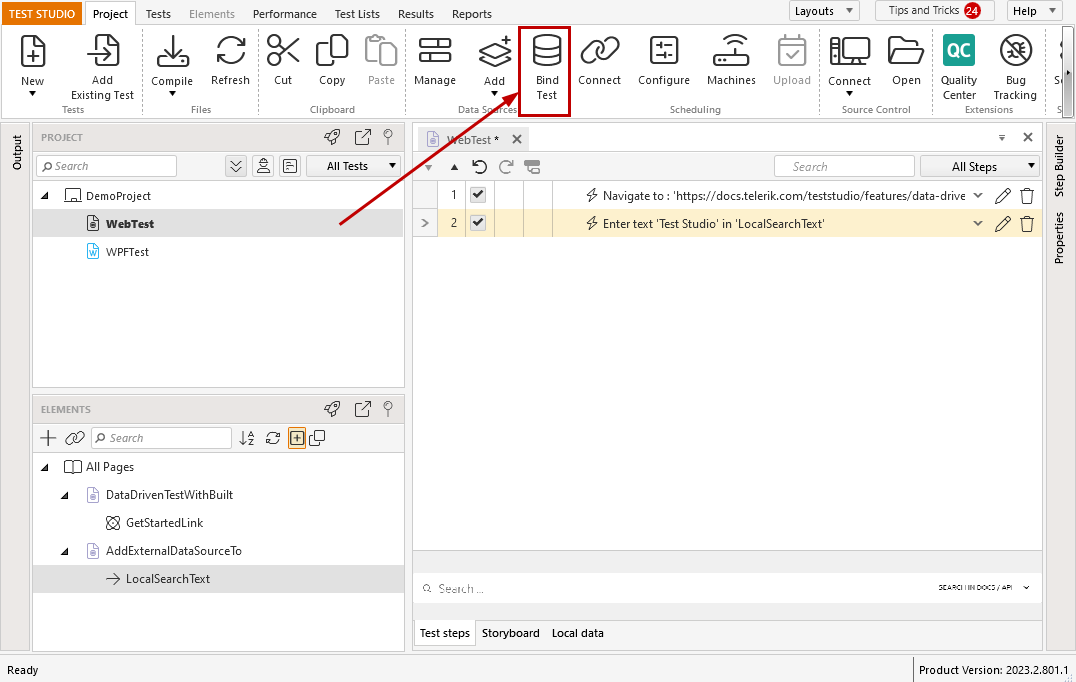
Choose a test from the *Project Explorer* and click the **Bind Test** button from the *Data Source* section in the *Project* ribbon.
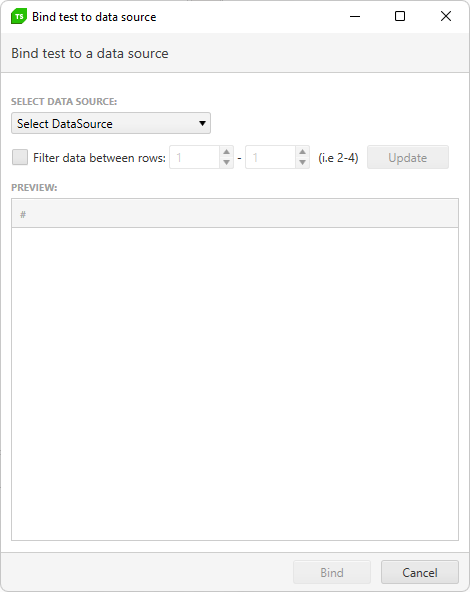
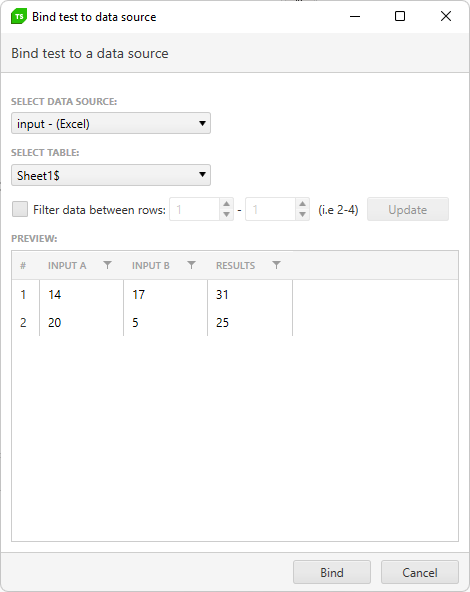
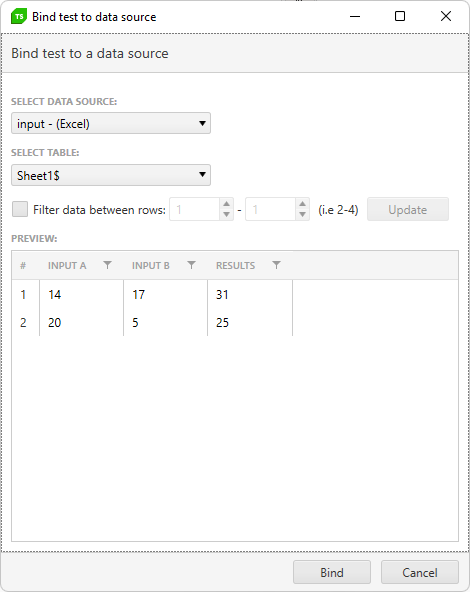
The **Bind test to data source** dialog opens with the option to choose a data source. Click the **Select Data Source** drop-down and select the one you have defined. If your source is an Excel spreadsheet, choose which sheet from the spreadsheet to use. Once you select a sheet, the data from that sheet will be read and displayed in the dialog. Check out that the **first row of the spreadsheet is used to define the column names**.
**Choose Data Source to Bind**
**Excel Sheet Selected**
> **Note**
>
>
> You need to have **Microsoft Excel** installed on this machine and/or the **Microsoft Access Database Engine 2010** - see this article for more information.
## External Data Source Options
Some of the supported type of files to add as external data source allow you **to limit the rows** of it to use. This option is applicable for Excel file or SQL database.
### Limit the Rows to Use from Excel File
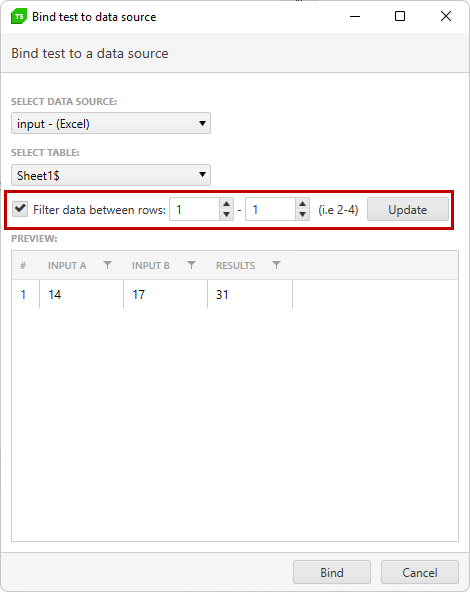
If you need to use only part of the rows in an Excel sheet, you can enable the **Filter data between rows** box under the **Configure** section.
* If left unchecked, all data rows will be used during the test run.
* To limit which rows to use, check that box and select which rows you want to use by clicking the numeric up/down counters, and then **Update** to apply changes.
### Use Specific Data from SQL Data Source
If your source is a SQL database, you can use a T-SQL query to select the data you want. Using T-SQL, you can get as complex as you need in your SQL select statement. Check out the example below.
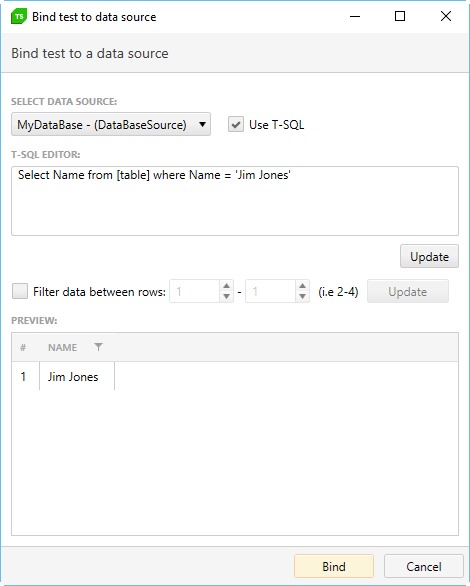
Once your select statement is entered, click the **Update** button to test the results - the **Preview** table shows these.
## Confirm Data Binding
When the external data source is set as desired, click the **OK** button to bind it to the selected test. Now the external file is associated with the test and you can access the data values to bind the steps.
> **Tip**
>
>
> Check how to modify the external data source after it is referenced in the Test Studio project.
## Remove Data Binding
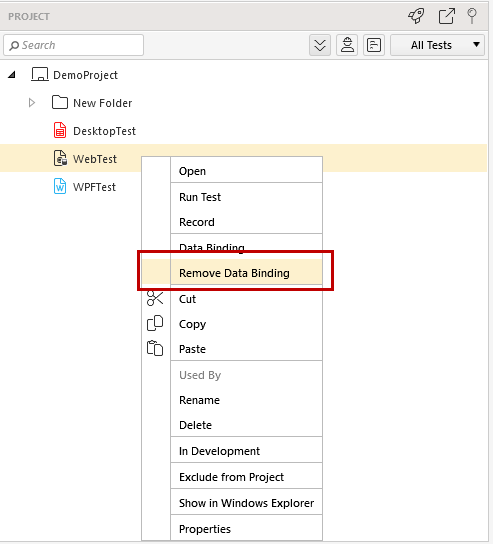
To remove the external data source associated with a test, right click that test on the **Project** tab and select **Remove Data Binding**.