# Manual Step
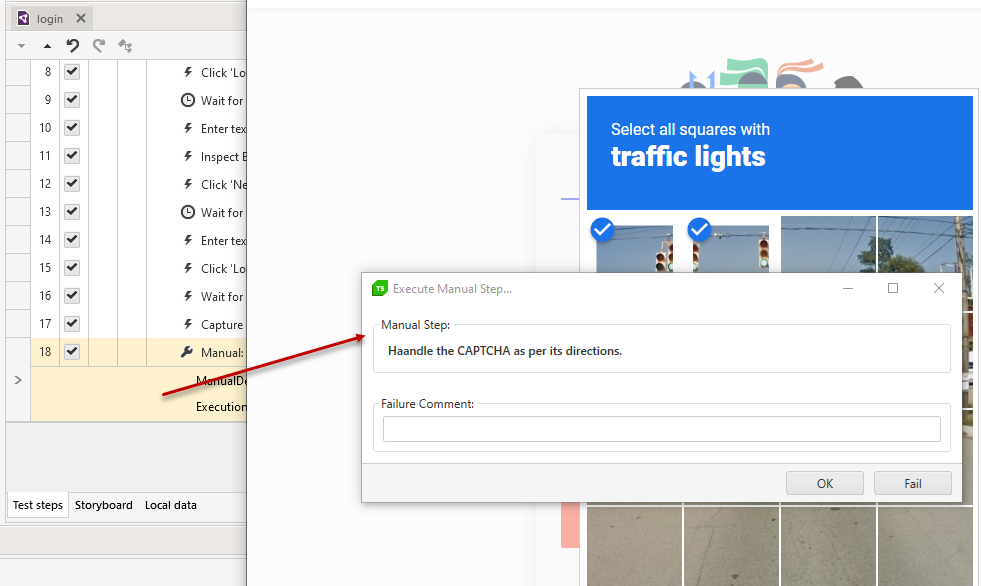
The **Manual Step** displays directions for performing manual actions at a specific point in the test. It can be useful for any specific action which cannot be automated, but can easily handled manually - e.g. handling he Captcha images.
This article demonstrates how to add this type of step into the test.
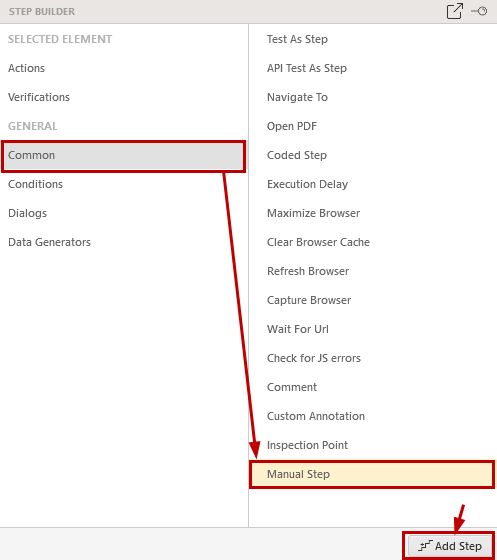
Choose the **Manual Step** option from the **Step Builder** and click on the **Add Step** button in the lower right corner of the pane.
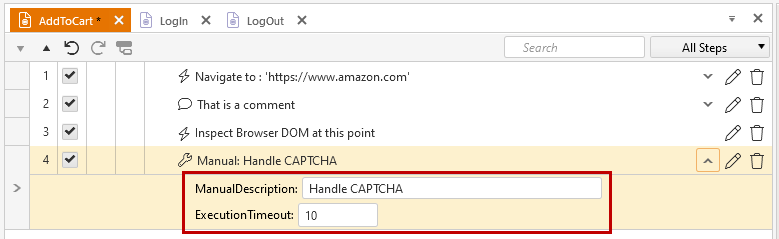
Insert description for the manual steps to be performed and set the timeout for execution of that step. The *ExecutionTimeout* property is set **in minutes** and sets the time to wait for the manual execution. If the *Manual Step* is not handled within the timeout, it times out and logs as failure.
A perfect use for the **Manual Step** is for accessing pages which use a CAPTCHA code. Test Studio cannot automate the CAPTCHA type of images because their content cannot be read. In fact, CAPTCHA is specifically designed to ensure the response is generated by a person, and not a computer or an automation tool.
When dealing with this sort of validation we recommend to disable it for the testing environment and use the **Manual Step** for production testing to the tester to handle the image.