# Execution Delay
The **Execution Delay** step allows you to pause the test execution for the set amount of time in milliseconds.
This article describes how to add this type of step in the test.
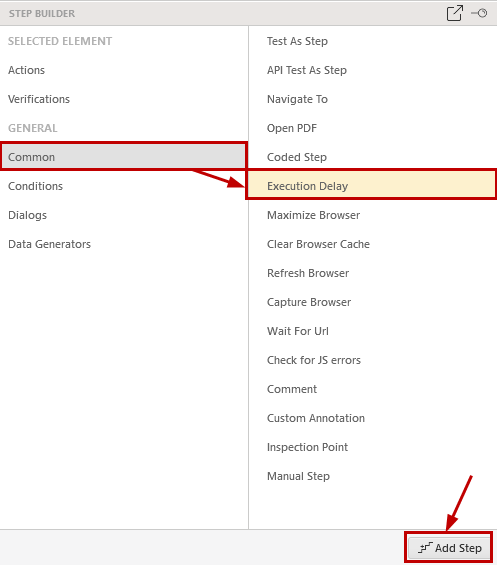
Choose the **Execution Delay** step from the **Step Builder** and click on the **Add Step** button in the lower right corner of the pane.
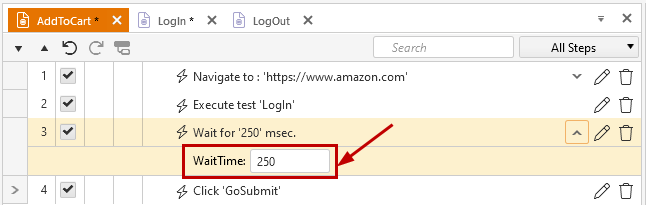
Change the amount of time to wait in the step's property *WaitTime*:
> **Tip**
>
>
> It is recommended to try synchronizing the test run with the help of a verify or wait step which are related to elements from the page. The so called *'hard-coded'* wait is to be used when there is no specific verification to handle need of wait.