# Test Lists in Visual Studio 2019 and Later
Visual Studio 2019 and later allows you to add and run the Test Studio test lists in the context of the Visual Studio project. Depending on the requirements there are two options of test lists, which you can add in the Visual Studio project - **Static** and **Dynamic**.
In this article you can find useful information on the below topics:
* [Test Lists in Visual Studio 2019 and Later](https://www.telerik.com/teststudio/documentation/automated-tests/vs-plugin/test-lists-in-vs-2017-2019#test-lists-in-visual-studio-2019-and-later)
* [Create a Test List in Visual Studio Project](https://www.telerik.com/teststudio/documentation/automated-tests/vs-plugin/test-lists-in-vs-2017-2019#create-a-test-list-in-visual-studio-project)
* [Add a Test List in an Existing Project](https://www.telerik.com/teststudio/documentation/automated-tests/vs-plugin/test-lists-in-vs-2017-2019#add-a-test-list-in-an-existing-project)
* [Add Test Files to Static Test List](https://www.telerik.com/teststudio/documentation/automated-tests/vs-plugin/test-lists-in-vs-2017-2019#add-test-files-to-static-test-list)
* [Add Test Files to Dynamic Test List](https://www.telerik.com/teststudio/documentation/automated-tests/vs-plugin/test-lists-in-vs-2017-2019#add-test-files-to-dynamic-test-list)
* [See Also](https://www.telerik.com/teststudio/documentation/automated-tests/vs-plugin/test-lists-in-vs-2017-2019#see-also)
* [Test List Settings in Visual Studio](https://www.telerik.com/teststudio/documentation/automated-tests/vs-plugin/test-lists-in-vs-2017-2019#test-list-settings-in-visual-studio)
* [Execute Test List Files in Visual Studio](https://www.telerik.com/teststudio/documentation/automated-tests/vs-plugin/test-lists-in-vs-2017-2019#execute-test-list-files-in-visual-studio)
> **Note!**
>
>
> Test lists in Visual Studio **only execute functional tests** e.g. WPF, Desktop and web tests.
## Create a Test List in Visual Studio Project
A Test Studio test list file has the extension **\*.aiilist** and can be added in a Visual Studio project under a predefined folder named **TestLists** - this folder exists by default in each new project.
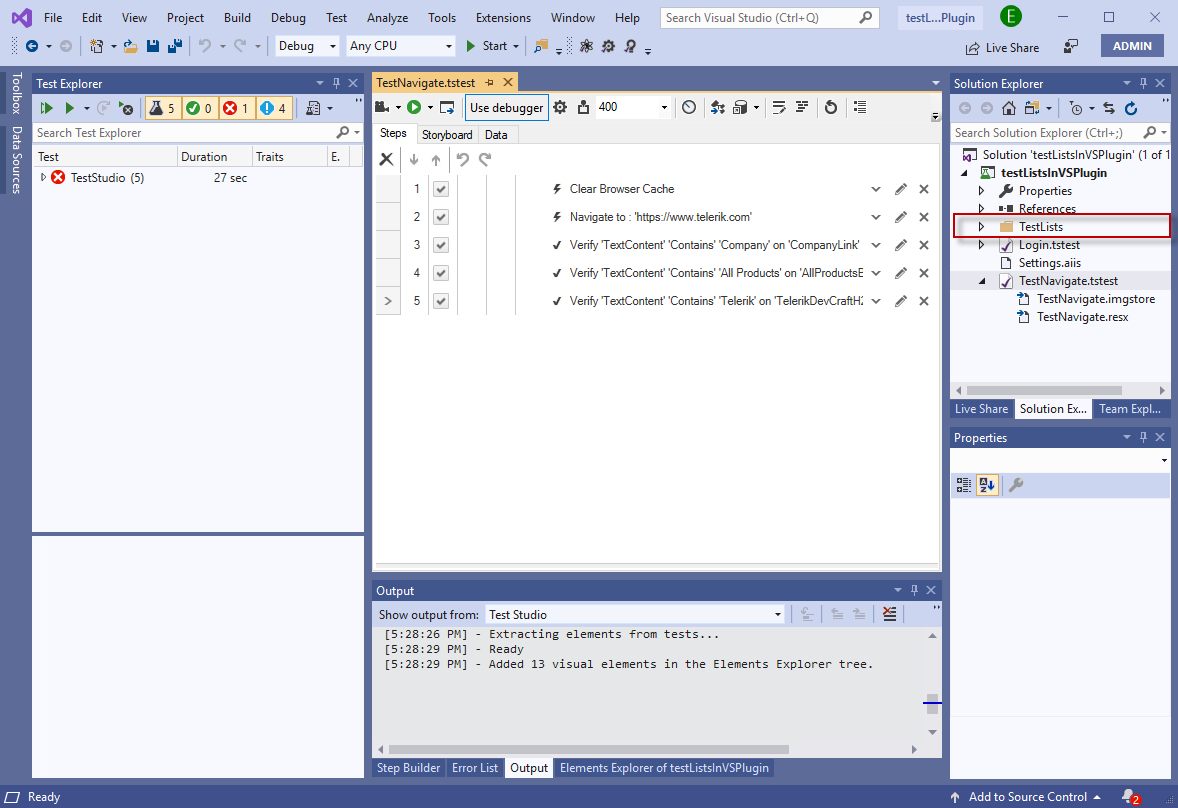
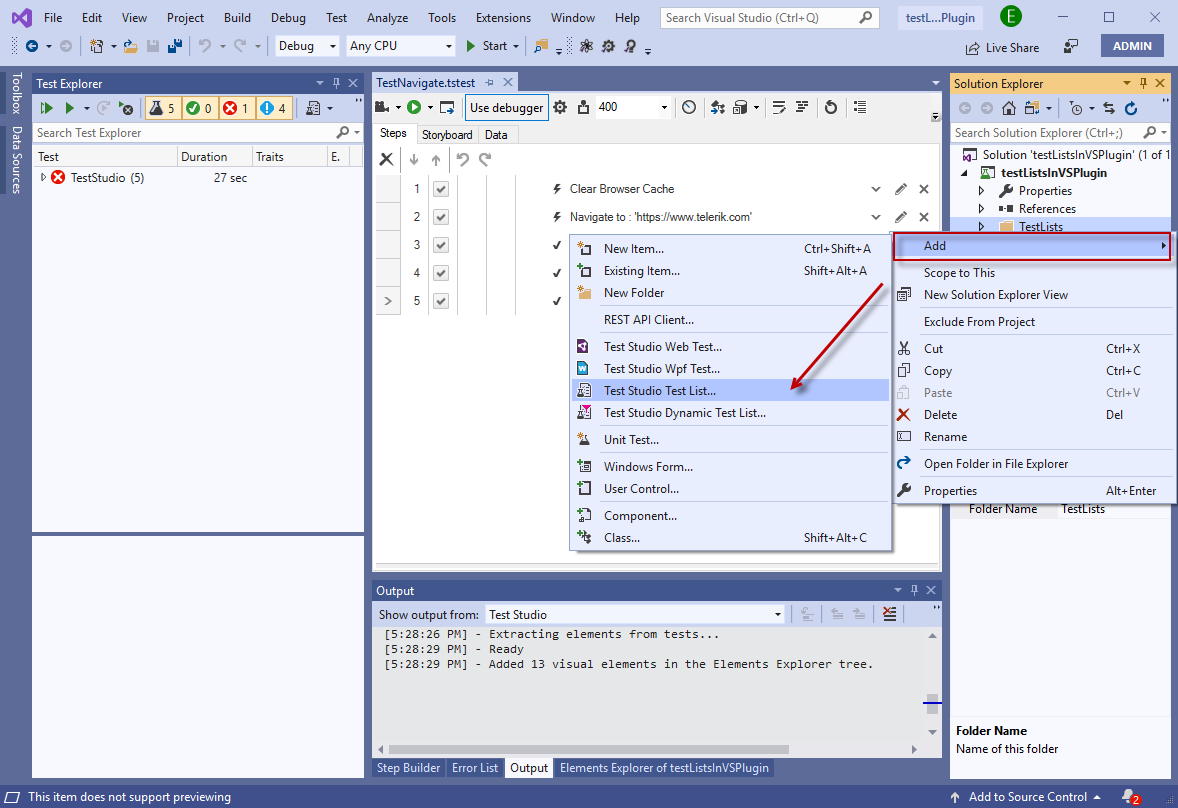
Right click on the **TestLists** folder and choose from the *Add* section sub-menu any of the options **Test Studio Test List** or **Test Studio Dynamic Test List** .
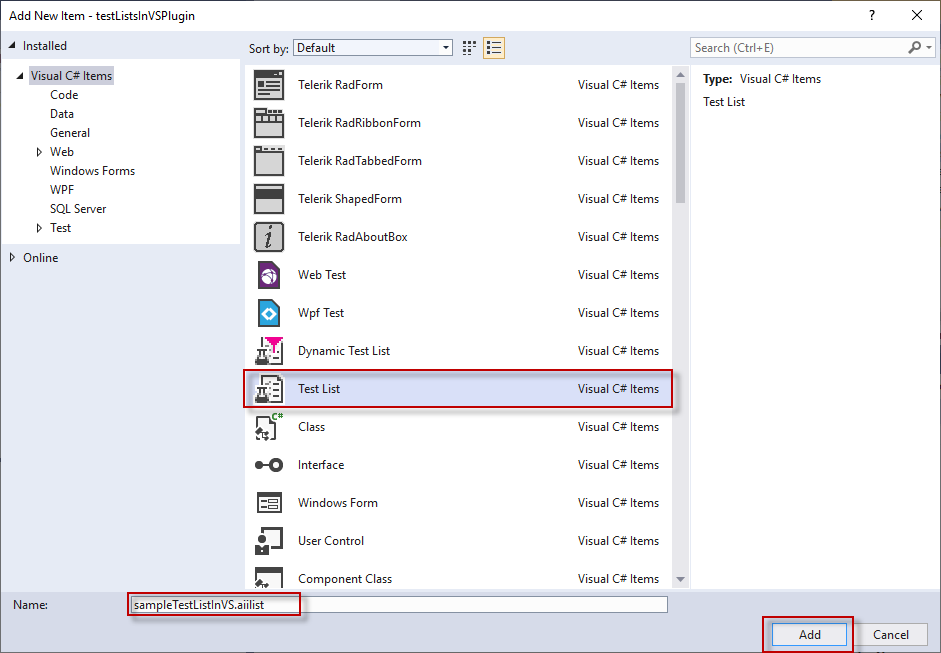
Set a name for the test list and double check if the correct test list item from the list is selected. Confirm the test list creation by clicking the *Add* button.
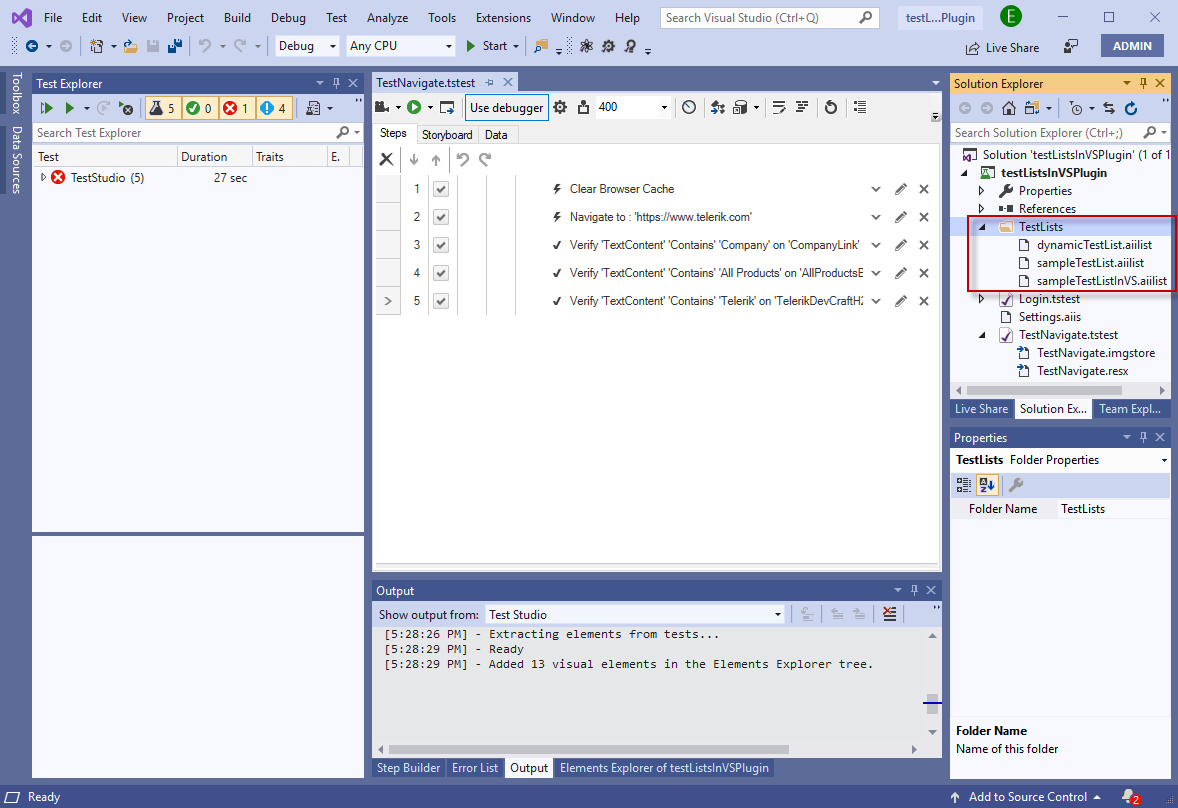
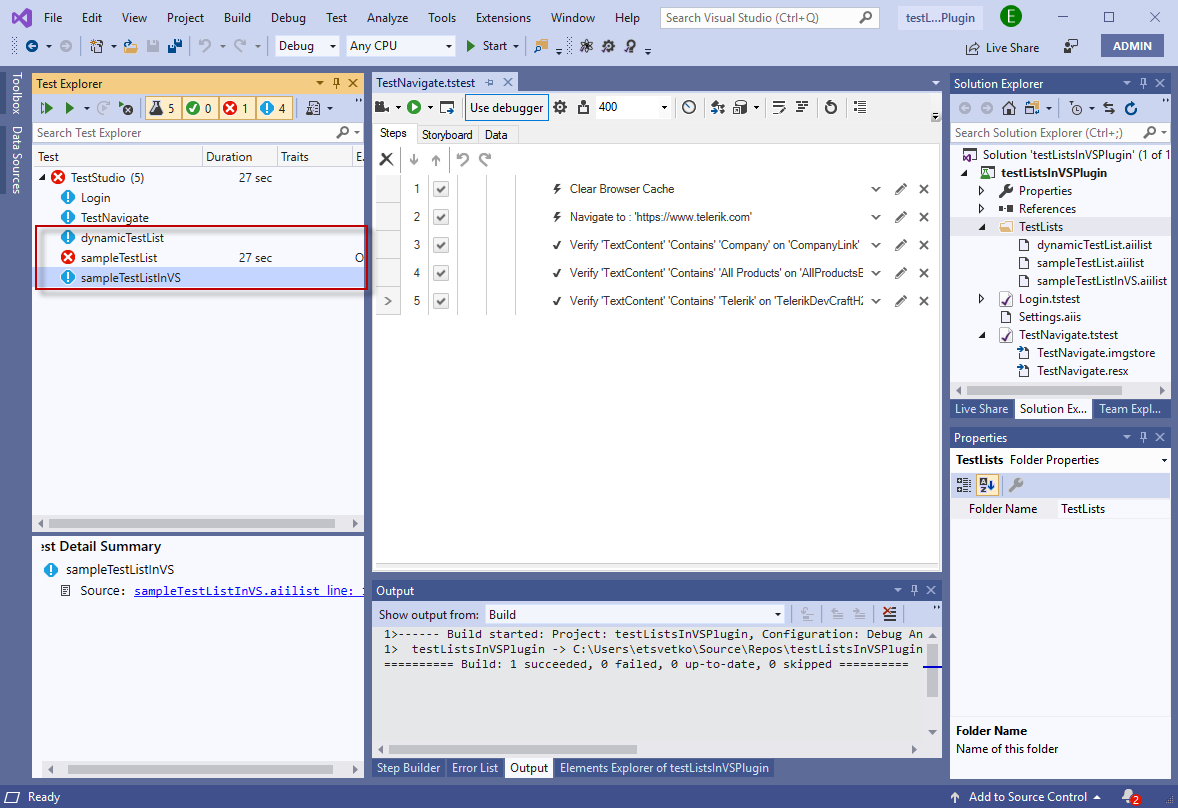
The newly created test list is listed under the **TestLists** folder.
Build the solution (press F6) and all test list files will appear in the Test Explorer available for execution.
## Add a Test List in an Existing Project
The Test Studio test lists in Visual Studio are implemented with Test Studio version 2019.3.xx. Thus, any project created with Test Studio prior this version requires some adjustment to enable the usage of test lists - the **TestLists** folder is not included in the solution for older projects and needs to be added manually.
Open the Test Studio project and choose the option **Show All Files** in the **Solution Explorer**.
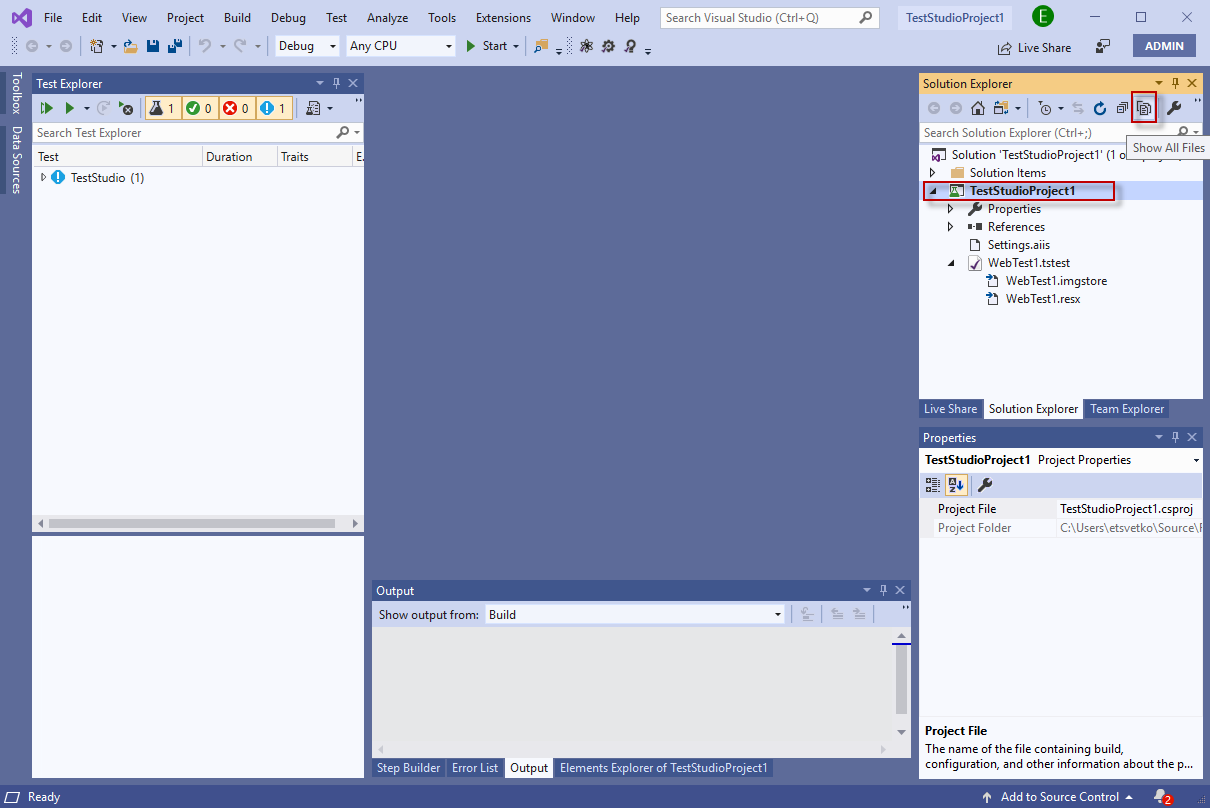
With this all items from the project root folder will be listed in the **Solution Explorer**. Select the **TestLists** folder and choose the **Include In Project** option from the right click context menu.
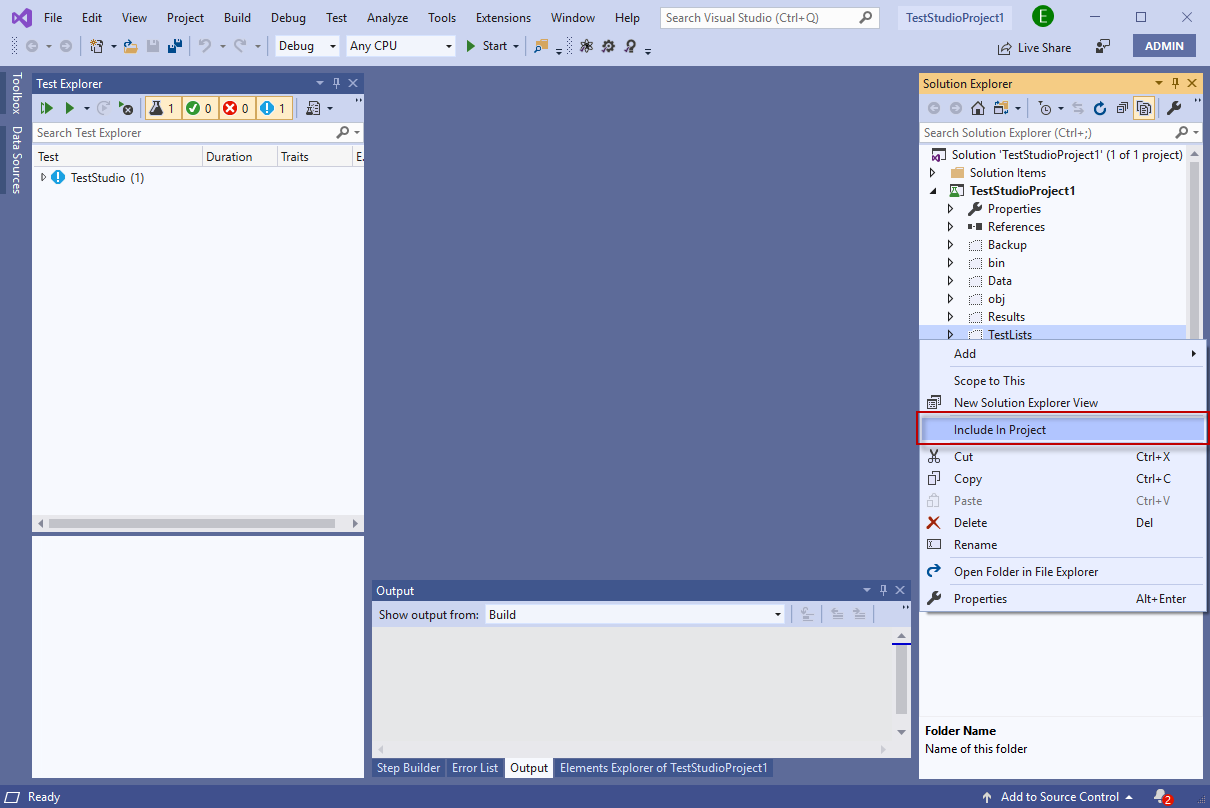
Click the **Show All Files** button again to toggle the view and **hide the other files** and folders. Save and reopen the solution to apply the changes. Now the **TestLists** folder can be used to add test list files in it as described [above](https://www.telerik.com/teststudio/documentation/automated-tests/vs-plugin/test-lists-in-vs-2017-2019#create-a-test-list-in-visual-studio-project).
## Add Test Files to Static Test List
Once a static test list file is added into the **TestLists** folder, double click this to open it. In this view you can choose the test files to include in the test list. All tests in the project are listed on the left side of the pane - you can use the arrows to move a file on the right side to include it in the test list.
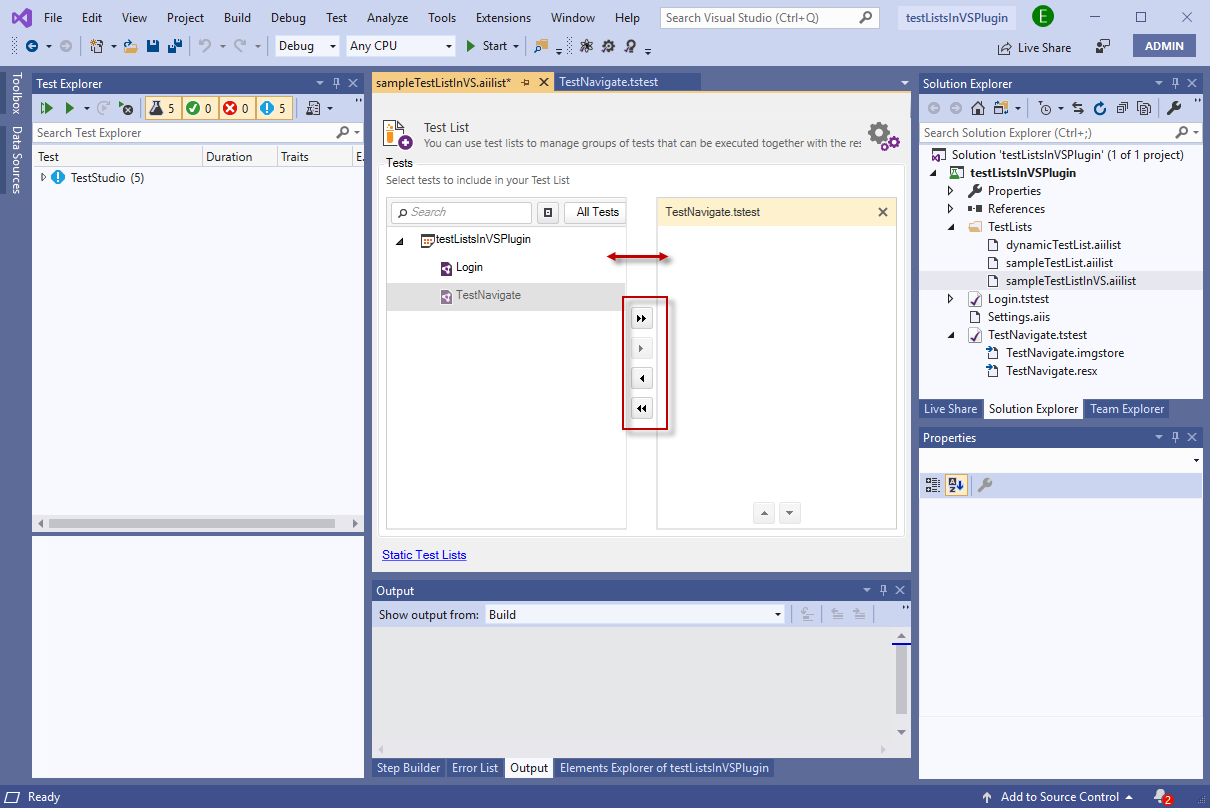
Save the test list file to keep the changes. The test list can be [executed](https://www.telerik.com/teststudio/documentation/automated-tests/vs-plugin/test-lists-in-vs-2017-2019#execute-test-list-files-in-visual-studio) from the **Test Explorer** in Visual Studio.
## Add Test Files to Dynamic Test List
Once a dynamic test list file is added into the **TestLists** folder, double click this to open it and craft the rules to filter the test files to add in the list.
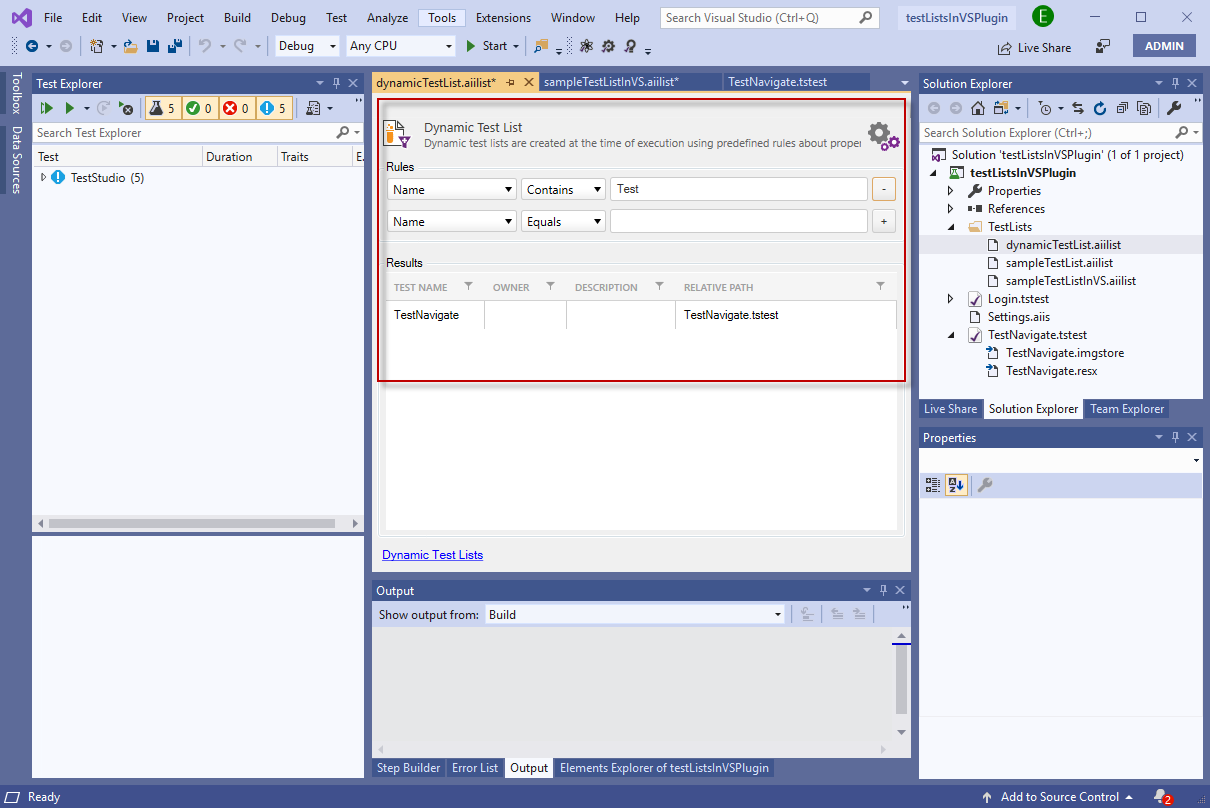
This type of test list lets you choose the tests to include dynamically based on some of the test properties. These, which you can rely upon, are the user-defined properties - Name, Owner, Path, Priority and the custom properties.
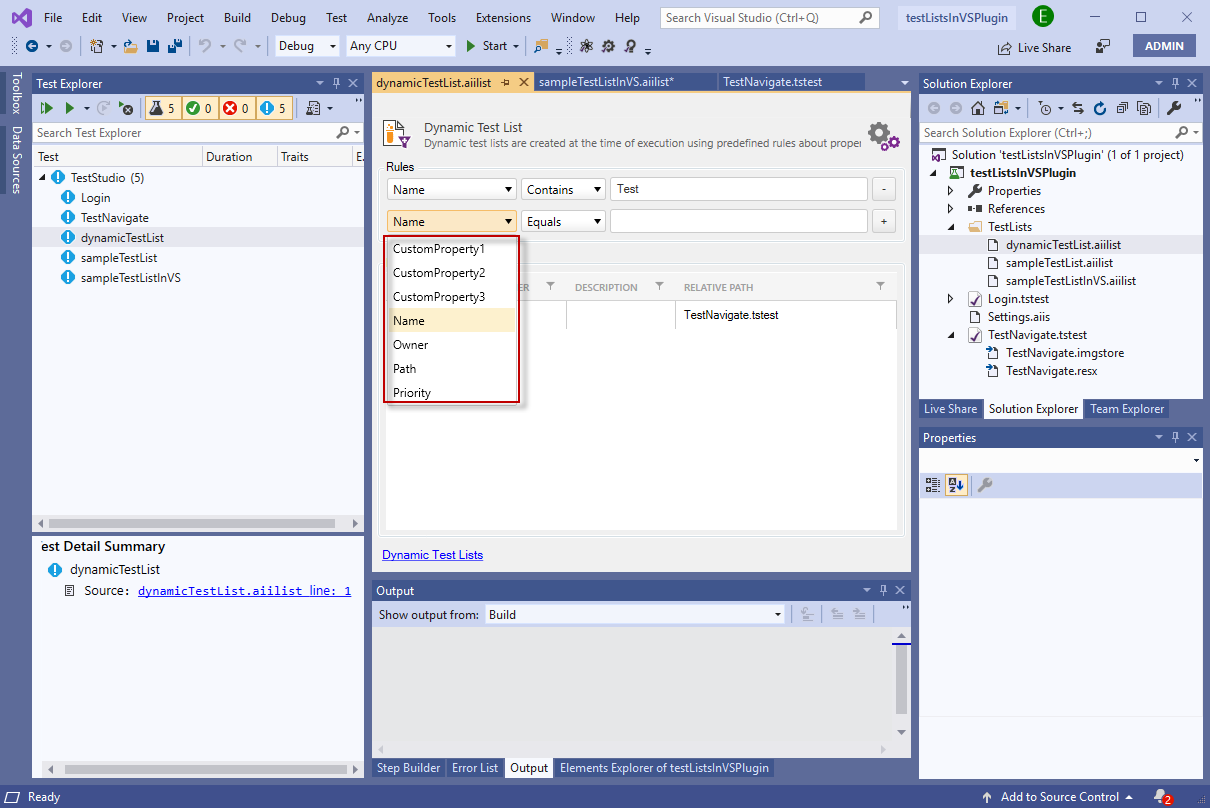
Save the test list file to keep the changes. The test list can be [executed](https://www.telerik.com/teststudio/documentation/automated-tests/vs-plugin/test-lists-in-vs-2017-2019#execute-test-list-files-in-visual-studio) from the **Test Explorer** in Visual Studio.
> **Note!**
>
>
> Each time a dynamic test list run is initiated, all tests in the project get queried and only these, which meet the criteria of the rules, are included in the test list and executed.
>
>
> **Tip**
>
>
> You can find further interesting details in the following in-depth look at Dynamic Test Lists.
## See Also
* In-depth look at Dynamic Test Lists.
## Test List Settings in Visual Studio
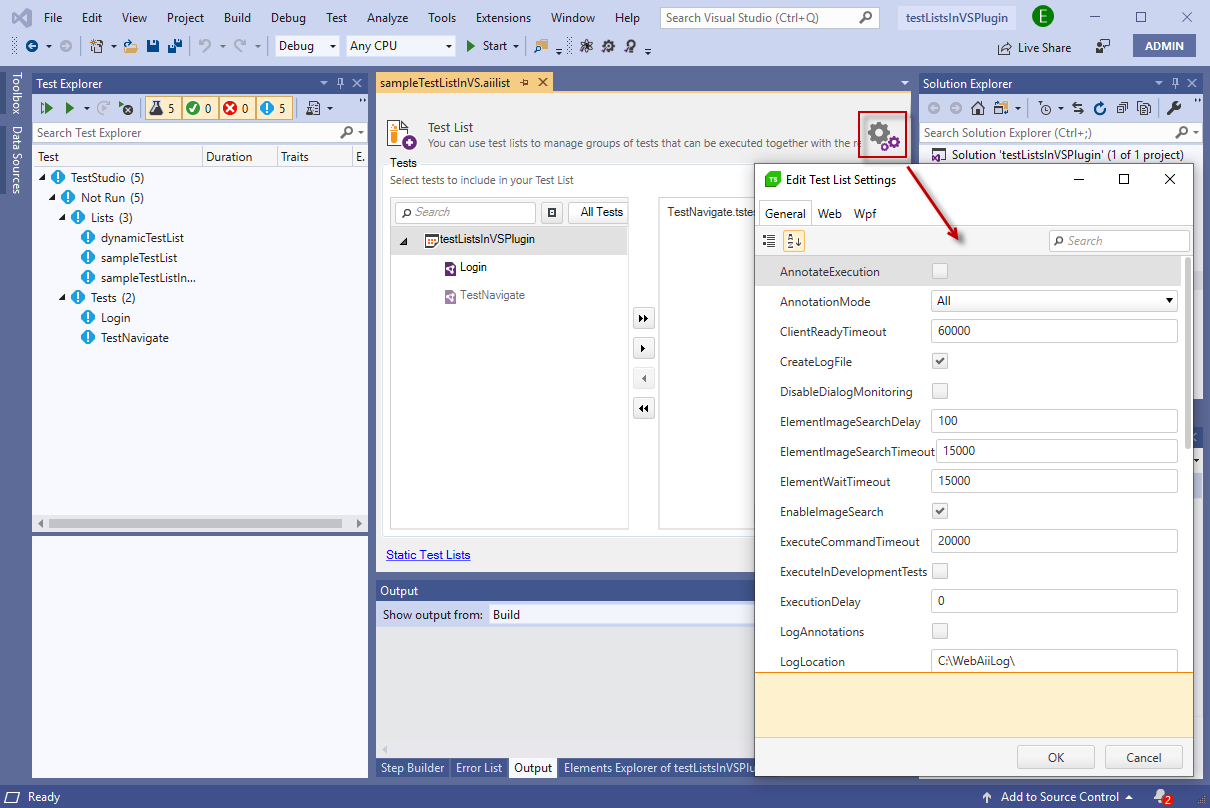
Test list settings can be customized to fit the specific environment and customer requirements. In Visual Studio you can access these through the *gear* icon in the upper right corner when a test list file is opened.
## Execute Test List Files in Visual Studio
To execute the test lists in Visual Studio, you can use the different Run options in Visual Studio Test Explorer.