# Explore the Results from Quick Test Execution
The **Quick Run** results are generated after a Quick test execution. This **result is a temporary stored result** and its usage is recommended while designing the automated tests and when troubleshooting failures. The current Quick Run result is deleted when a new Quick execution is triggered or project is reloaded.
## Generate the Quick Execution Log
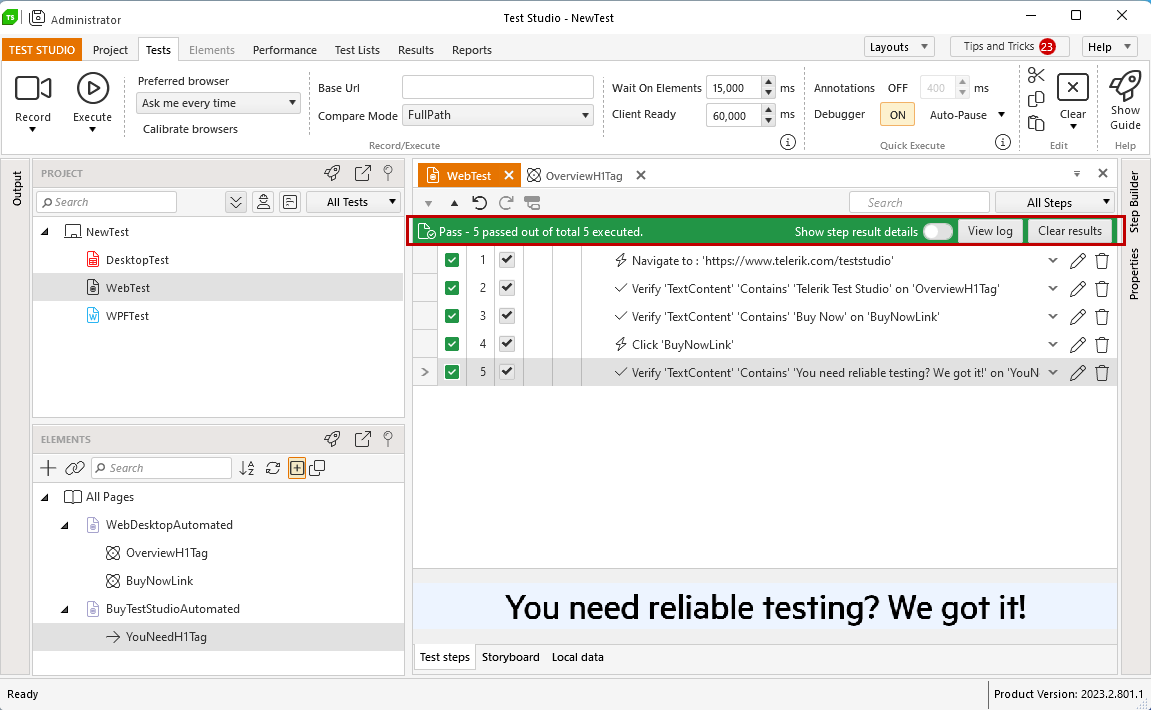
Record and execute a test. The status of the generated Quick Run result is displayed in the upper ribbon in the Steps Pane. You can see the overall result - passed in green or failed in red. You can access the execution log for this quick run through the **View Log** button, or use the **Clear result** option to delete the result from this execution.
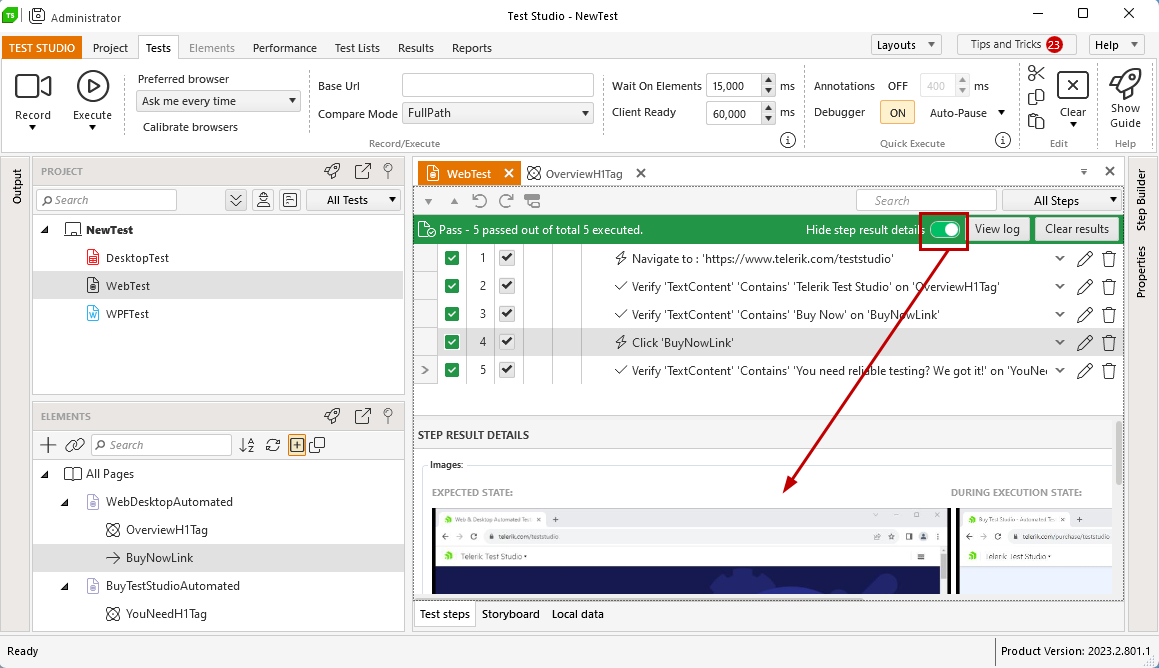
For each **action step, which was successfully passed**, you can see **images of the page state** at the time of recording the test, and the time of execution. when troubleshooting a failing test, these screenshots are very useful to identify, if an action is reported successful, but it turns out during the test run it wasn't actually performed as expected.
## Open and Review the Execution Log
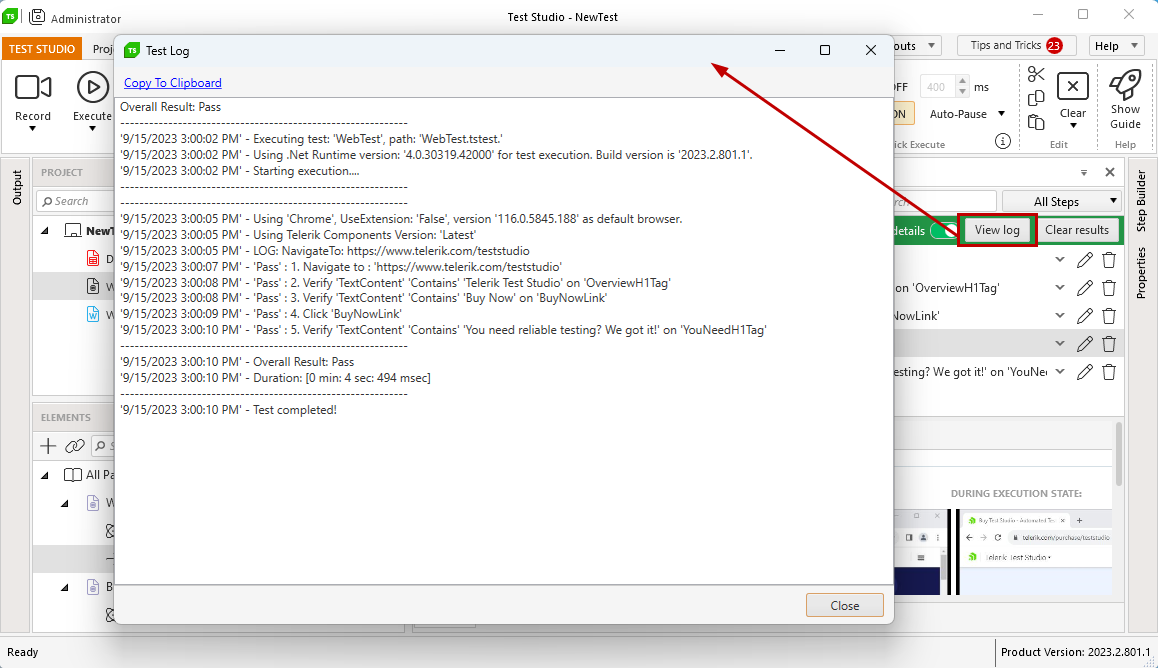
Click the **View Log** button to open and review the quick run execution log. It is opened in a separate window and provides additional details for the current run:
* which is the executed test,
* which is the executing browser,
* description of the executed steps,
* if the test is data driven, there is reference for the data source,
* if there are any warnings about the test configuration, these are listed,
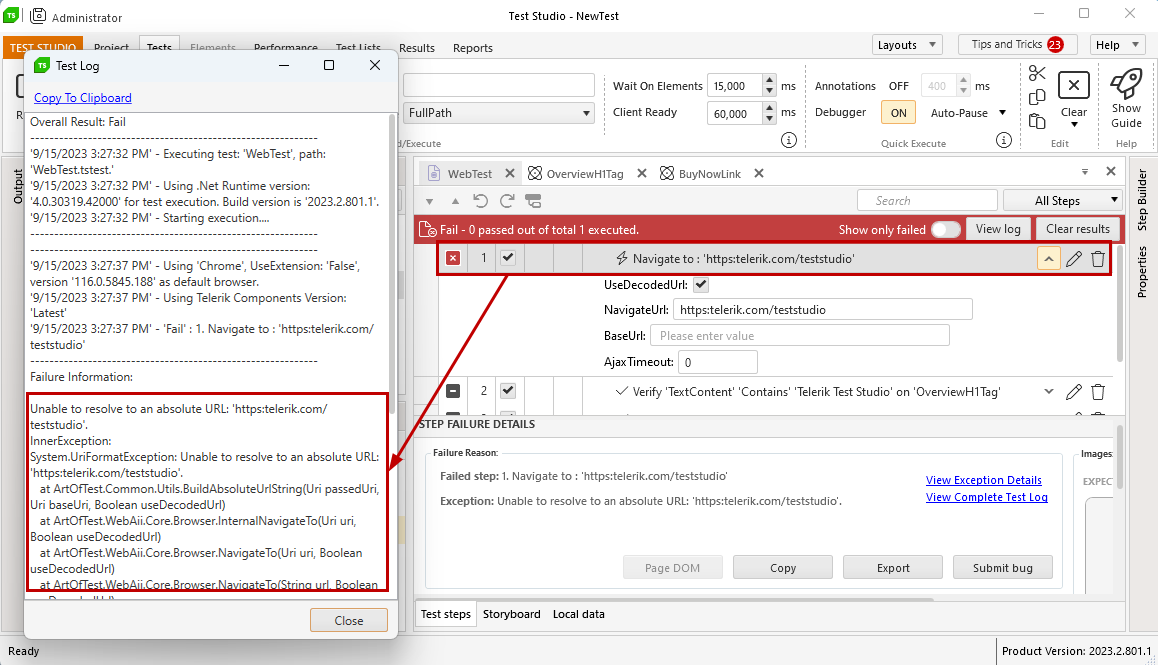
* full trace of the exceptions in case of failure.
All these details make the execution log a beneficial source of specific information about a test execution and it is often used to debug errors in the tests.
## Successful Test Run with Warnings
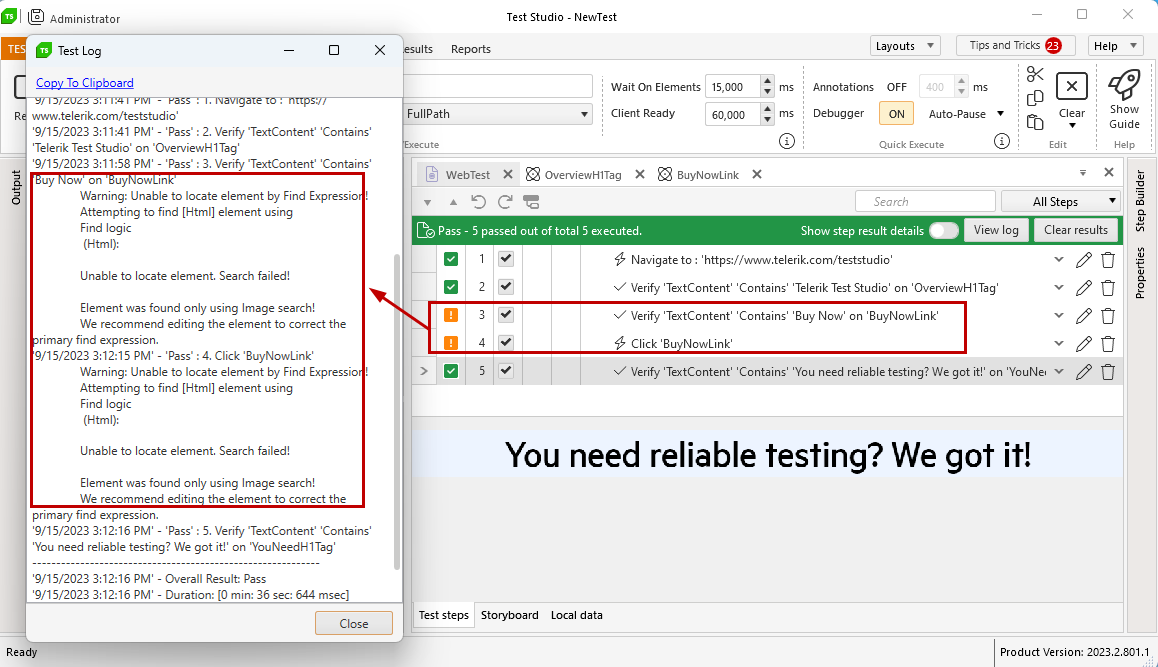
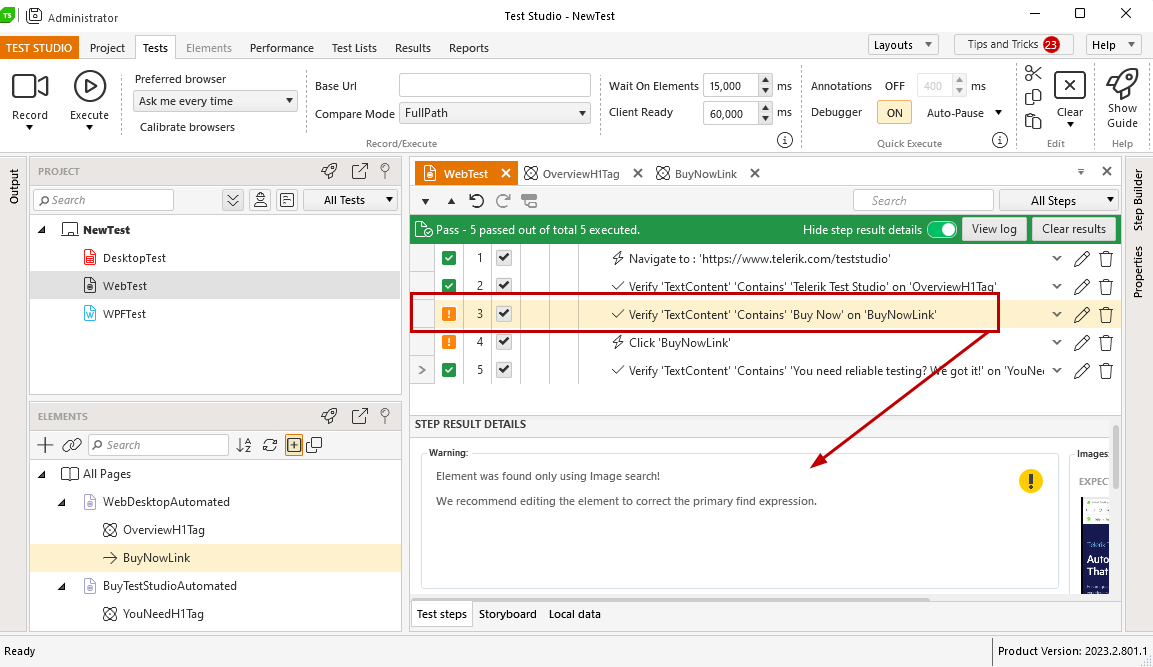
The automatic fall back to image based search of elements loga a warning in the execution log when triggered. The test result is marked as successful as all elements are located and all actions are performed, but if Test Studio fails to locate any element by its primary find expression, this is logged as message in the execution for your convenience.
> **Tip**
>
>
> Similar warning is logged, if the primary element identification is set to **Search By Image First**, but the element is found using the recorded find expression instead.
The warning is also listed in the **Steps Result Details** section and the step is marked with an exclamation mark icon.
## Failed Test Run
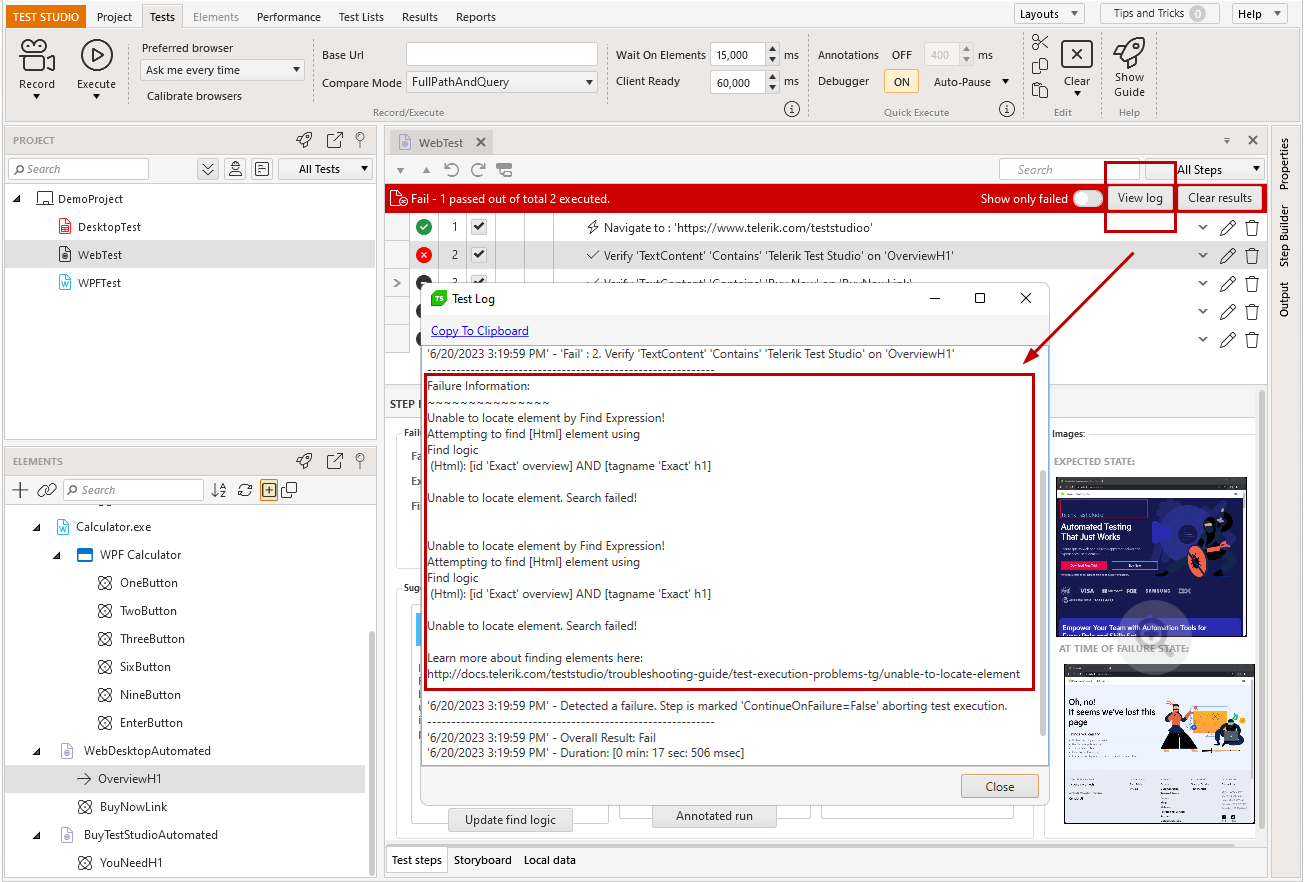
A failed test run generates an execution log with additional details about the specific failure.
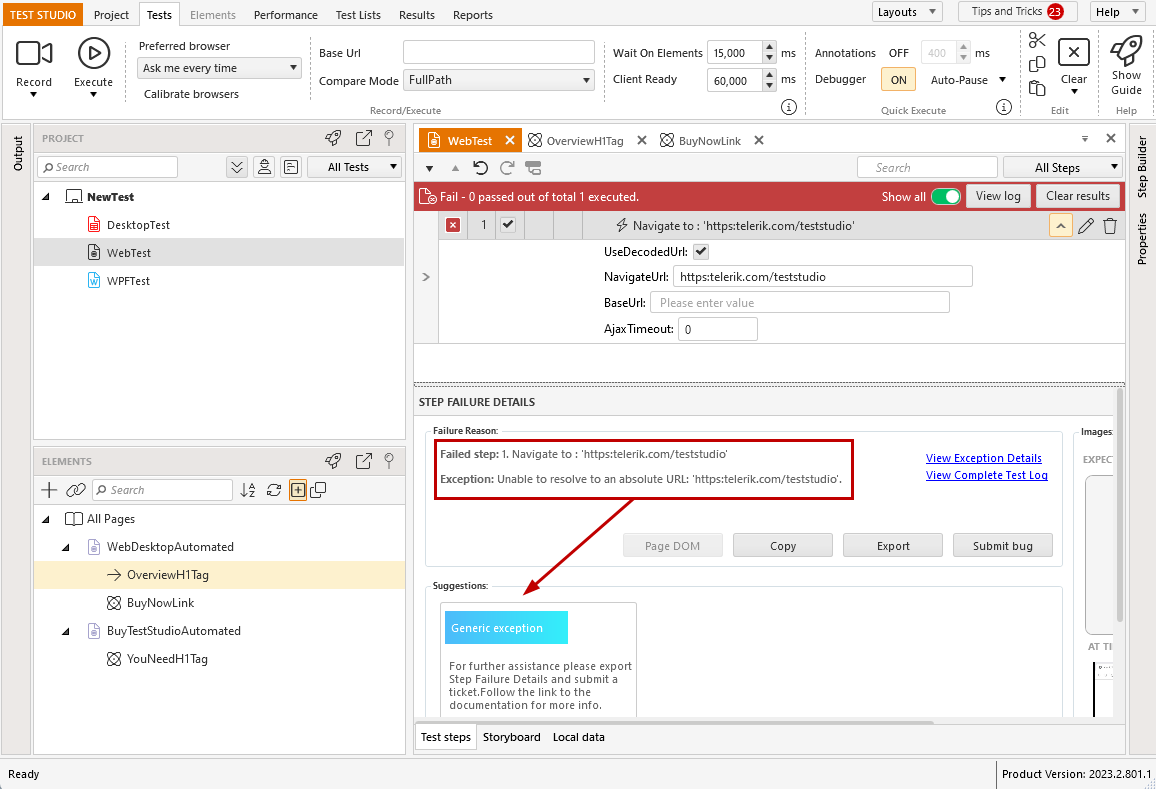
The **Step Failure Details** section shows a summarized message for the reason of failure and specific suggestions how to troubleshoot the error.
> **Tip**
>
>
> Complete details and resolution suggestions are also listed in the **Step Failure Details** window.
Any **element, which failed to be located by its primary or backup search definition, fails the test** and the overall status is reported failed. The **Step Failure Details** section shows a summarized message for the reason of failure and specific suggestions how to troubleshoot the error.
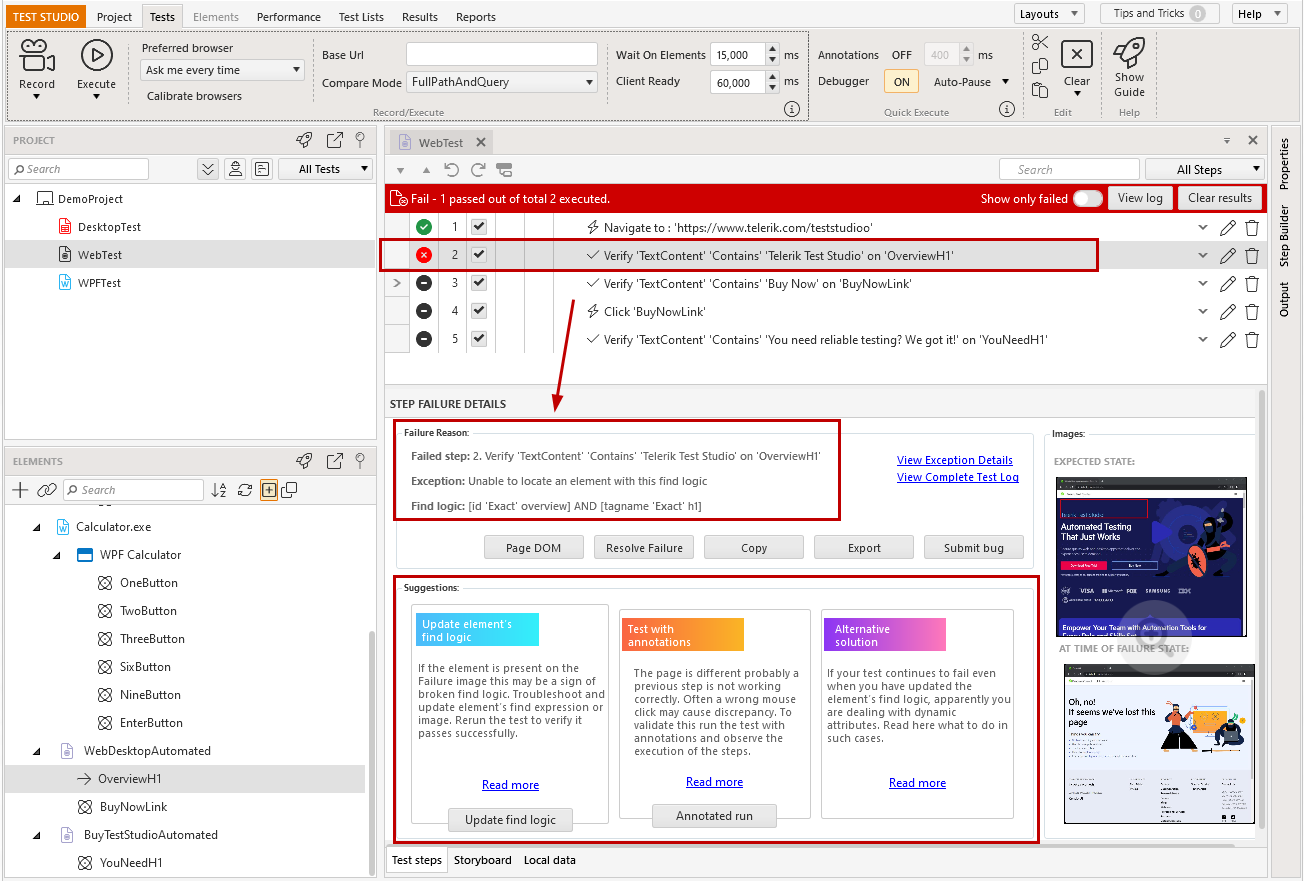
The execution log provides additional details for the failure and notes, if the backup search was used.
## Collect the Generated Quick Run Result
If you need to provide the quick run results to a colleague of yours or within a support ticket, you can copy the overall execution log using the **Copy To Clipboard** button, which is available when the log is opened. Paste and save the data in a text document, which can be distributed zipped.