# How to Execute Test
**Quick Test Execution** in Test Studio is a key feature, which helps in fine tuning the recorded actions, adjust test and step settings, to eventually introduce stable and consistent behavior of the test runs in test list mode, executed on different environments.
This article will guide you through the execution process in details.
## Execute a Test
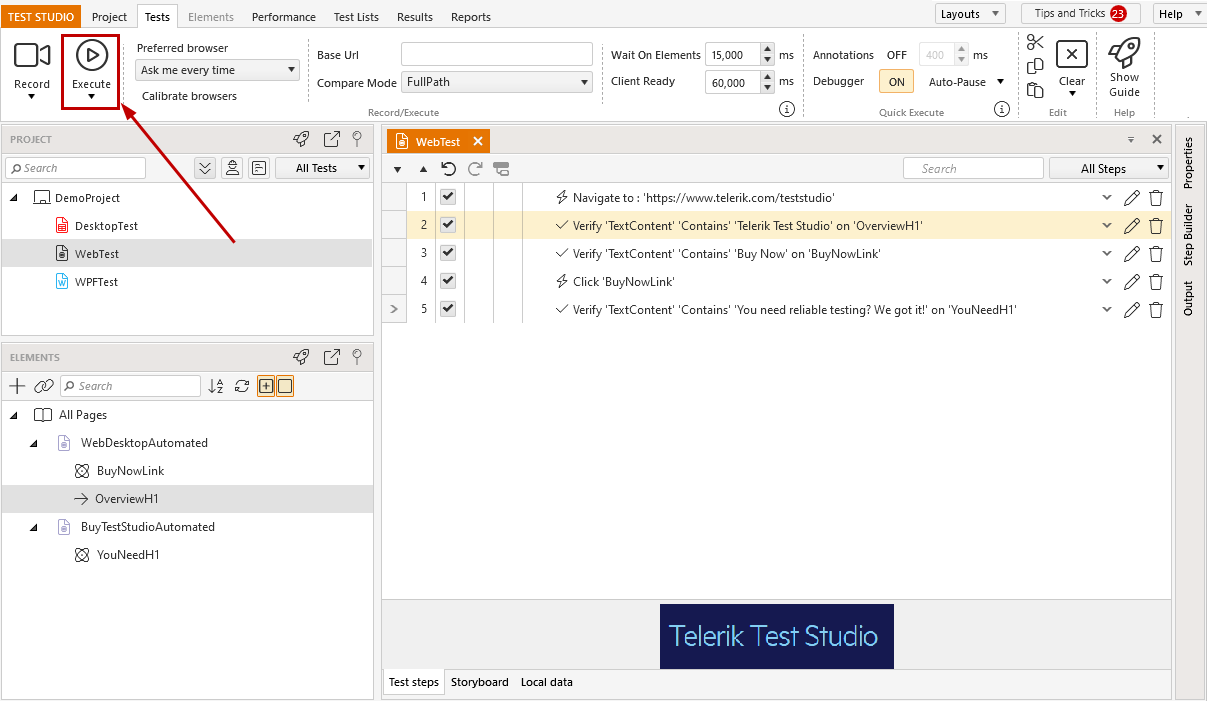
Once you have recorded a complete test scenario, the steps, which represents the recorded actions, are listed in the *Test Steps* pane. These steps can be **executed against any of the supported browsers**, regardless of the browser they were recorded against. To trigger the test run, click the **Execute** button in the ***Test*** ribbon.
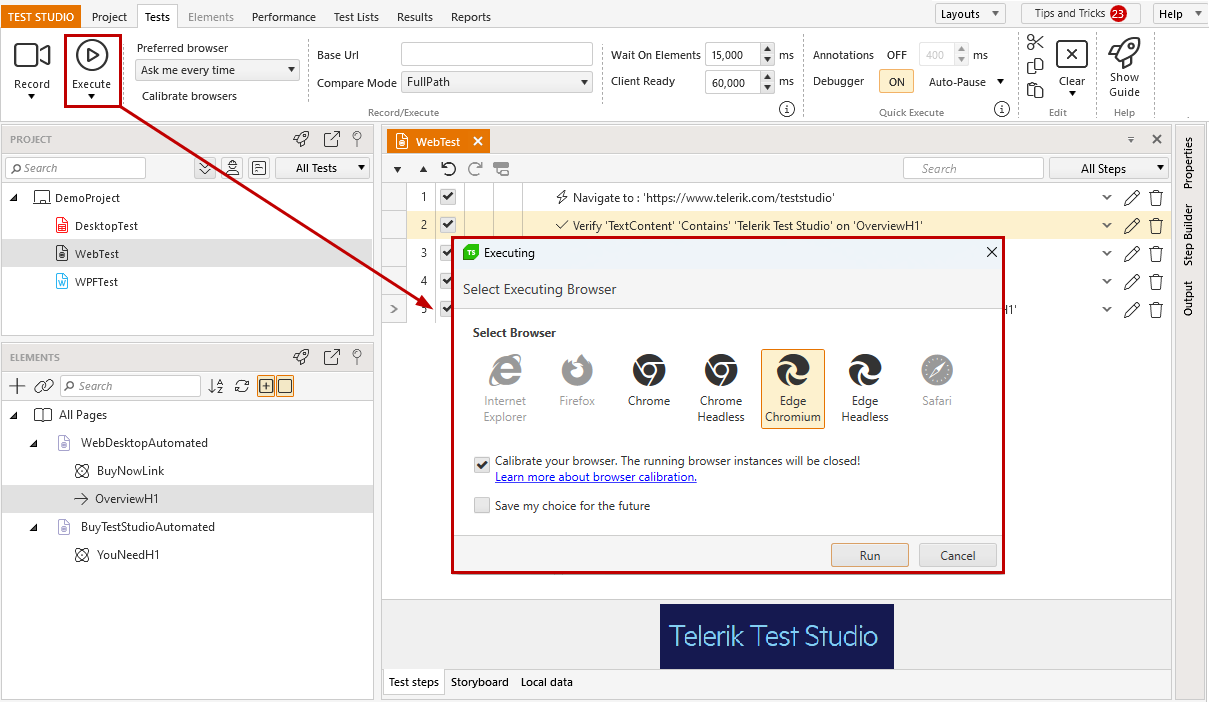
In the next dialog, which appears on the screen, **choose the browser to run the test against**. Select any of the browsers listed for execution and click the **Run** button.
> **Tip**
>
>
> This dialog will not appear, if you have already set a preferred browser from the **Test** ribbon.
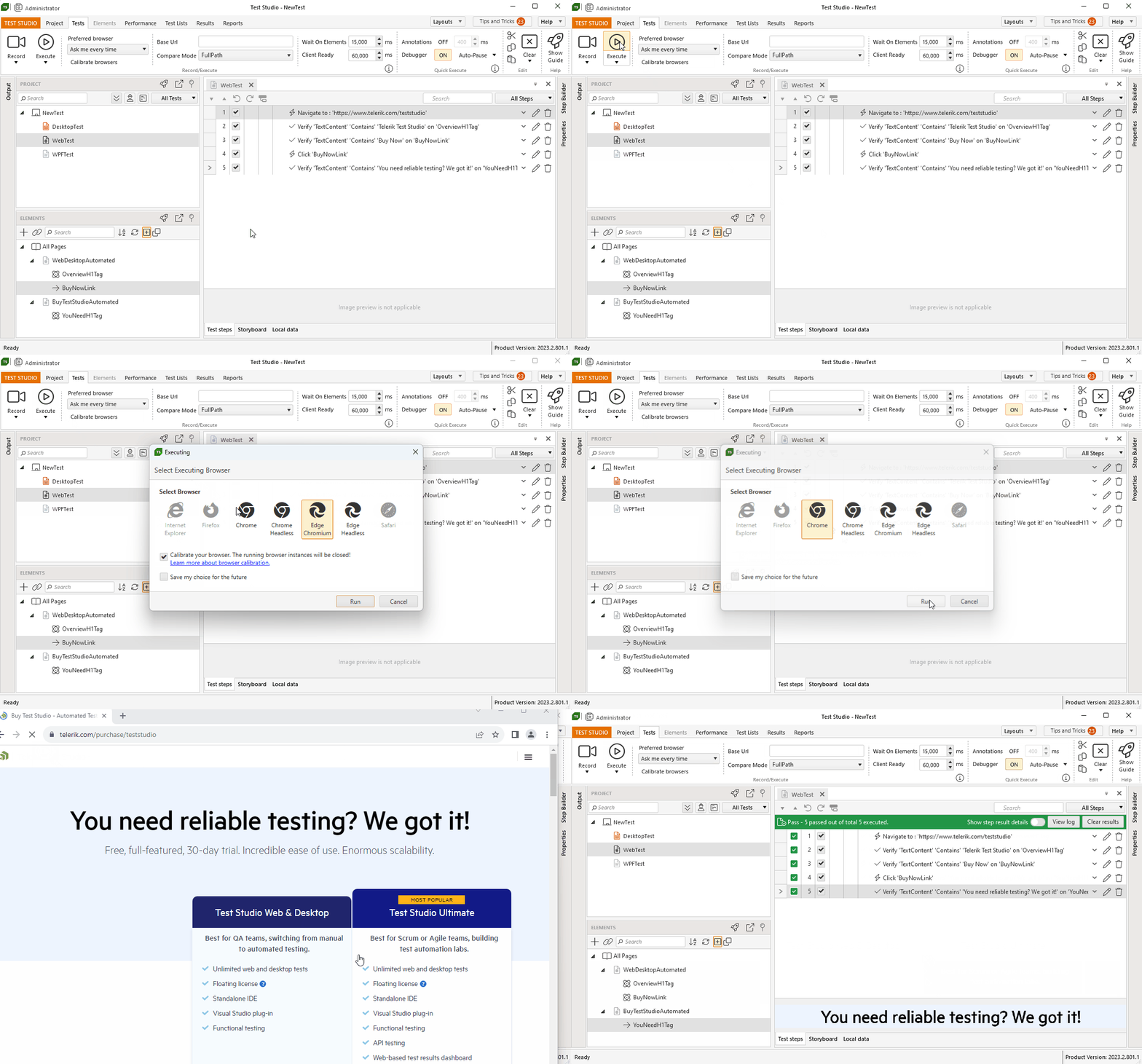
The selected browser is launched from Test Studio on top of any other running apps, and the recorded steps are being executed accordingly.
> **Important**
>
>
> While a test is being executed **do not start another instance of the same browser or any other application** until the run is finished!
## Quick Run Results
The results from the quick execution mode are dedicated mainly for debugging any inconsistencies in the recorded test steps. Therefore, these are only **temporary results for the last initiated run**. These will be overridden when the test is executed again using the **Execute** button, or deleted - if the test/project is closed and reopened.
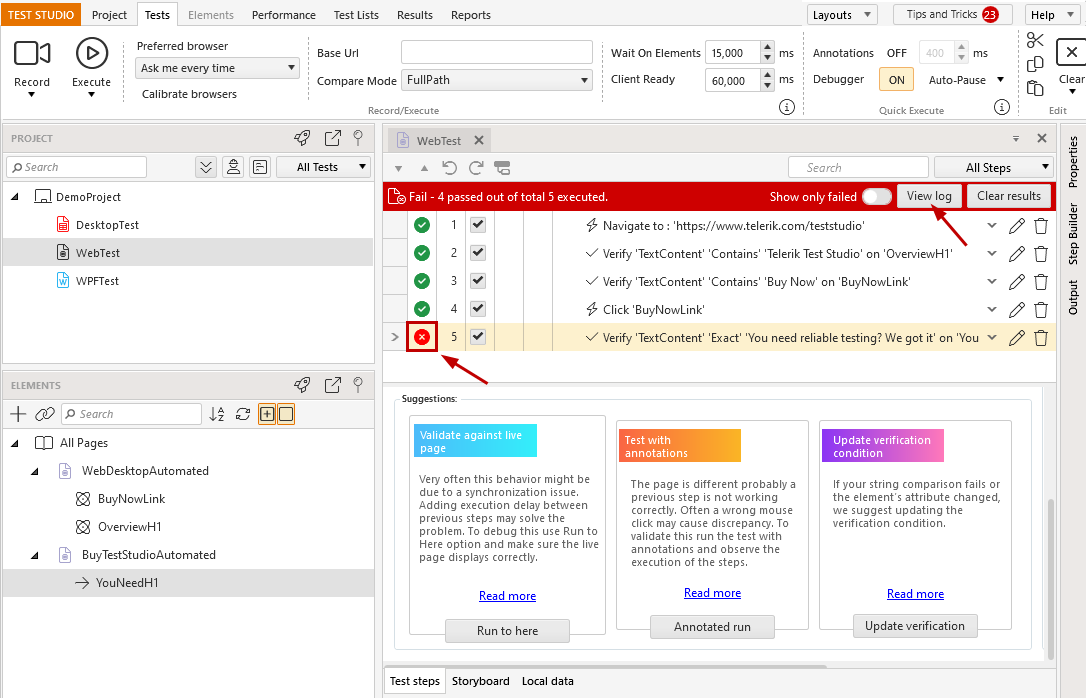
Once the test run is finished, the Test Steps pane displays the overall result - whether the test is passed or failed, which step failed, if any. You can also access a complete execution log and the failure details for the failing step, if applicable.
> **Tip**
>
>
> Once the test is adjusted and demonstrates consistent execution behavior, you can include it in a test list. The results generated from test list runs are being stored on project level.
## Options to Modify for the Quick Test Run
Test Studio provides multiple options to ease you in executing the tests and debugging any encountered failures. The mostly used settings are added in the ***Quick Test Execution*** ribbon for quick access. Details for these quick access options can be found in the referenced articles below:
* Set Preferred Browser
* Calibrate the Browsers
* Set a BaseURL and Compare mode
* Change the Execution Timeouts on project level
* Enable the Test Studio Visual Debugger tool
* Enable Annotations during test run