# Open Git Project
**Open** Git project in the terms of Test Studio is equal to **cloning an existing repository**. This option creates a local copy of the remote project in the specified folder during establishing connection.
Follow the steps to open a Test Studio project stored into a remote Git repository.
1. Launch any Test Studio project and click the **Open** button in the **Source Control** ribbon.

**OR**
Launch Test Studio and select the option **Open Source Control** from the **Welcome screen**.
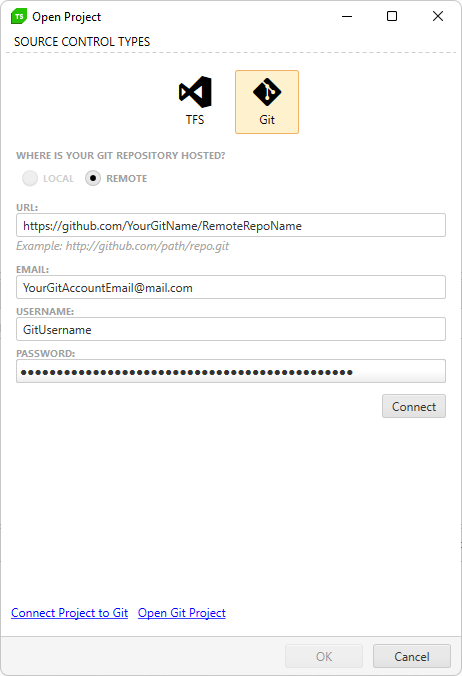
2. The **Source Control Type** dialog appears. Select **Git**, fill in the authentication details, click **Connect** and **OK**.
> **Important**
>
>
We **strongly recommend to generate a PAT (Personal Access Token) scoped** for accessing the testing project repository only and use it to connect to the remote repo.
> **Note**
>
>
> If you are not able to connect to the Git system and get a message *Error connecting to Git, too many redirects or authentication replays*, check if the remote repository requires 2FA to be accessed. Generate a personal access token in your Git account for this repository and use that token instead of the account password.
3. Select a folder where the project will be cloned.
![Clone][11]
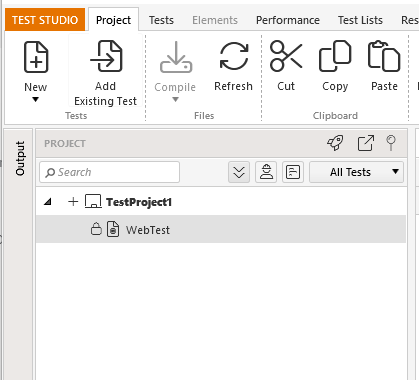
4. The project and project files are now marked with a  icon. This indicates it is bound to Source Control.
5. The **Output panel** includes Source Control tab where you can find additional info for the outcome of commands while using the source control features.
[11]: https://www.telerik.com/teststudio/documentation/assets/2608743ac2229f9e7f640f3e32f0ad30/fig6.png