# Run List Remotely

Once you have <a href="/features/scheduling-test-runs/multiple-machines-scheduling-setup/create-scheduling-server#configure-the-test-studio-scheduling-service" target="_blank">configured your Scheduling setup</a> with at least one execution machine connected and your current <a href="/features/scheduling-test-runs/connect-to-scheduling-server#schedule-tests-on-remote-execution-machines" target="_blank">project is connected to the Scheduling service</a>, you can proceed with executing test lists remotely.

## Trigger Test List Execution on Remote Execution Machine

1. Open the **Test Lists** tab. If you have not created a <a href="/getting-started/test-execution/test-lists-standalone" target="_blank">test list</a>, add one by clicking the **List** button in the **Add** ribbon. Add at least one test to it.

2. Once you have a test list, you can run it remotely. Click **Run List Remotely** in the **Execution** ribbon.
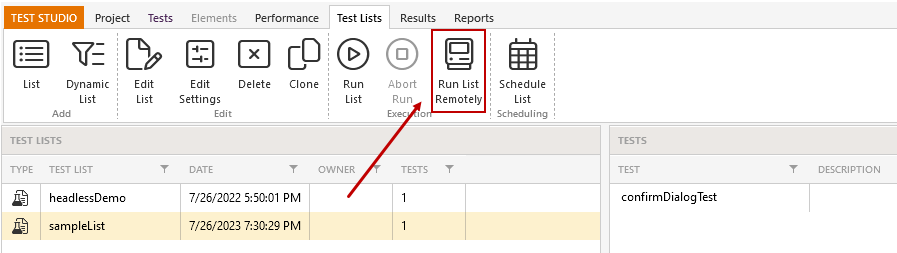
   ![Run List Remotely](https://www.telerik.com/teststudio/documentation/assets/15da8a725060a898e1610876864fe6b2/fig1.png)

3. Select the execution machine(s) for your test list.
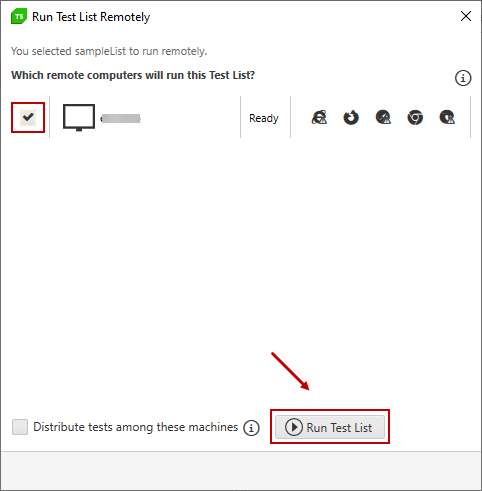
   ![Select Test List](https://www.telerik.com/teststudio/documentation/assets/83c6b8b15cbcdc49a425b80548fda102/fig2.png)

4. In case a test is already running on any of the listed machines its status will be Busy and the listing will be grayed out.
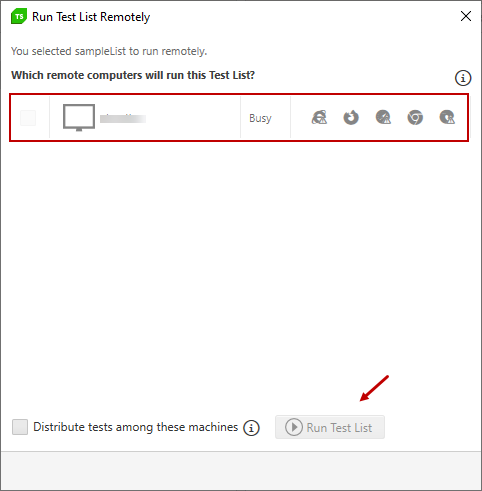
   ![Busy Status](https://www.telerik.com/teststudio/documentation/assets/e579fe93a9af99fd0d25ced0e626e035/fig8.png)

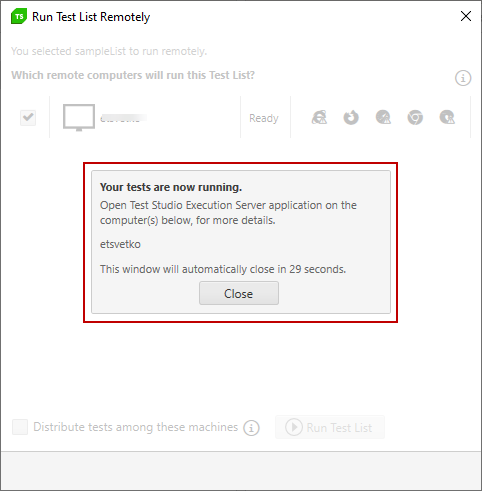
5. A message appears indicating that your tests are now running. Click **close** to return to the **Test Lists** tab.
   ![Close](https://www.telerik.com/teststudio/documentation/assets/6e5ff1e70388ce5a068bb116e8b46546/fig3.png)

## View Test List Results

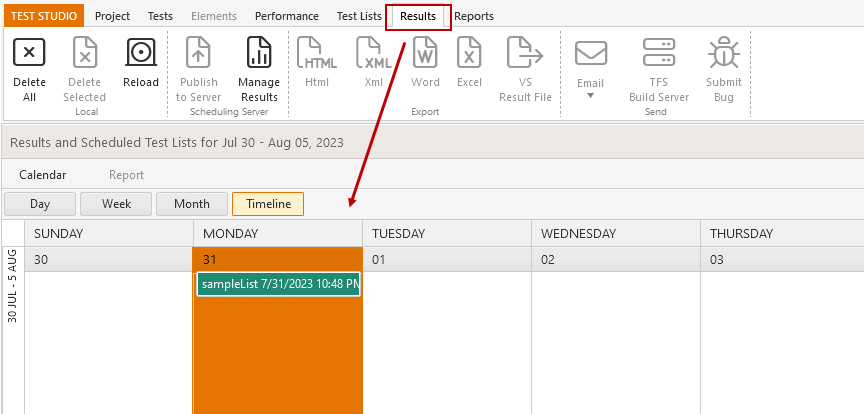
Go to the **Results** tab to view the outcome. <a href="/features/scheduling-test-runs/scheduling-results" target="_blank">See here</a> for further information.

![Results](https://www.telerik.com/teststudio/documentation/assets/a4defb7ec173a041550fc49b8f05f316/fig4.png)

## View Execution Details

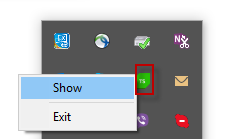
1. On the Execution Server, right-click the Test Studio Test Runner icon in the System Tray and click Show.
   ![Show](https://www.telerik.com/teststudio/documentation/assets/7f8c44d4e8478d7ed0e2715bd9a5253c/fig5.png)

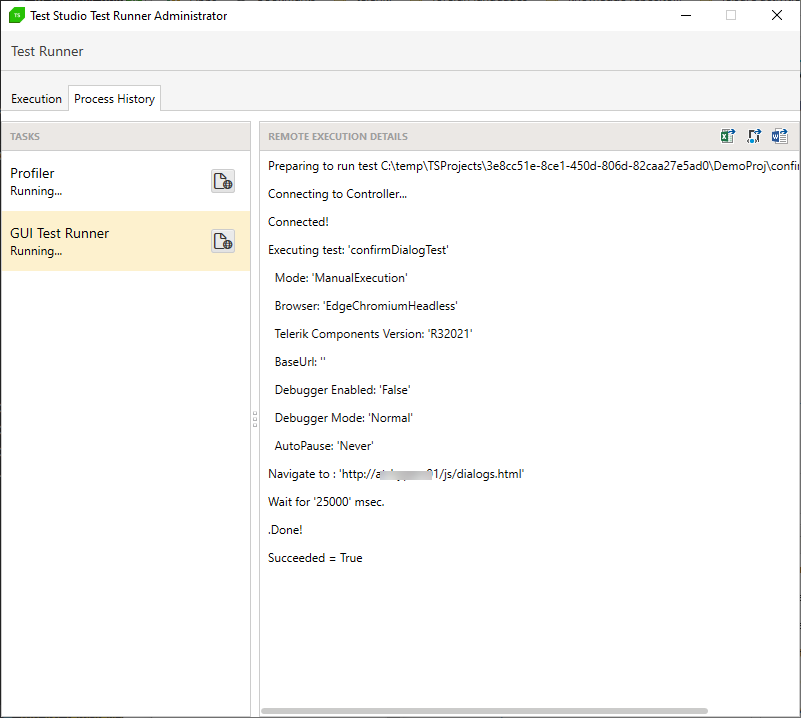
2. Click **Process History** > **GUI Test Runner**. The execution details will appear on the right.
   ![GUI Test Runner](https://www.telerik.com/teststudio/documentation/assets/e0debd908ae53608bdac7bf3c06a4cca/fig6.png)

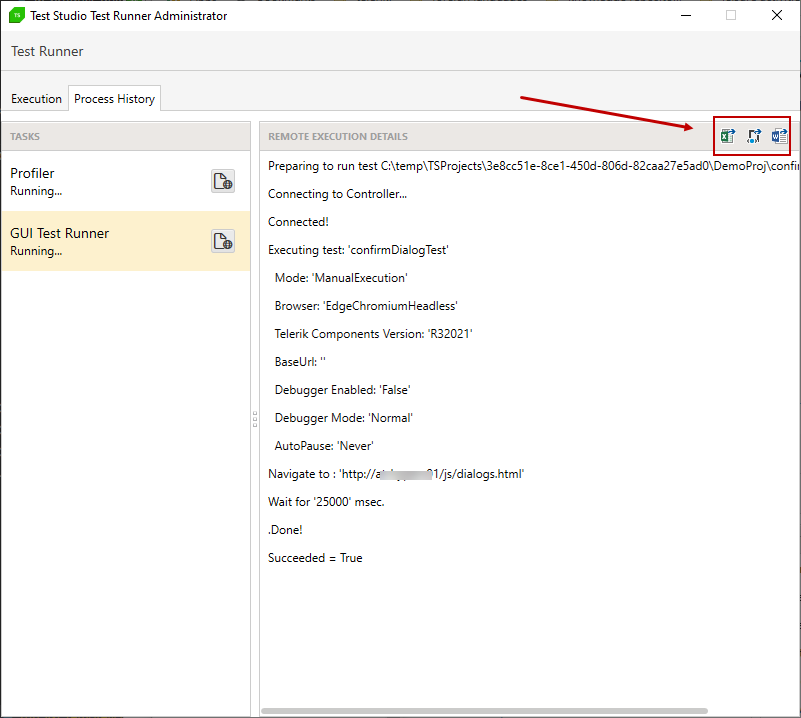
3. To export remote execution details, click the correct format button in the **Remote Execution Details** pane.
   ![Remote Execution Details](https://www.telerik.com/teststudio/documentation/assets/5276cf19d7f711804dd2d086c8b462c3/fig7.png)