# Validate PDF File
PDF files are commonly used for generating reports and documents across different business areas and companies. Test Studio, as being among the PDF automation tools, provides the functionality for **PDF validation automation** out-of-the-box and completely codeless.
Find out how to open a PDF file in the browser and record the scenario actions in a Test Studio test.
## Enable Edge Browser for PDF Validation
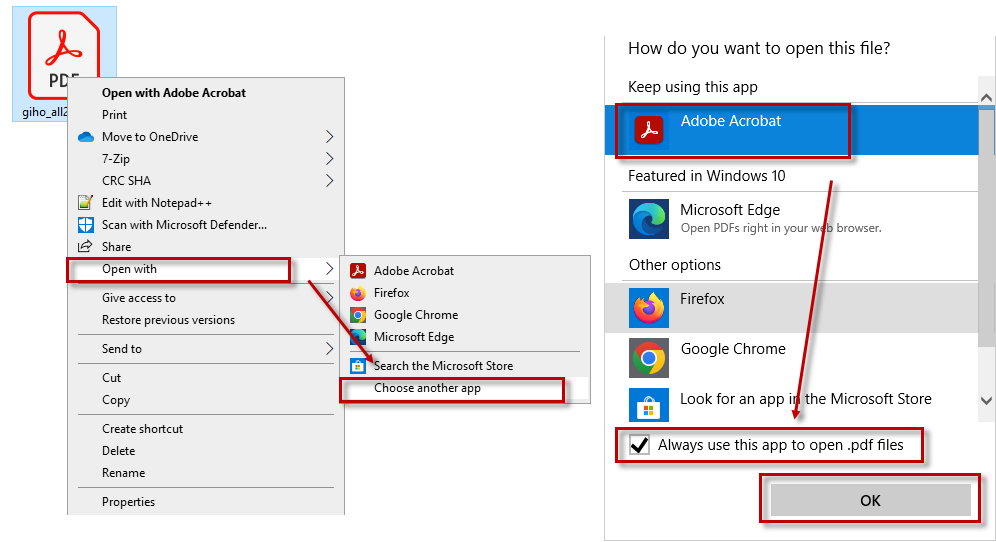
Windows OS default settings use Edge browser as a PDF viewer. As long as this is set that way, Test Studio automation logic fails to save the downloaded PDF file and open it in new tab.
To be able to **use the PDF validation with Edge browser**, you need to **change the Windows OS default PDF viewer** and choose another app to open PDF documents.
## Download and Open PDF File
Usually when working with data exported to PDF file, you need to generate the specific content and download the PDF file, then open it and validate if the expected information is listed in the generated file.
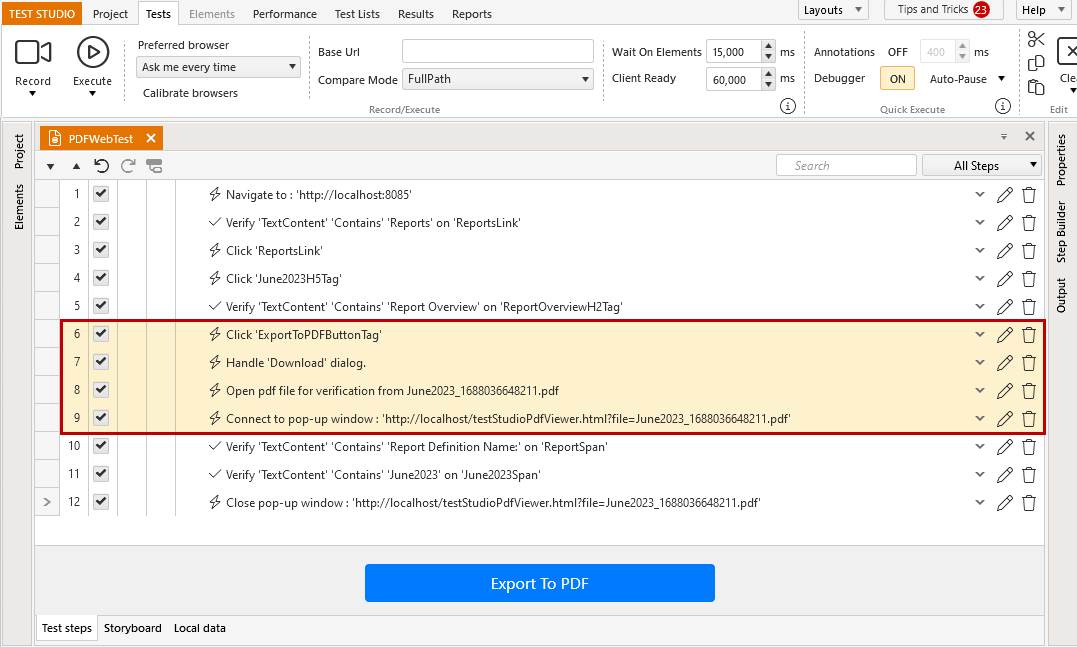
And this is a complete end-to-end scenario for test automation of a PDF file in a Test Studio recording session. Whenever a **PDF file is downloaded**, the recording process detects it and **opens it in a new tab of the recording browser**. As a result, there is a sequence of steps recorded - click the download button, handle the download dialog, open the downloaded PDF, connect to the tab with PDF file opened, record different type of steps to check the content and automate the PDF validation.
## Open Local PDF File
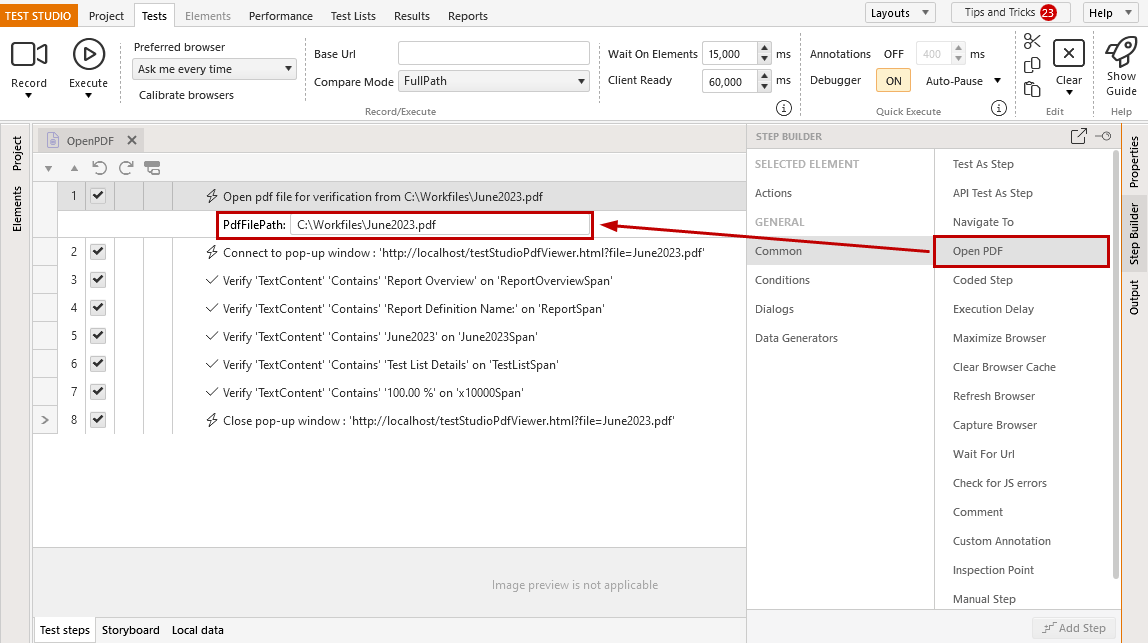
Another scenario for PDF test automation is to **open an existing locally stored file** and validate its content. To accomplish this in a Test Studio test, you can use the **Open PDF File** step from the Step Builder. Insert a valid path to an existing PDF file to open it during the test execution.
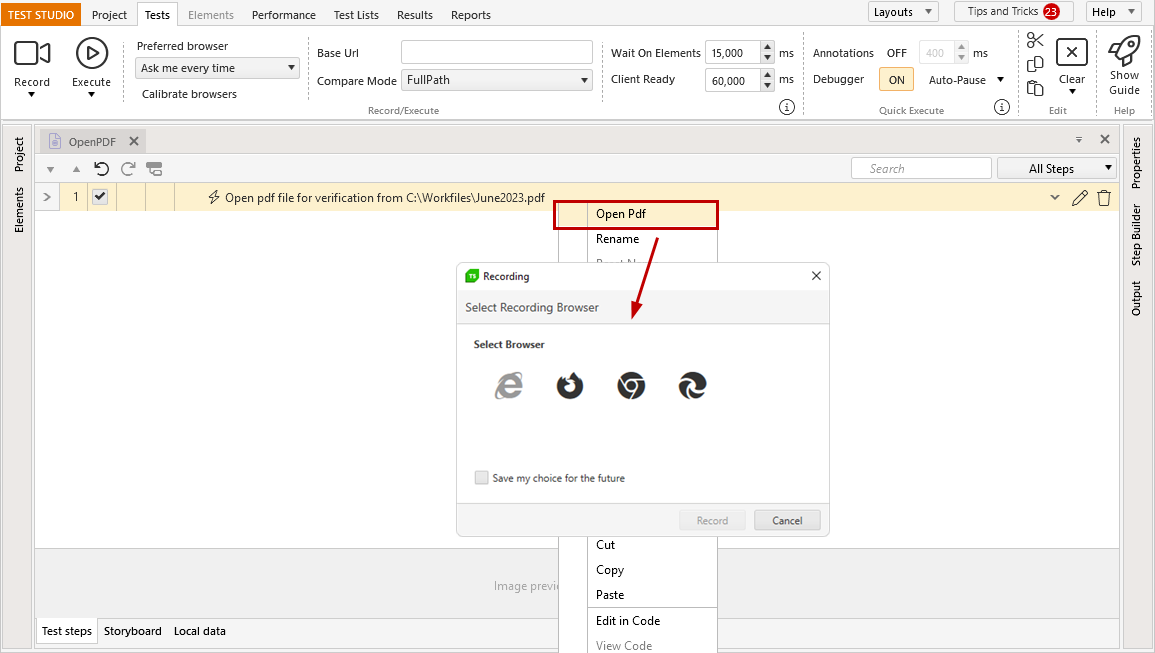
To open the listed PDF file in the browser and **continue recording**, choose the step context menu option **'Open PDF'**. Choose the browser to use and continue the recording session.
> **Note**
>
> Open PDF step is not supported in Internet Explorer.
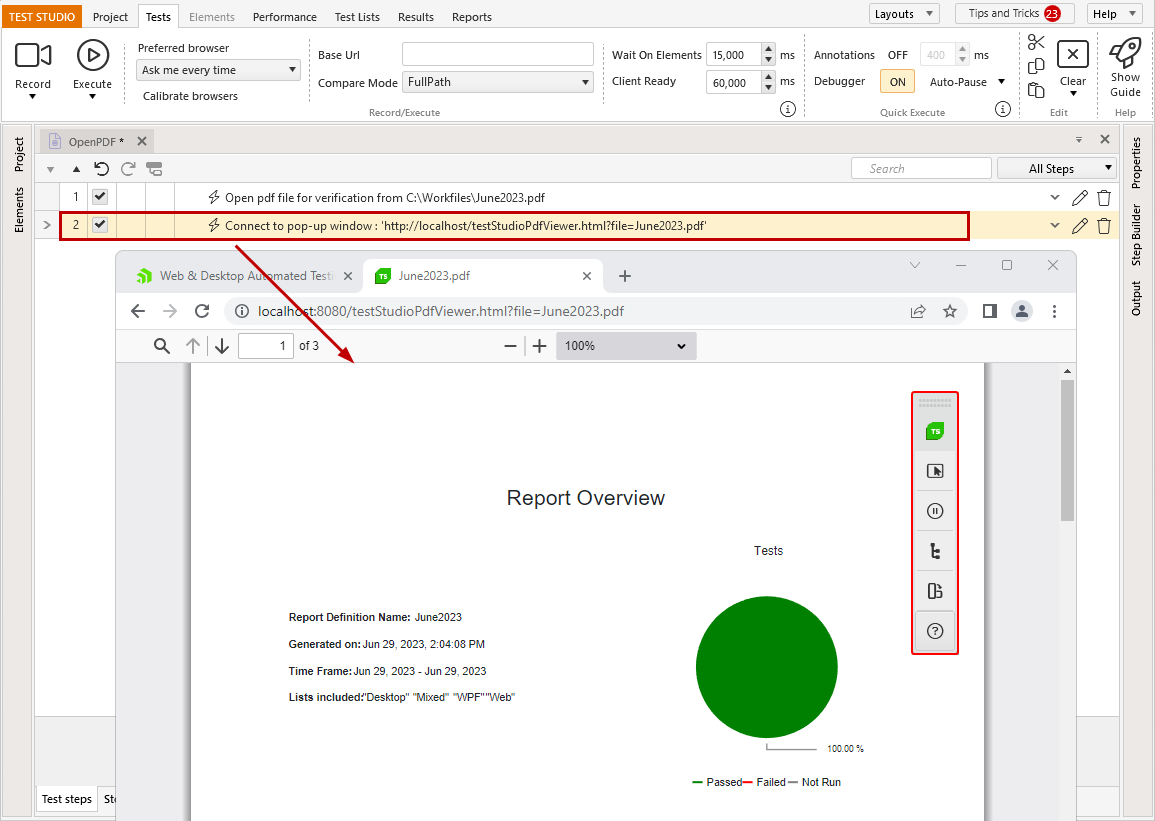
Once the PDF file is opened in the selected browser recording session, Test Studio recorder captures a **Connect to popup window** step with the localhost address for the PDF file in the test and you can continue recording.
> **Tip**
>
>
> If you have added the **Open PDF** step without active recording session you can also **record the next steps** using the partial execution options for the test.
## Control What Is Visible from the PDF File
When a PDF file is opened in active recording session, the **toolbar to control the PDF visible part is rendered in the page** and Test Studio recorder has free access to it.
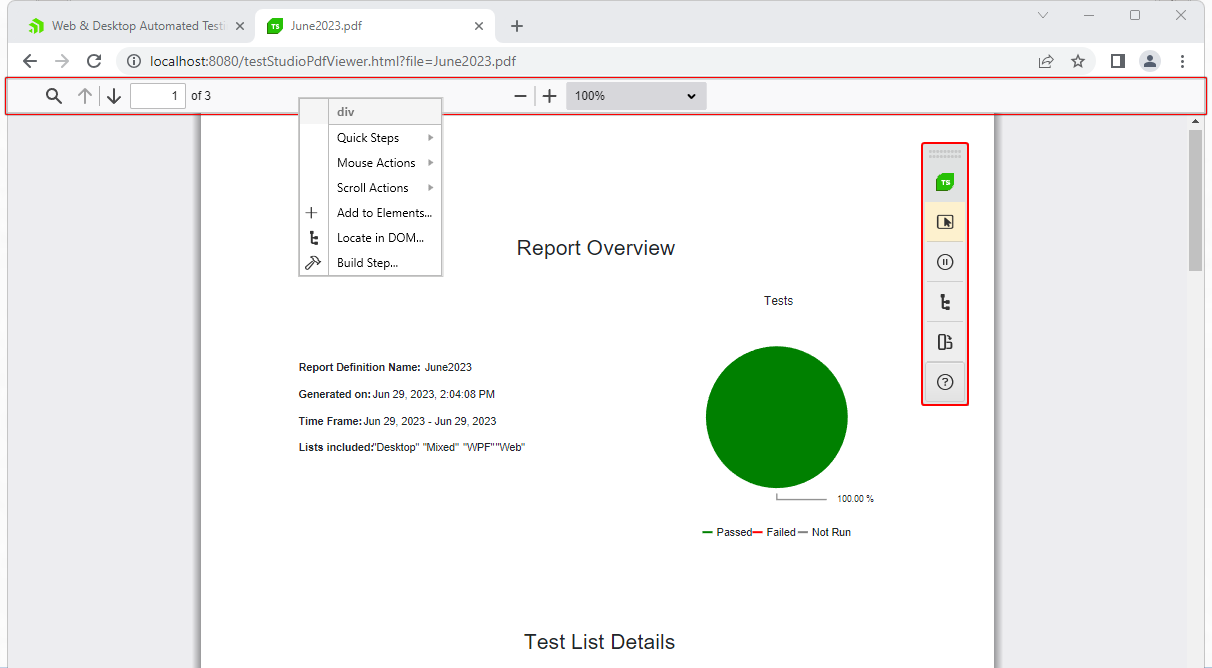
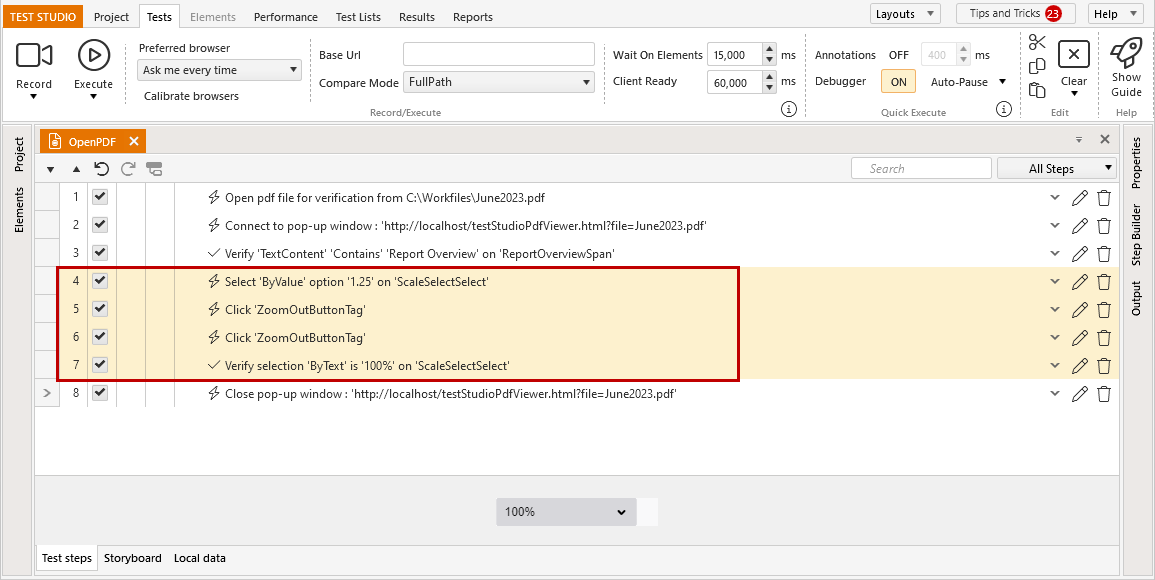
This means you can **add steps to zoom in/out, change the displayed page of the document, set the zoom level from the dropdown, verify the value of the current set zoom level**, etc.
> **Tip**
>
>
> If you are using a **multiple page PDF document, ensure that the correct page is displayed** before validating its content - you can go to exact page using the *Page* input field.
## Record Steps Against the PDF File
As a PDF validation automation tool Test Studio allows you to add different **verification steps**, which will help in validating the content of the file and, optionally, reuse it later in the test automation actions.
* Quick Verification/ Wait Steps
* Advanced Verification
* Extract Text
* Extract Text from Image
* Verify Image
## Compare PDF Files
Comparing the content of two PDF files is not a straight-forward scenario, but combining the Test Studio features allows you to automate even such difficult task. Here are the steps for example scenario:
1. Navigate to the tested page.
2. Generate and download the PDF file.
3. Once opened, validate its title and date of creation, for example. (Let's use a report as baseline for the example)
4. Store these values in extracted variables using the Extraction step.
5. Close the PDF.
6. Add a step to open the other already existing PDF report.
7. Add the verification steps to validate its title and the date of creation.
8. Close the PDF.
9. Data drive these verification steps using the extracted variables from the downloaded file.
10. Execute the test and it will use the values extracted from the downloaded file to verify if this is the same with the content of the existing PDF file.
## See also
*