# Initiate Performance Run
> The target machine to be monitored must have either **Run Time edition** or Test Studio installed on it. The Test Studio Execution Client needs to be running before Test Studio can connect to it for performance monitoring.
1. Choose a web test to run in performance mode.
2. Click the Performance tab.
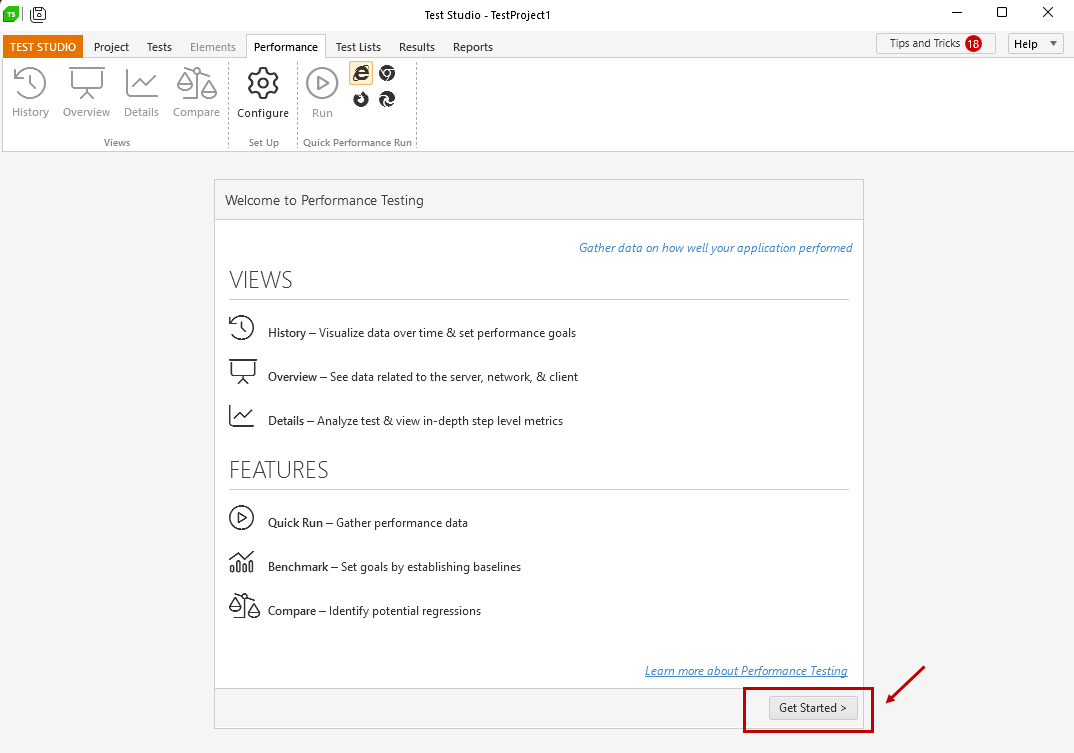
3. See the **Introduction** to Performance Testing and hit the **Get Started** button to continue.
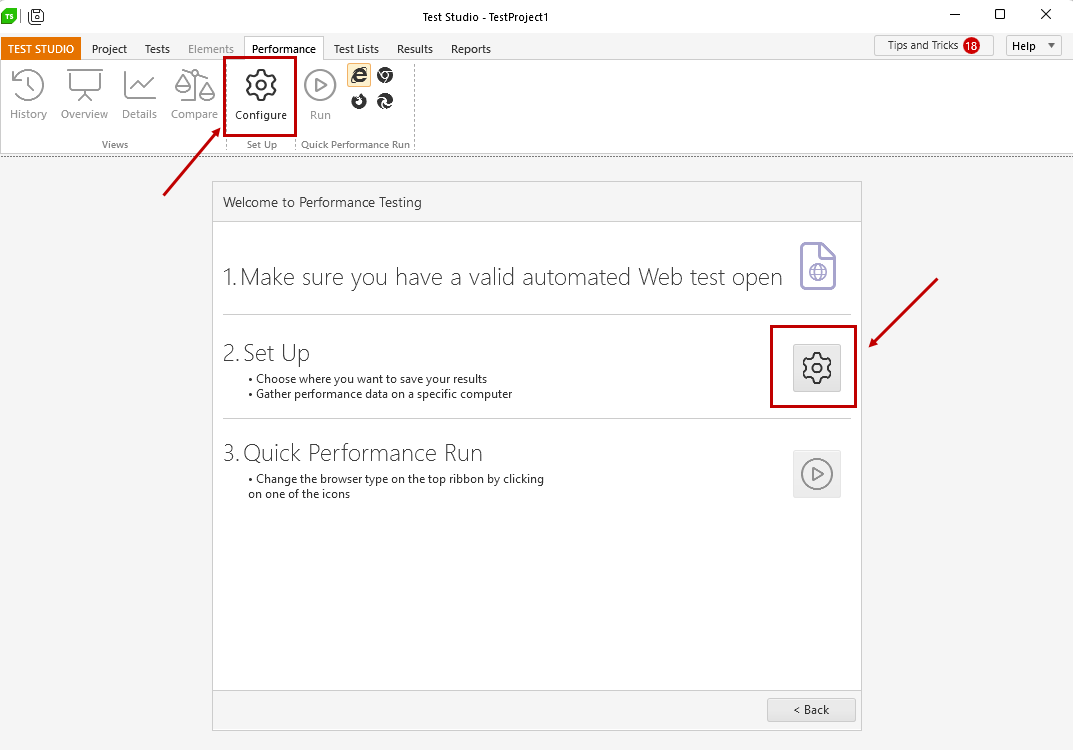
4. Click the **Configure** button under section **2: Set Up**.
> **Tip!**
>
> The same window is accessed from the Tools ribbon using the **Configure** button.
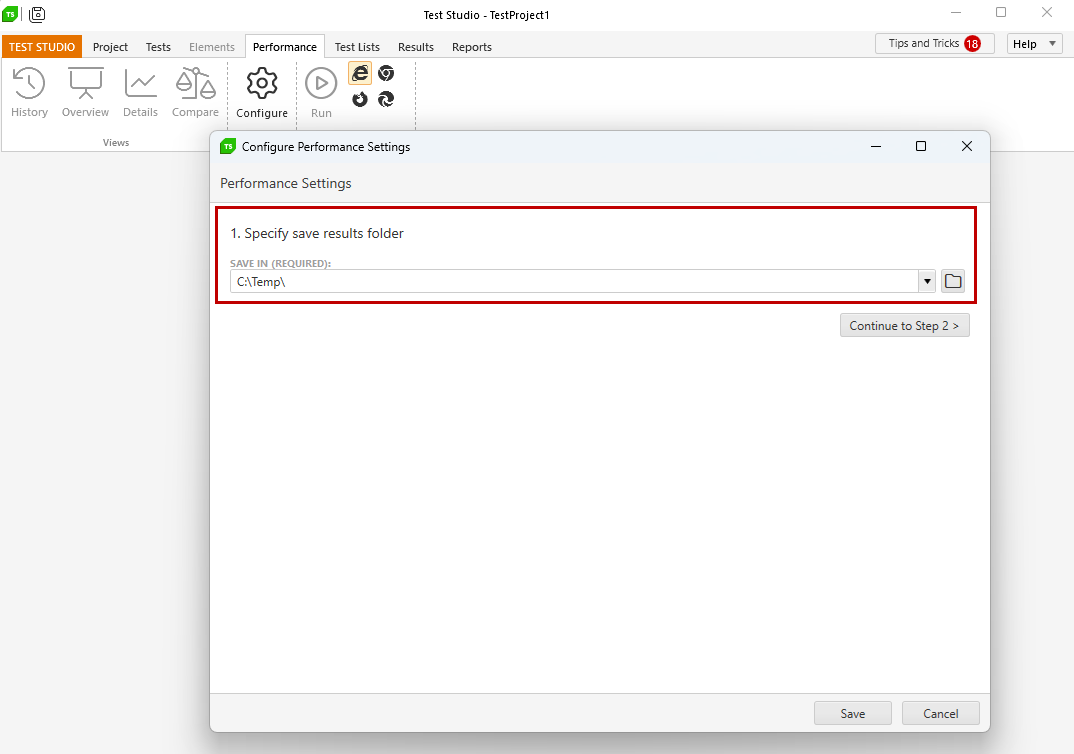
5. Set the location to save the results under section **1: Specify Save Results Folder**.
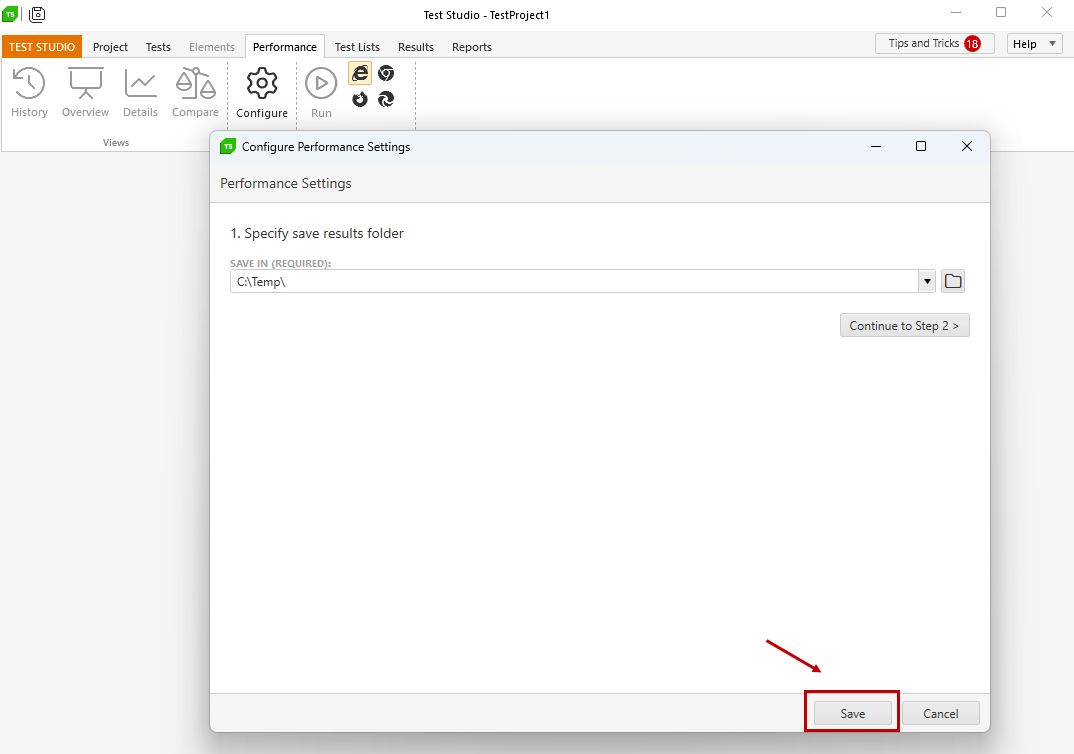
6. Hit the **Save** button to confirm the configuration.
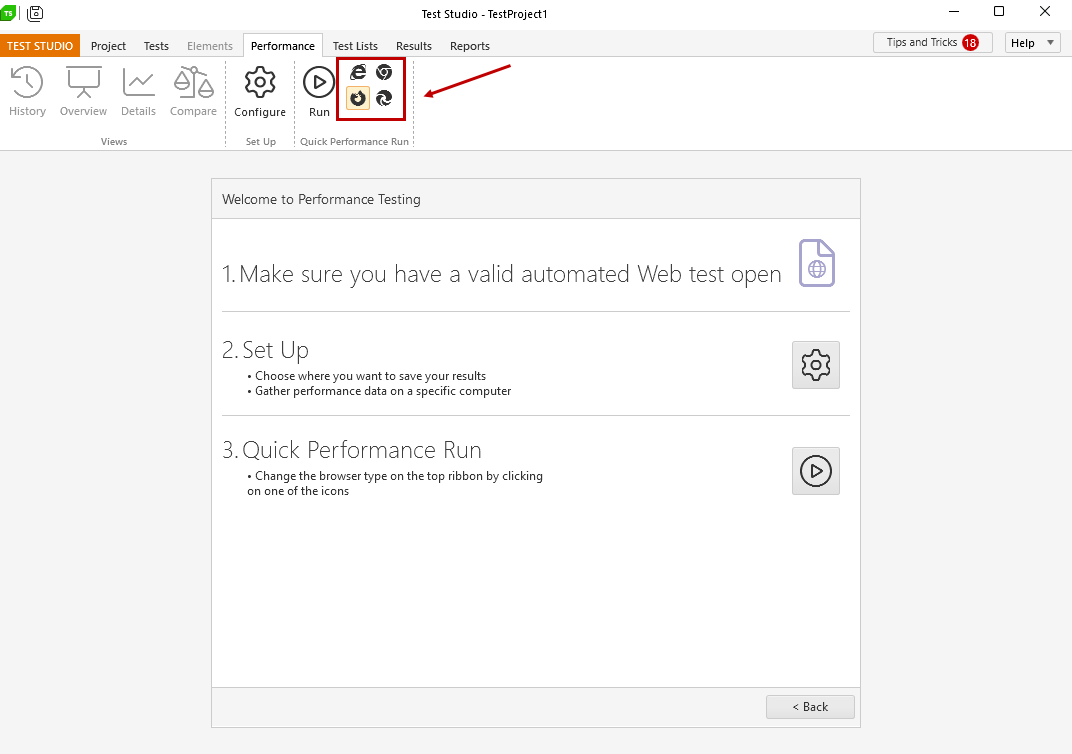
7. Select the desired browser to execute the web test in performance mode from the Tools ribbon - click on the browser icon.
8. Click the **Quick Run** button under section **3: Quick Performance Run**.
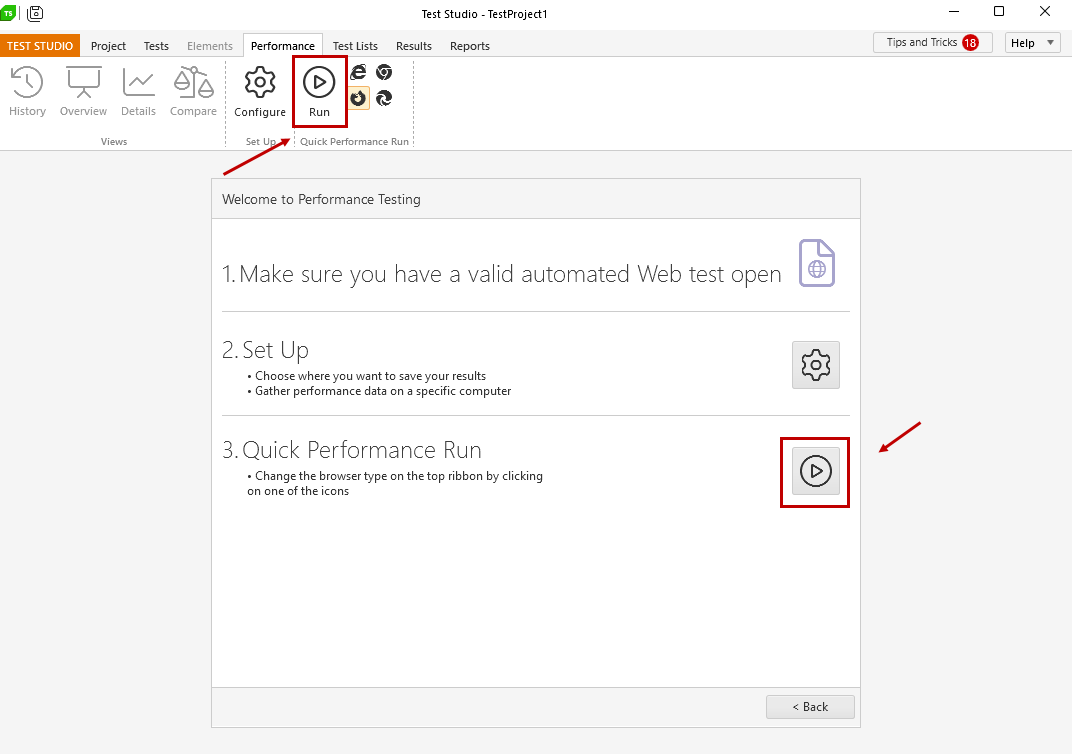
> **Tip!**
>
> The same action is triggered from the Tools ribbon using the **Run** button.
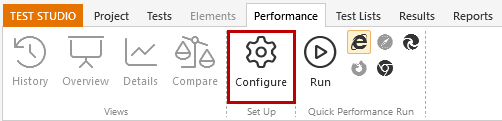
9. To make configuration changes before your next Performance Run, click the **Configure** button in the **Set Up** ribbon.
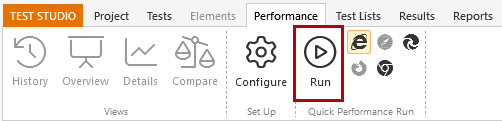
10. To execute your next Performance Run, select a browser type and click Run in the Quick Performance Run ribbon.
> **Tip!**
>
> You can gather additional Performance Counter data for the execution machine - see here how to acivate and configure Performance Counters.