# Monitor Performance Metrics
You can add different performance counters for each machine to be monitored during a load test run.
> **Important!**
>
>
> The requirements for collecting performance counter data from a machine are as follows:
>
>
>
> 1. The target machine, which will be monitored, must have minimum the **Run Time edition** installed.
>
>
> 2. The Execution server, e.g. the Test Runner needs to be started and running so that Test Studio can connect to it for performance monitoring.
>
> 3. The machine needs to be used for load test execution.
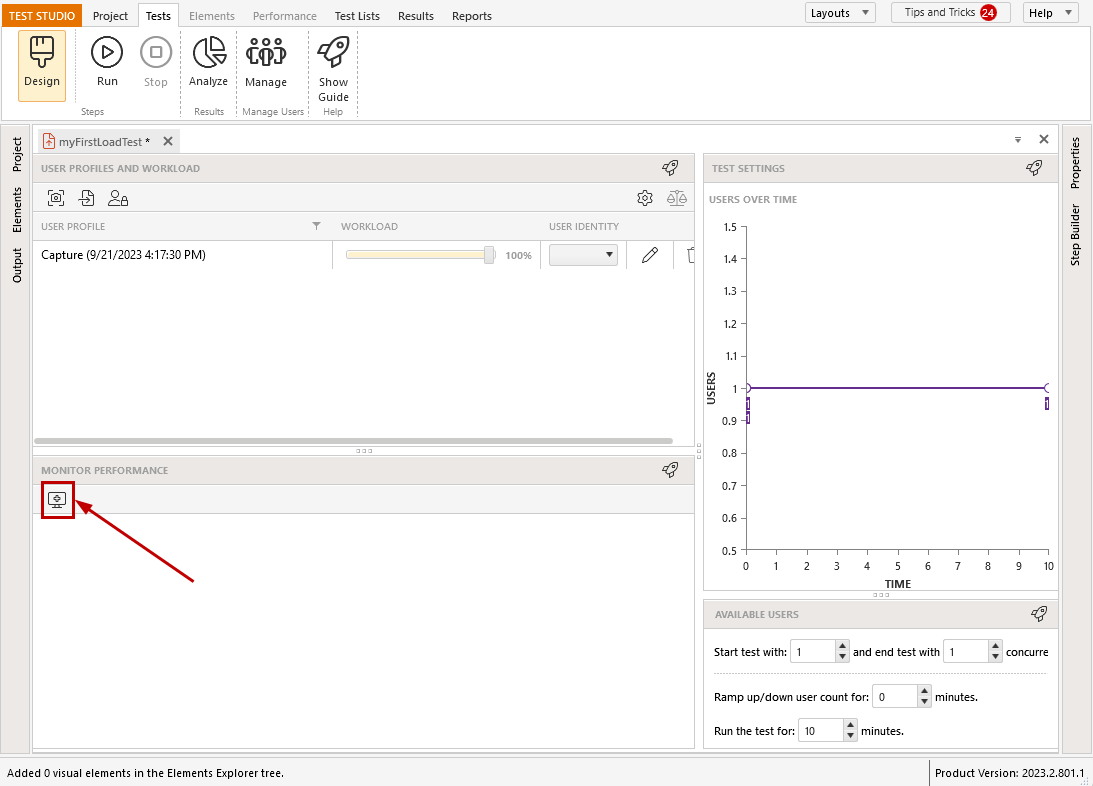
In the ***Monitor Performance*** section in the ***Design*** view, click the ***Add Computer*** button to select performance counters for monitoring on one or more machines during your load test
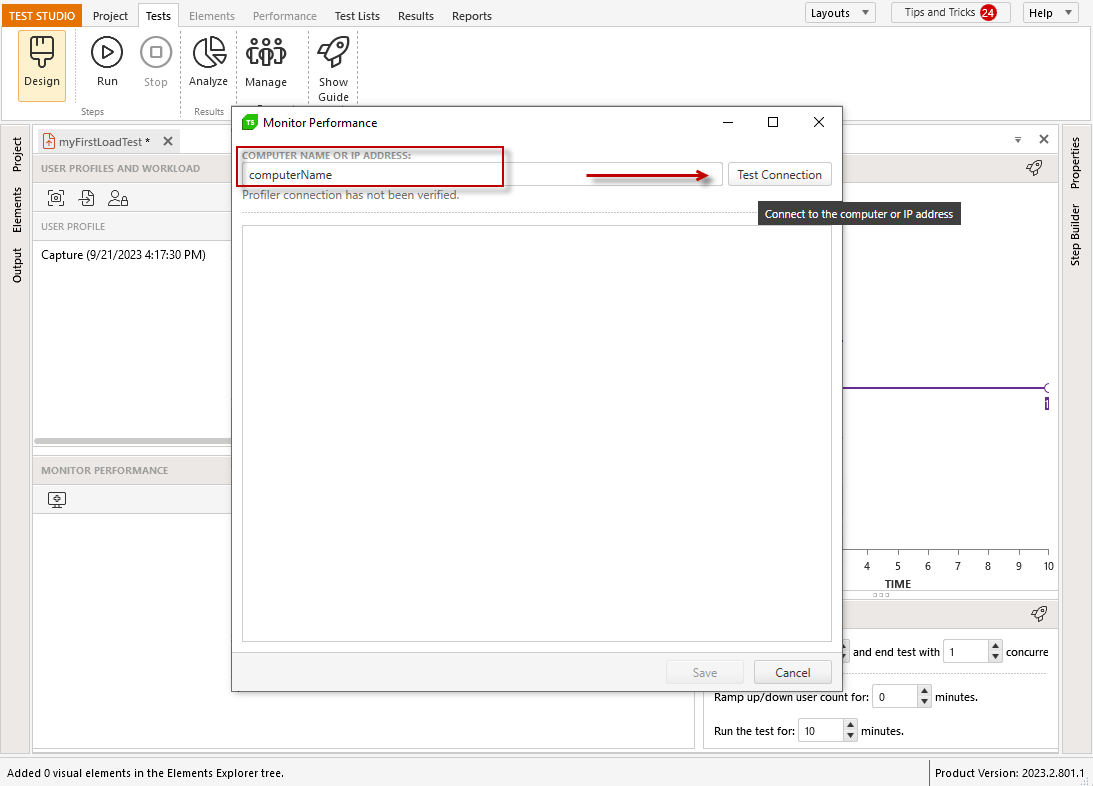
1. Enter the machine name or IP address for the computer you need to monitor. This machine does not need to play a specific role in your load test, but it does need an installation of **Test Studio Runtime Edition** or higher. Click the **Test Connection** button to ensure Test Studio can communicate with the target machine.
2. Once the connection to the target machine is verified, the list with all **Available Counters** is populated.
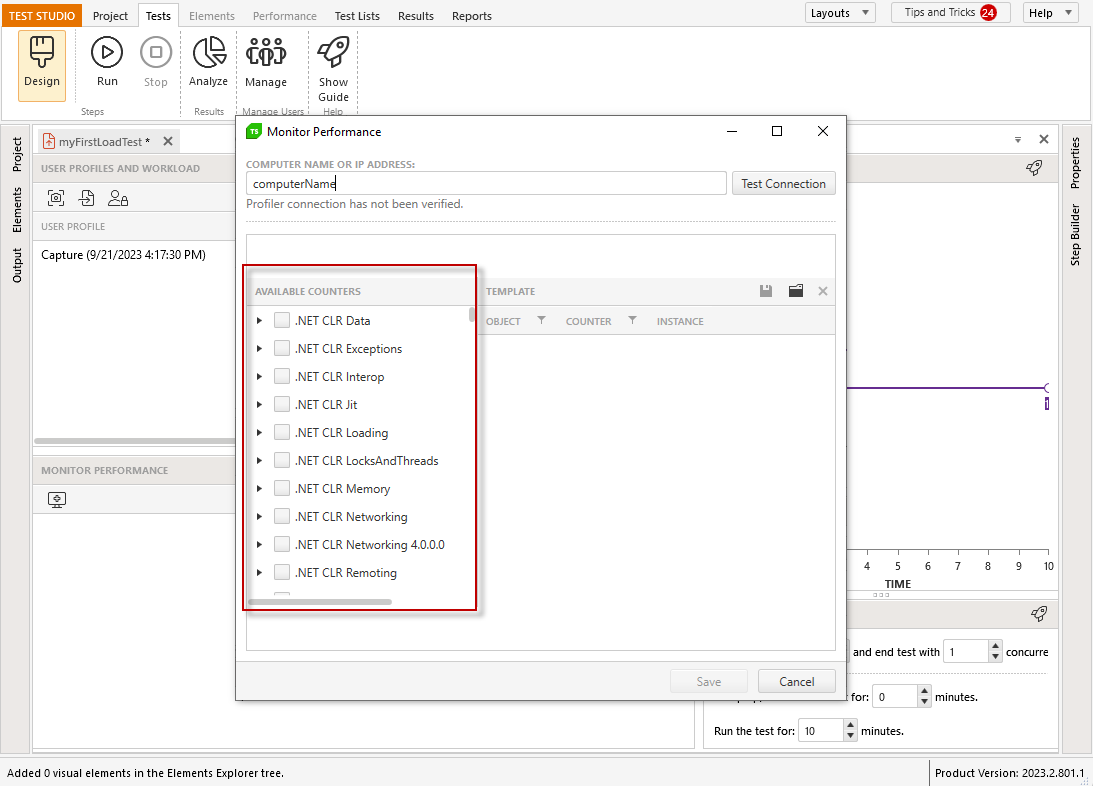
3. Select each object you wish to monitor. Then, you may select specific counters for each object in the sub-list.
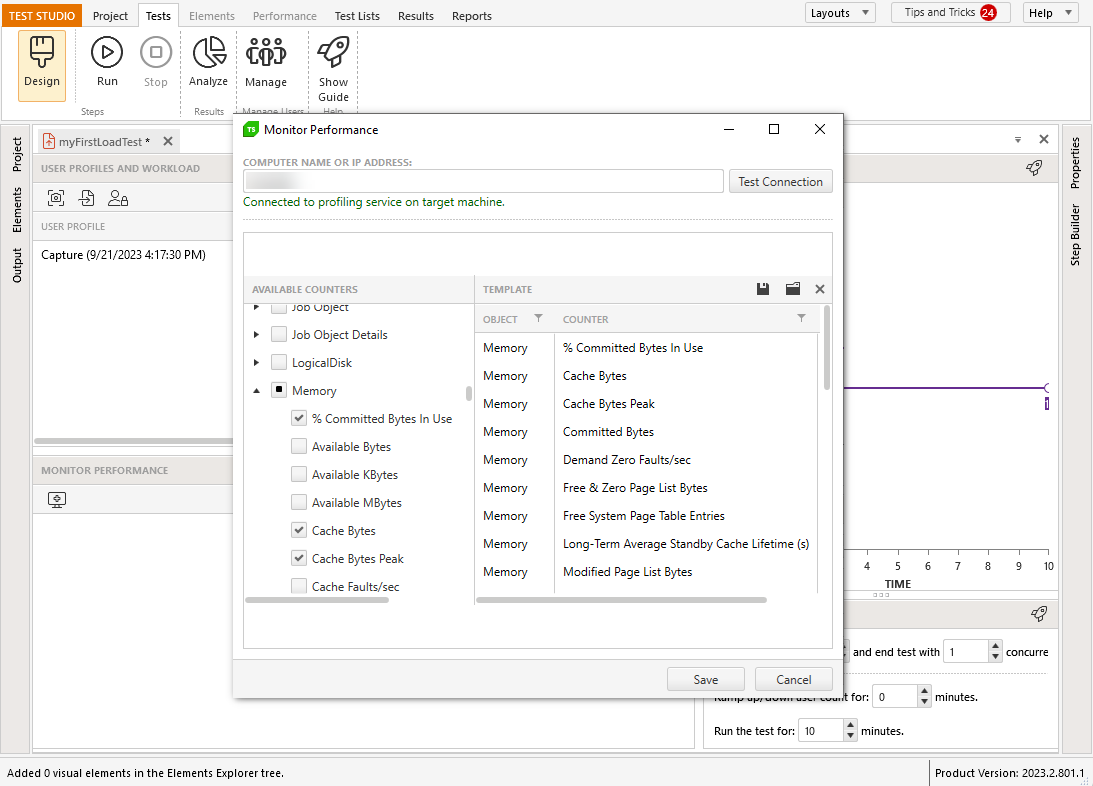
4. To save this set of performance counters for use with other load tests or machines:
a. Click 
b. Input a name for the performance template.
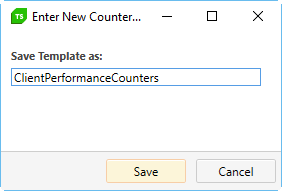
6. Click **Save**.
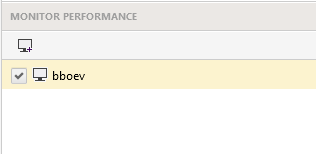
An entry for this machine will appear under **Monitor Performance**. Click the checkbox next to the machine name to toggle performance monitoring for this machine.