# Mobile Device Traffic
In addition to capturing traffic from the local machine, you can also capture a user profile from a remote machine, including a mobile device. First, you must configure the remote device to connect to the Test Studio Load remote proxy. Here, we show how to connect a mobile device to your Load Testing remote proxy. Since Test Studio Load Testing uses the same proxy as Fiddler, you can configure your remote devices to connect to Test Studio Load Testing in the same way as connecting to Fiddler, but using port 9001.
* [Configure iOS](https://www.telerik.com/teststudio/documentation/features/testing-types/load-testing/configure-remote-device#configure-an-ios-device)
* [Configure Android](https://www.telerik.com/teststudio/documentation/features/testing-types/load-testing/configure-remote-device#configure-an-android-device)
## Configure an iOS Device
1. Tap **Settings > Wi-Fi**
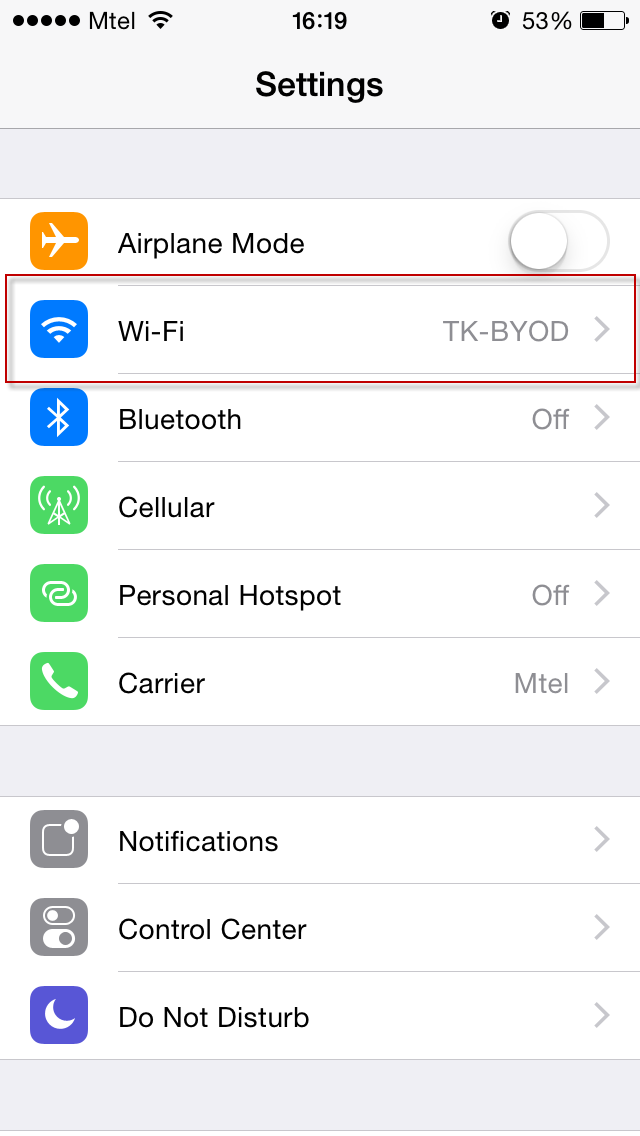
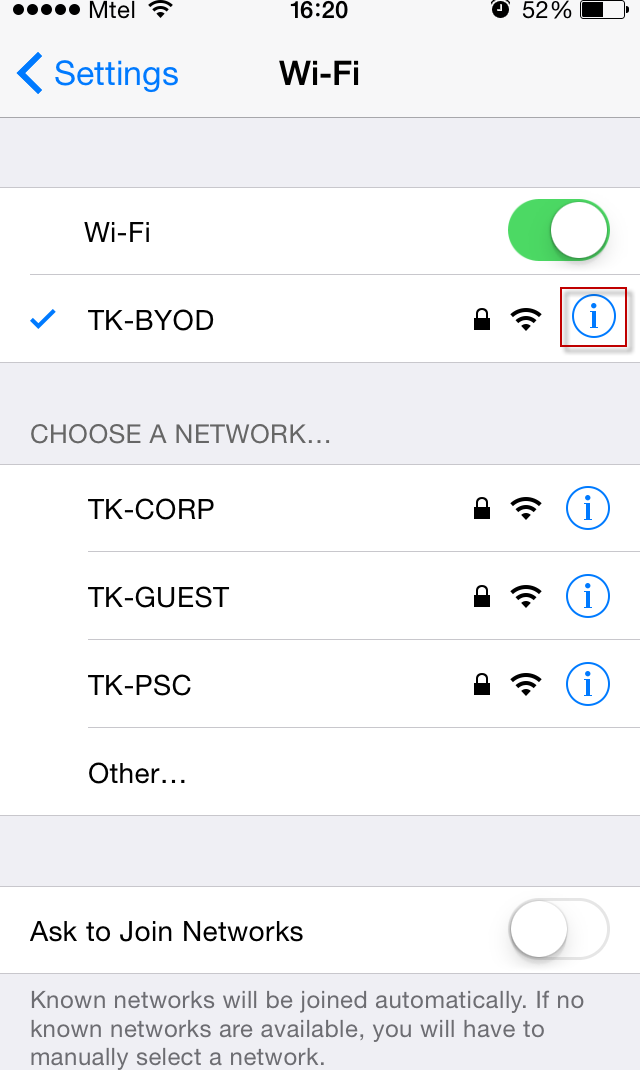
2. Tap  for the Wi-Fi network of the Progress Test Studio Load Testing machine
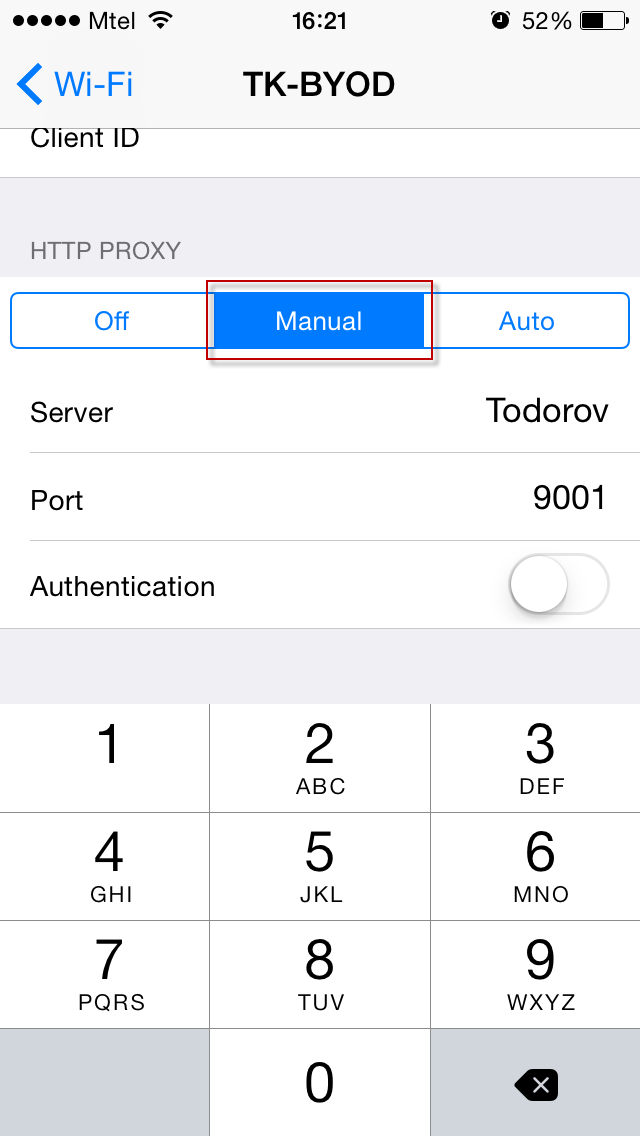
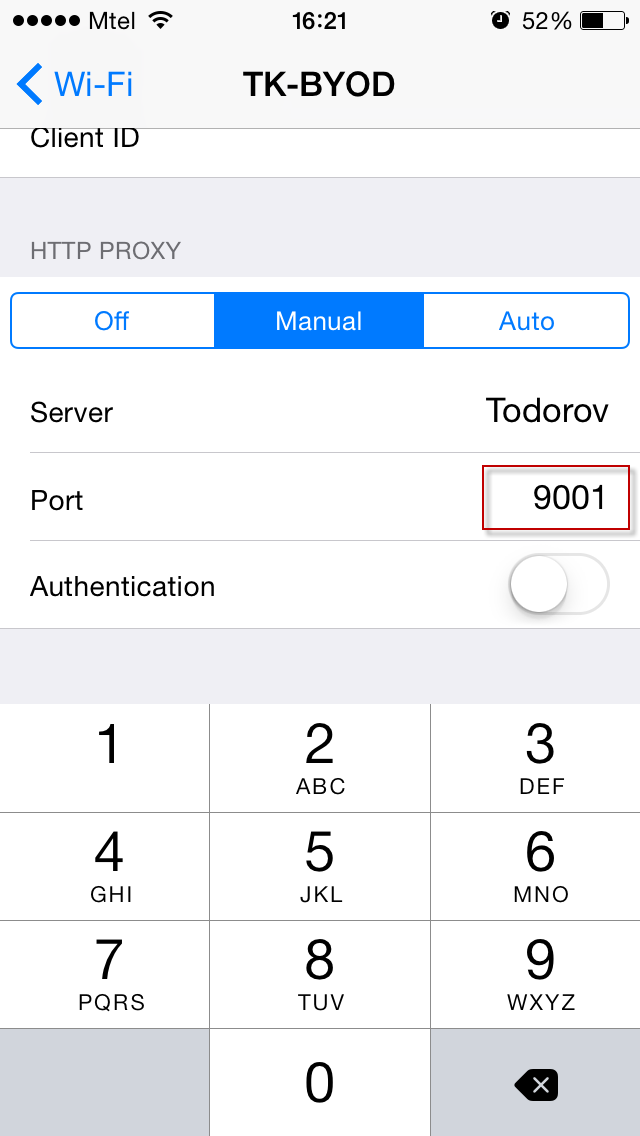
3. Tap the **Manual** option in the **HTTP Proxy** section
4. In the Server box, type the IP address or hostname of your Test Studio Load Testing machine.
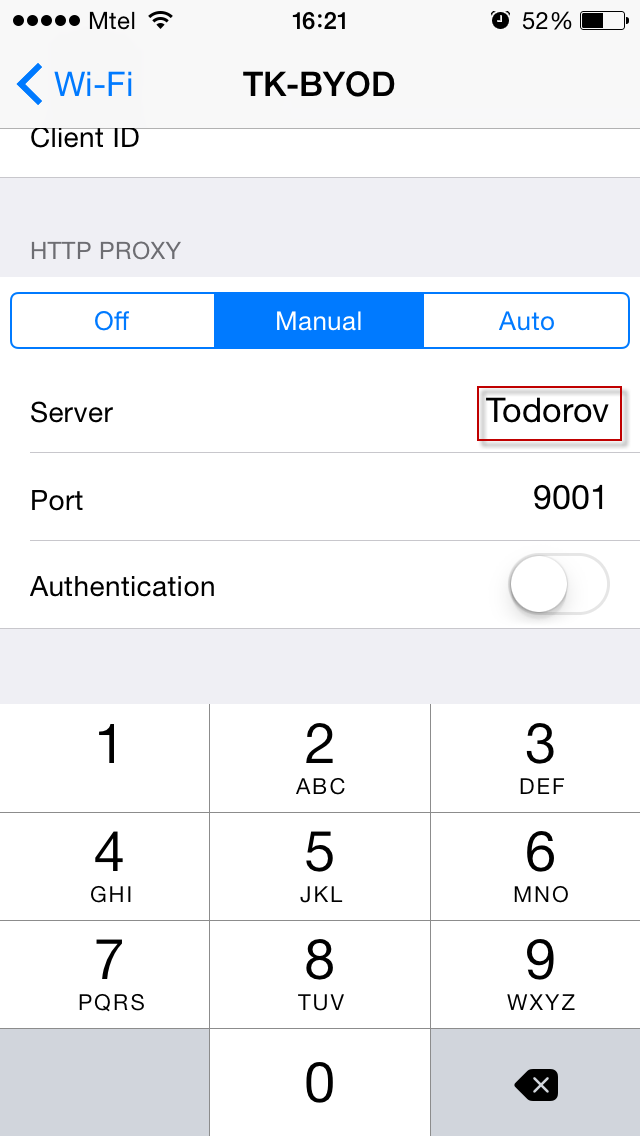
5. In the **Port** box, type '9001'
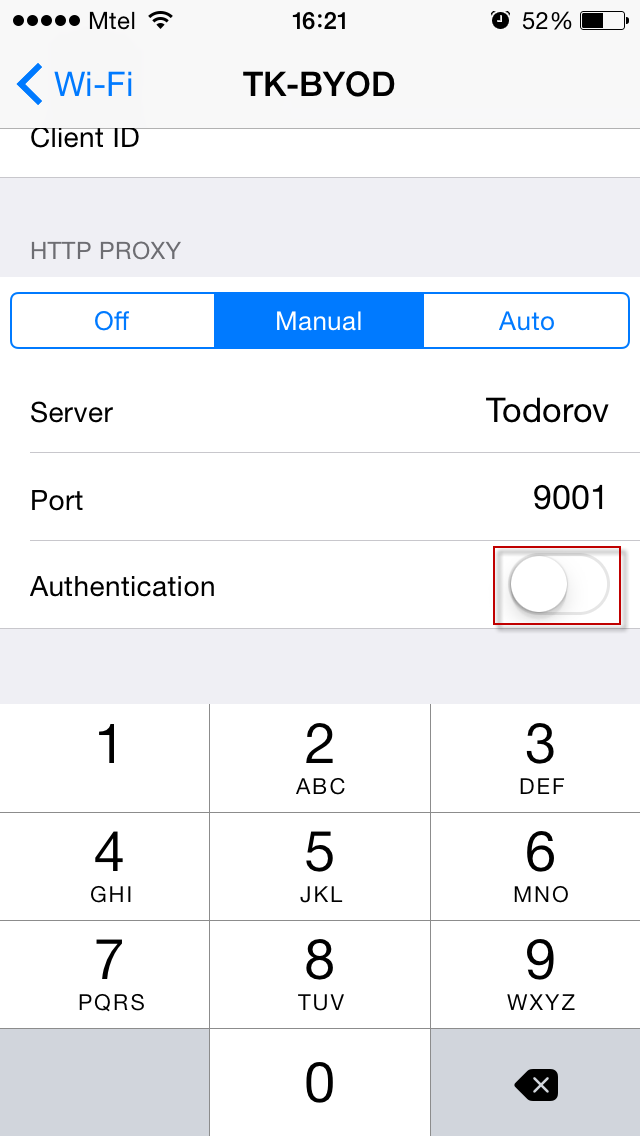
6. Ensure the Authentication slider is set to **Off**
## Configure an Android Device
1. Swipe down from the top of the screen and tap the **Settings** icon.
2. Tap **Wi-Fi**.
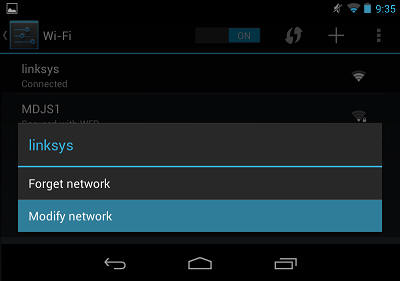
3. Tap and hold your current Wi-Fi network. Select **Modify Network**.
4. Tap the **Show advanced** options checkbox.
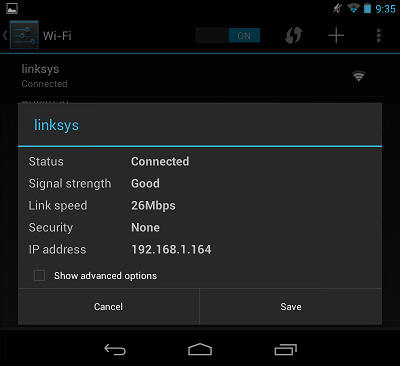
5. Tap the **Proxy settings** drop-down menu and select **Manual**.
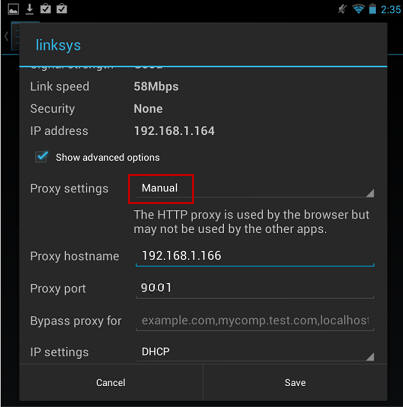
6. Type the IP address and port (usually 9001) of the Test Studio Load Testing machine.
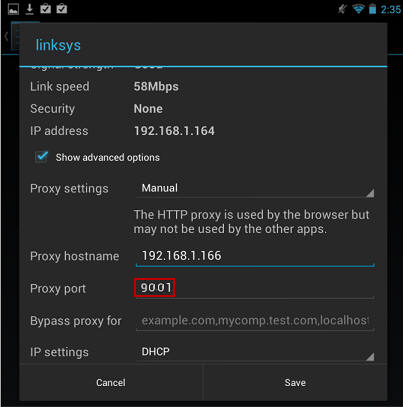
7. Tap **Save**.
Now you are ready to capture traffic from your remote device.
**See Also:**
* Connect a remote machine to Fiddler.