# In-Product Tips And Tricks
While automating your first test scenarios, you will see tips and tricks with useful information about features in Test Studio.
> **Tip**
>
>
> Check this video on Test Studio's YouTube playlist to see the notifications in action.
## Tips And Tricks Window
The Tips And Tricks popup displays a list of hints relevant to your activities. Each new tip appears bold and with a label *New*. Once you click on a new tip, the label *New* disappears and a popup with an overview for the selected hint appears.
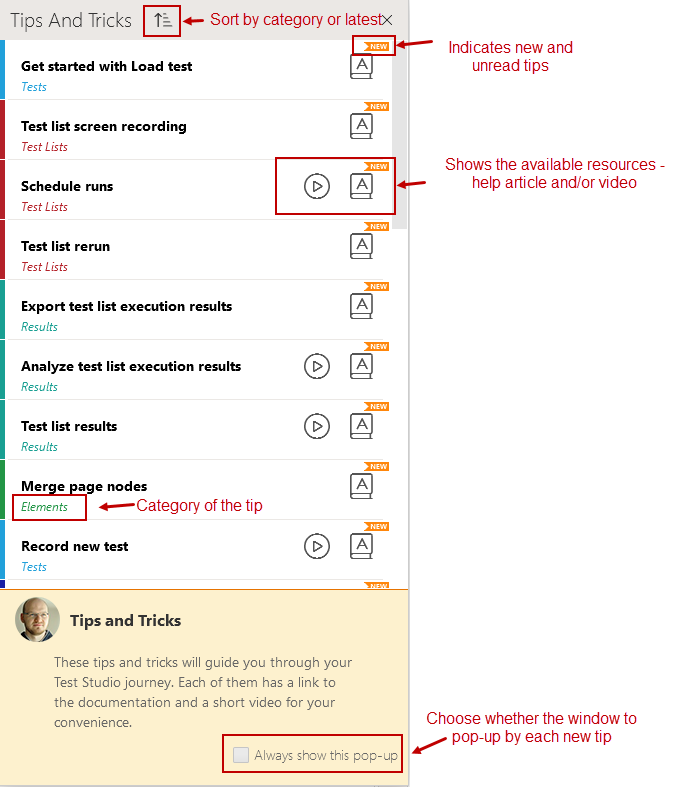
The tips and tricks are divided into few sections - Tests, Steps, Elements, Project, Test Lists and Results. Which section is triggered depends on your activities in Test Studio. Each item has a link to our online documentation, where you can find additional details. Most tips have a link to a video demonstrating the feature.
## Toggle Tips And Tricks
The number of unexplored items you have received is displayed in the **Tips And Tricks toggle button** in a red circle in the upper right corner of Test Studio window. Toggle it to show/hide the Tips And Tricks window.
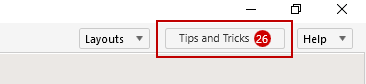
If you close the tips window, you can bring it up again by clicking that toggle button. This allows you to review all tips triggered so far (including the already explored).
> **Note**
>
> The tips and tricks are user-based. Every individual user who launches Test Studio can take advantage of them.
By default, the **Always show this pop-up** option is selected and the *Tips And Tricks* window will instantly pop up. To disable the *Tips and Tricks* window, clear the checkbox.
## See Also
* That’s neat! Test Studio notifications