# Introduction to Coded Tests
Test Studio allows you to combine the recorded actions in a test with coded solutions for any specific and complex scenarios, which require customization beyond the built-in verifications and actions capabilities.
In this article you can find the important topics about coding in Test Studio project:
* [What language can I use to write code in Test Studio tests?](https://www.telerik.com/teststudio/documentation/automated-tests/coded-tests/coded-step#what-coding-language-can-be-used-in-test-studio-project)
* [Can I use the recorded steps in code?](https://www.telerik.com/teststudio/documentation/automated-tests/coded-tests/coded-step#convert-a-recorded-step-to-coded-function)
* [How to create an empty coded function in the test?](https://www.telerik.com/teststudio/documentation/automated-tests/coded-tests/coded-step#insert-empty-coded-step)
* [How to create a code item accessible for all tests in the project?](https://www.telerik.com/teststudio/documentation/automated-tests/coded-tests/coded-step#which-is-the-standalone-code-file)
* [Can I search in the code file?](https://www.telerik.com/teststudio/documentation/automated-tests/coded-tests/coded-step#code-editor-options)
## What Coding Language Can Be Used in Test Studio Project?
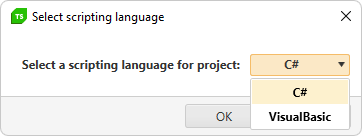
Test Studio supports two types of coding languages - **C#** and **VisualBasic**. The language is set on project level when adding the first coded item.
> **Tip**
>
>
> Once the scripting language is set on project level, it **cannot be changed** to the other option. If you need to transform the coded solution to the other language, you need to **manually convert the code**\_ to the other scripting language.
## How to Implement a Coded Function in the Test?
In Test Studio tests you can take advantage of reusing the recorded steps as coded functions as well as adding your own custom coded logic.
### Convert a Recorded Step to Coded Function
Most of the recorded steps can be converted to their corresponding coded function and allows to further customize the tests and actions. Select a recorded step, right click on it to trigger the step context menu and choose the option **Edit in Code**.
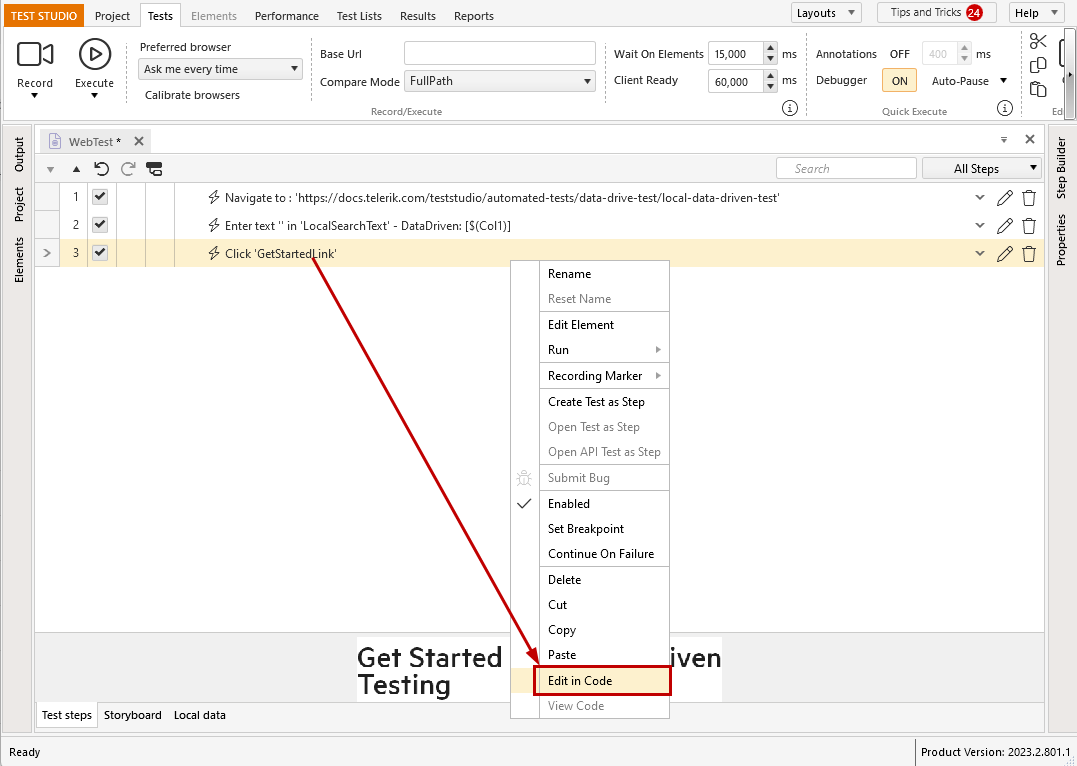
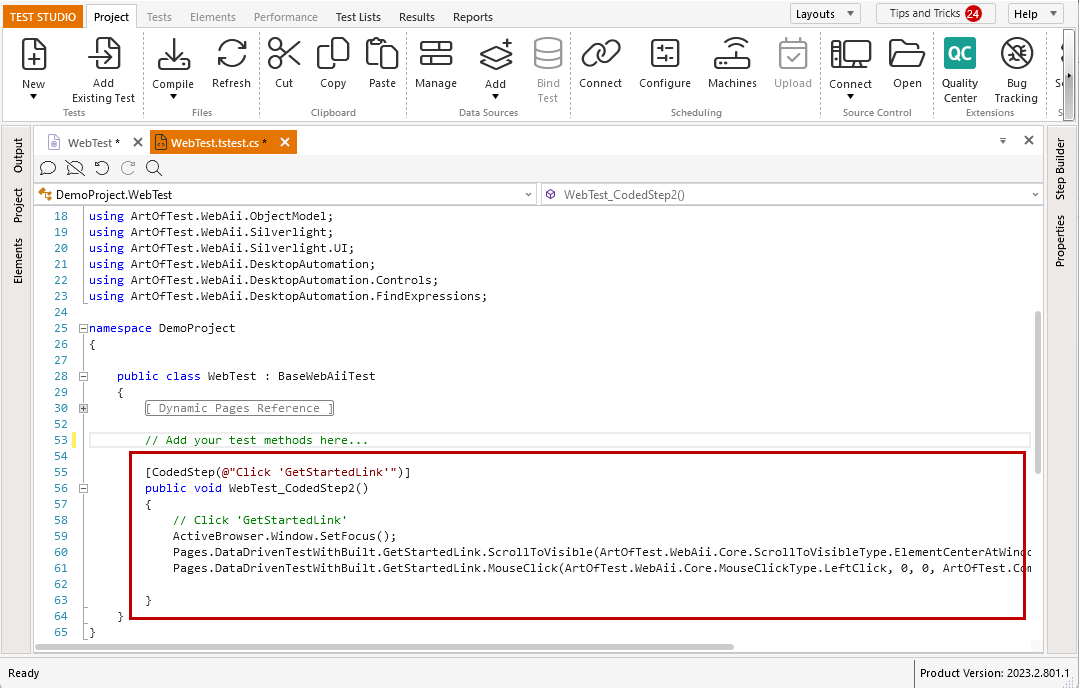
This automatically converts the step into a coded one and creates a new test method in the coded file associated with the test. The method represents the code required for this step depending on its type and different settings and properties set.
> **Tip**
>
>
> Check out this neat tutorial on converting steps to coded functions in Test Studio.
### Insert Empty Coded Step
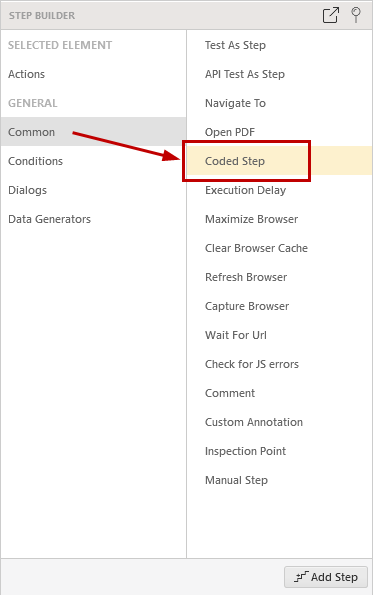
To insert an empty coded step in the test choose the 'Coded Step' option from the Step Builder - it is listed under the **Common** section.
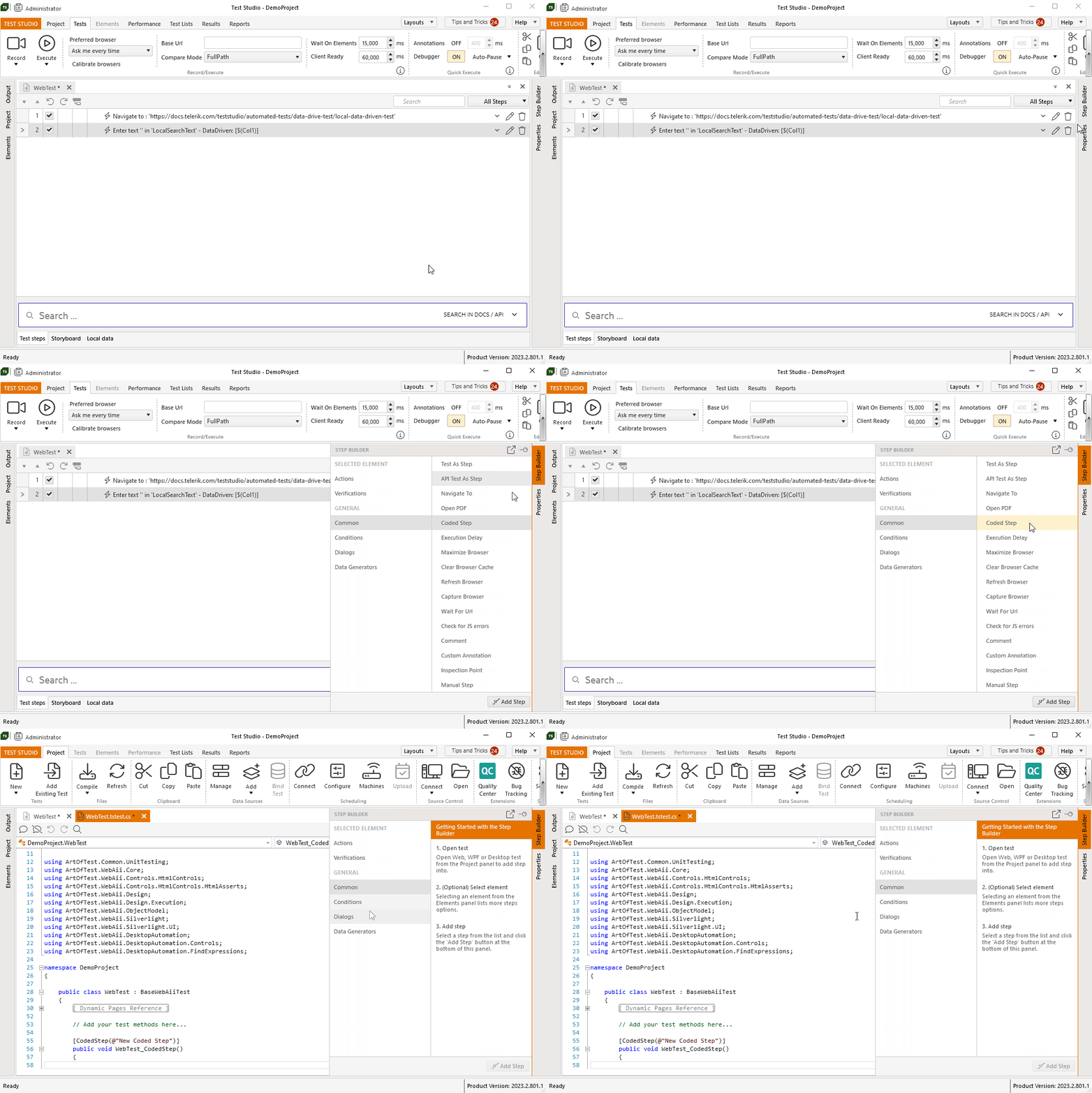
Adding the first coded step in a test automatically creates a coded file associated with the test. Test Studio switches from the test to the code file and allows writing the custom coded function in the empty test method.
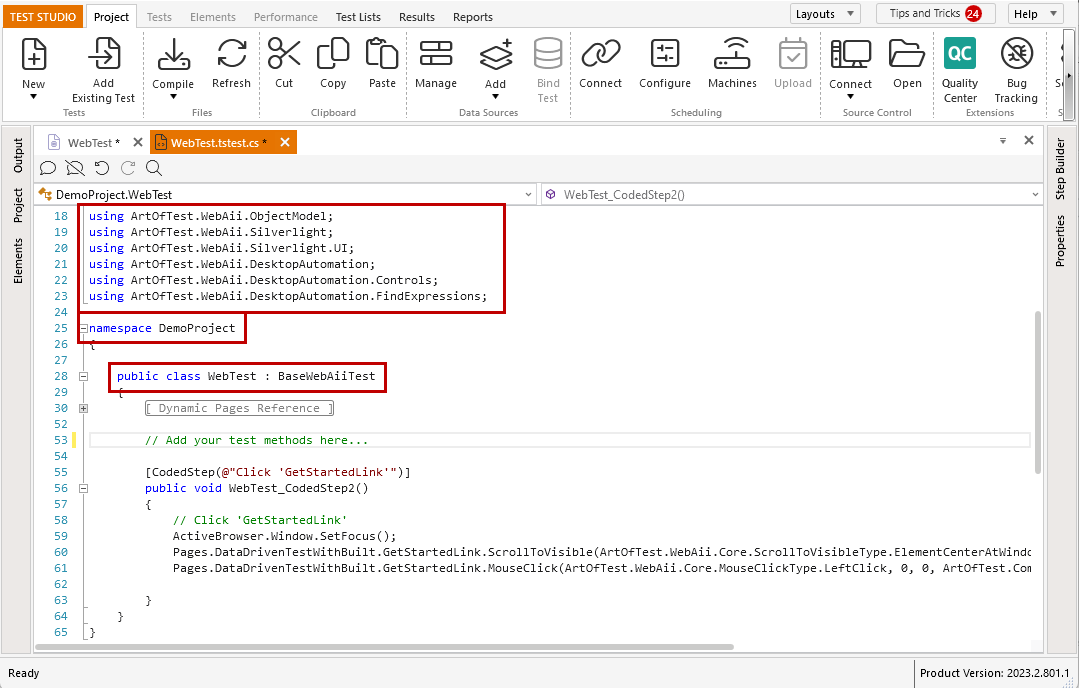
The automatically generated coded file contains some predefined values like the necessary `using` (or `Import`) statements, the project `namespace` and the base test class `BaseWebAiiTest` inherited from the current test class. All these options are customizable and can be maintained on project level in the Project Settings -> Script tab.
> **Note**
>
>
> The `namespace` in all coded items should be the same. Otherwise the project cannot be compiled and the tests cannot be executed.
>
>
> Any external dll referenced in the Test Studio project should be included as `using` (or `Import`) statement in the code file where it will be used.
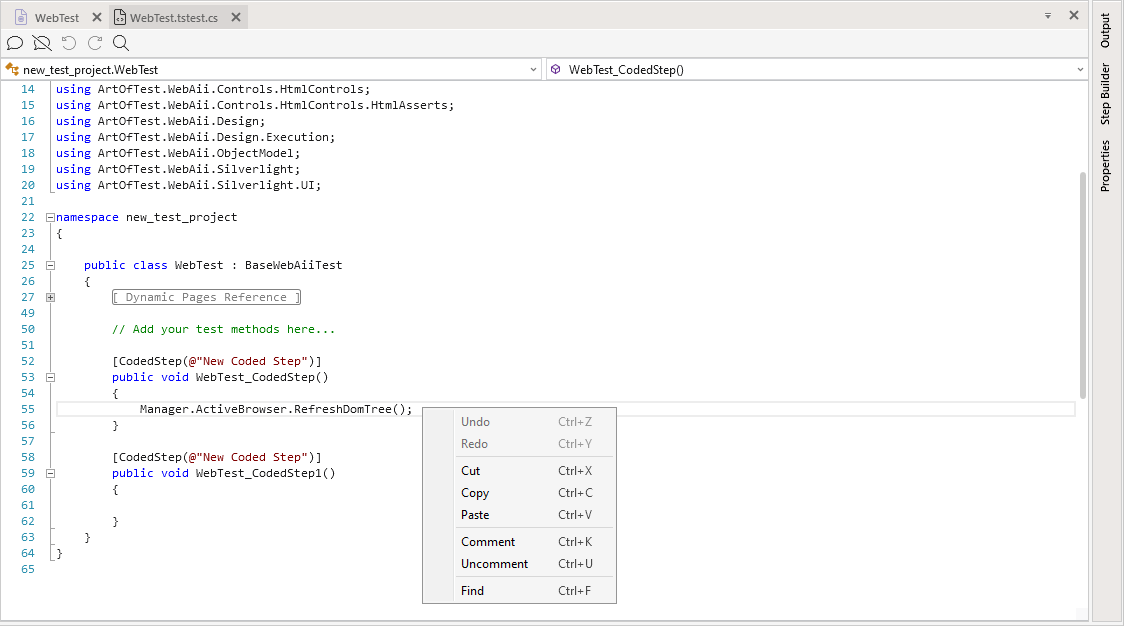
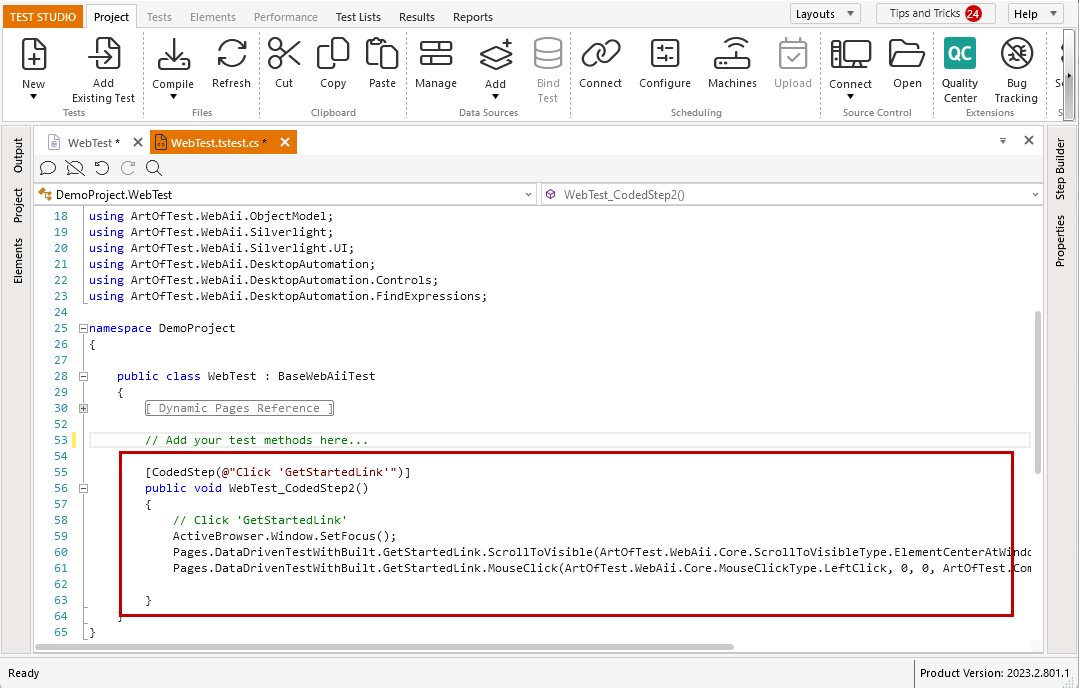
For this example I will add a simple statement to refresh the page DOM tree - the test method in which the code is added is *public void WebTest_CodedStep()*.
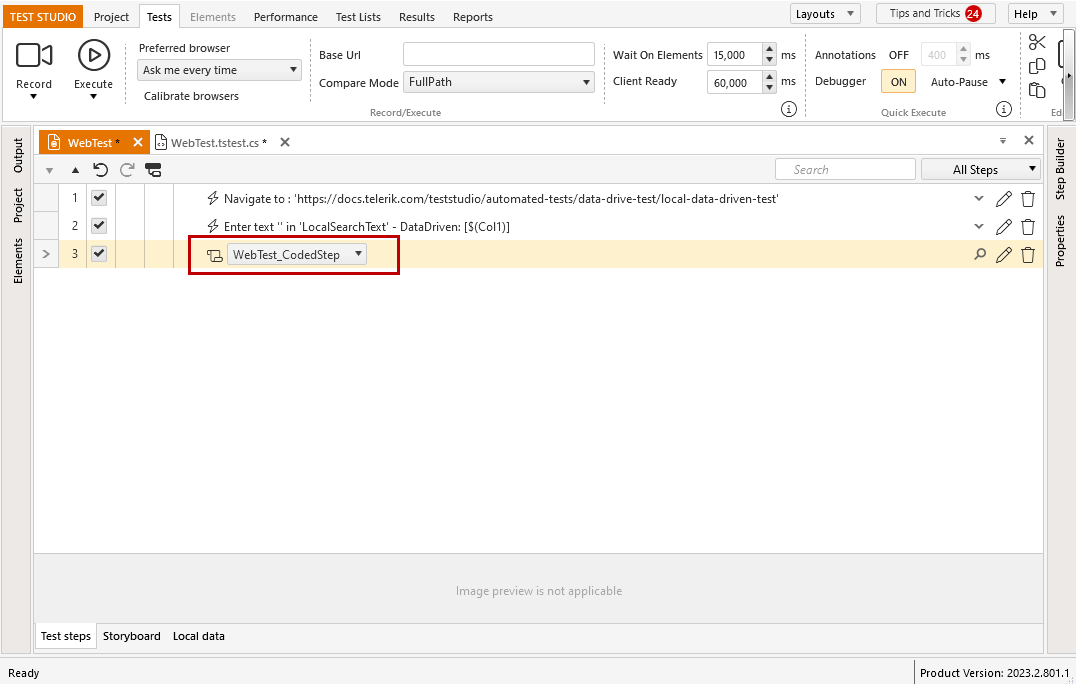
Switching back to the test steps, shows that the test method is selected for the coded step and thus can be executed as part of this test.
### Add Next Coded Step in the Test
*What if you need to insert another coded step in the same test?*
Test Studio gives the option to reuse the already existing test method, or to create a new one and insert different coded function.
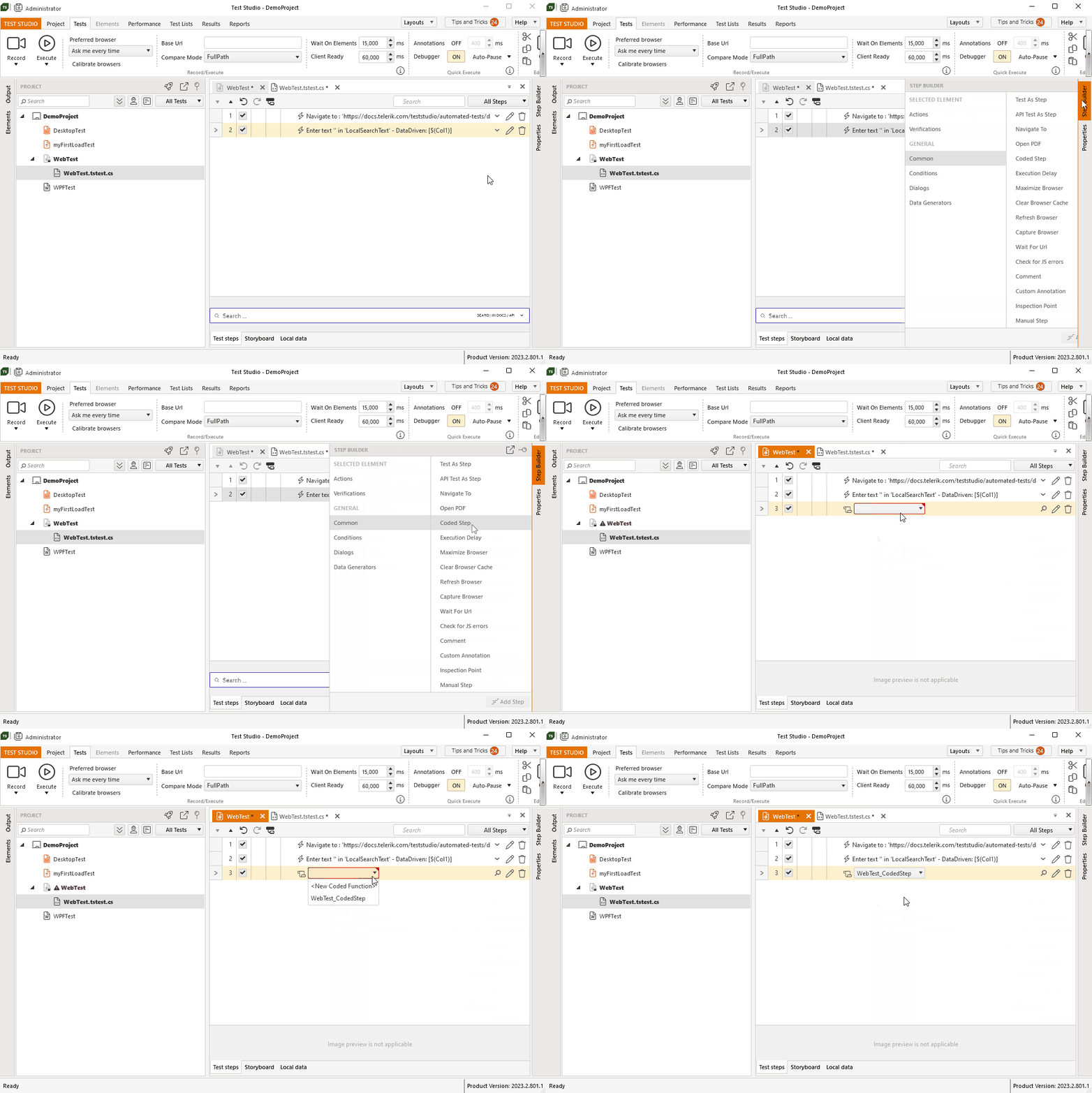
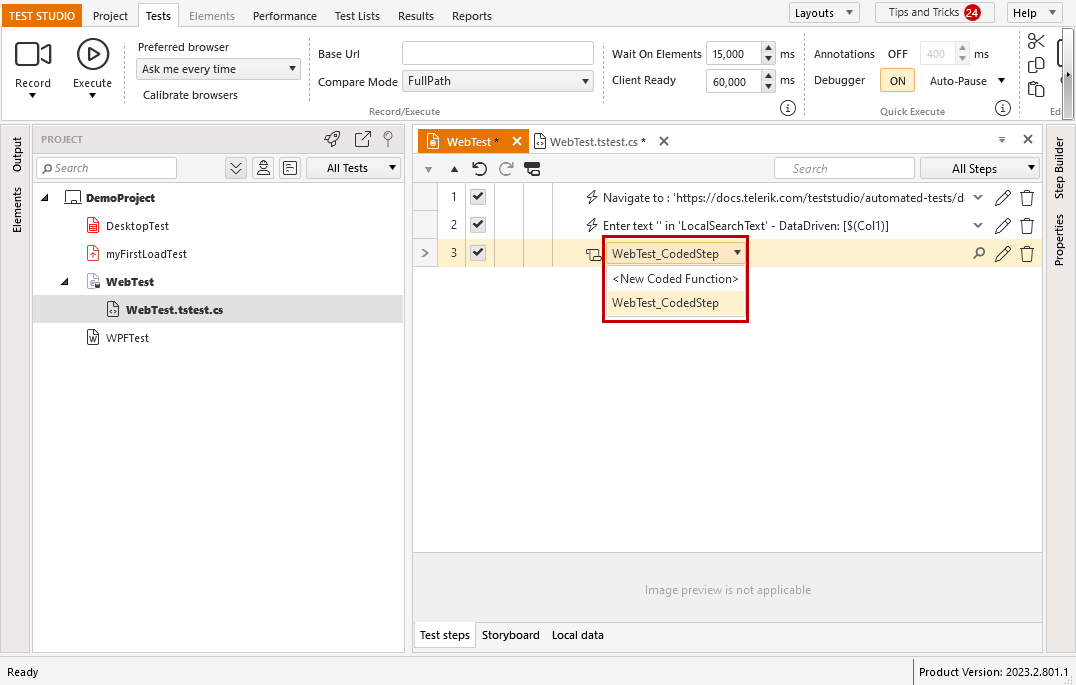
Each coded step in the test needs to be mapped to a method from the coded file. You can choose from the coded step dropdown to map it to any of the already existing test methods, or select the option to define a new one.
> **Tip**
>
>
> Multiple coded steps in the same test can be mapped to a single method in the test coded file.
## Which is the Code-Behind File?
The code-behind file is the one created with the first coded step in a test. It is associated with that test and can be used in another project if moved with the test.
> **Tip**
>
>
> When moving a test to another project, it is recommended to use the option to add an existing test).
## Which is the Standalone Code FIle?
Test Studio allows adding a code file on project level and it is usually called *standalone code file*. It can be used to create a utility class that defines a set of methods to perform common, often re-used functions. The code item can be used also as a helper class to assist in providing some extended functionality for your test project.
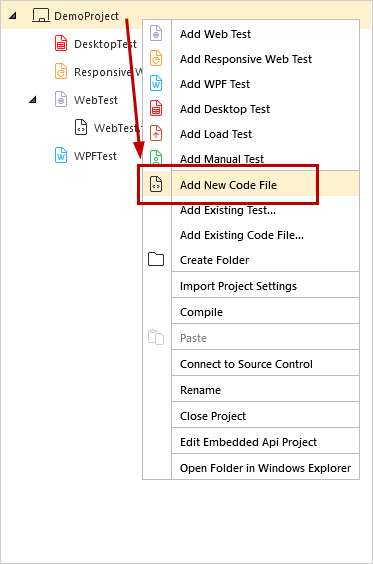
To insert a standalone code file use the option 'Add New Code File' from the context menu in the Project Explorer. You can add the coded file on project root level, or in any sub-folder.
> **Tip**
>
>
> Here you can find an example of a utility class file and how to use it from the tests in the project.
## Code Editor Options
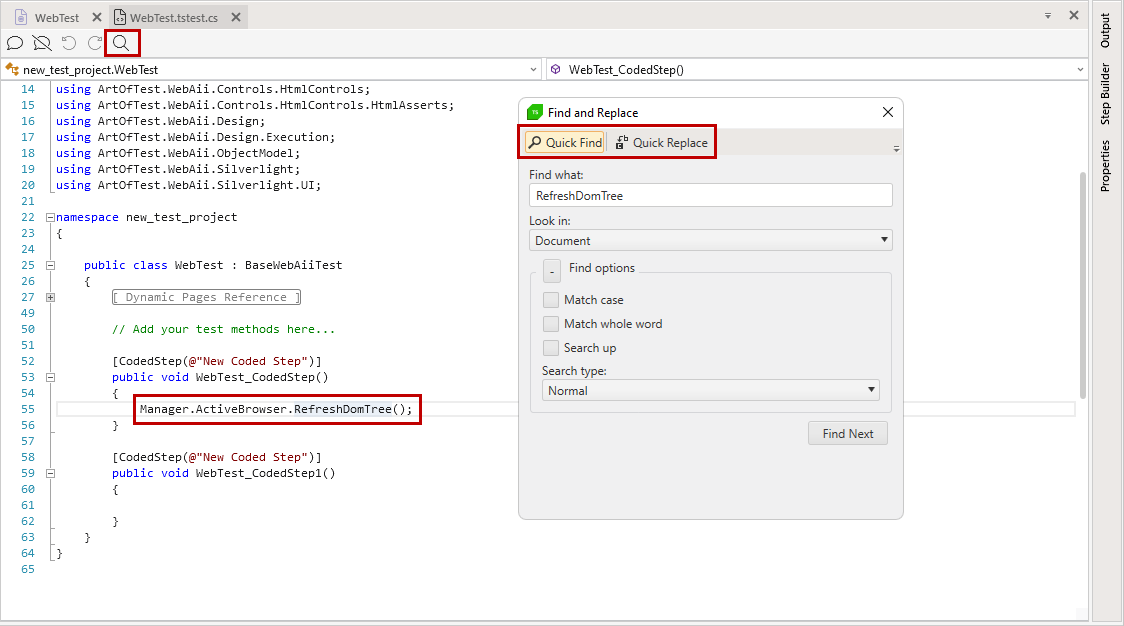
All coded files in Test Studio project are opened in the code editor. It provides **Quick Find** and **Quick Replace** features to ease navigation and maintenance of the custom code. You can open it from the *Find* icon in the top bar, or standard *Ctrl+F* shortcut.
The search and replace functionality works in the file which is currently active.
There is a context menu in the coded editor, which allows you to comment or uncomment multiple lines of code when selected. You can also use the keyboard shortcuts *Ctrl+K* (comment) and *Ctrl+U* (uncomment).