# Test Studio Plugin for Jenkins CI
The Test Studio Plugin for Jenkins allows you to build and execute Test Studio tests and test lists in Jenkins CI environment and easily explore the generated JUnit xml results in the built-in Jenkins functionality.
> The Test Studio Plugin could be used with Test Studio projects only. If you will need to **build a Visual Studio project** or a solution use the instructions listed **here**.
1. **Install the Jenkins CI** to run as a Java application (instead of running as a Widnows service) and run the Jenkins Listener on a custom port - configure a different, non-conflicting port number for the listener (avoid port numbers 8009, 8010, 8011, 8012 and 8013 which are used by the Test Studio Scheduling Service).
2. **Install the Test Studio Plugin** - download it here and add it to the Plugin folder of the Jenkins server installation.
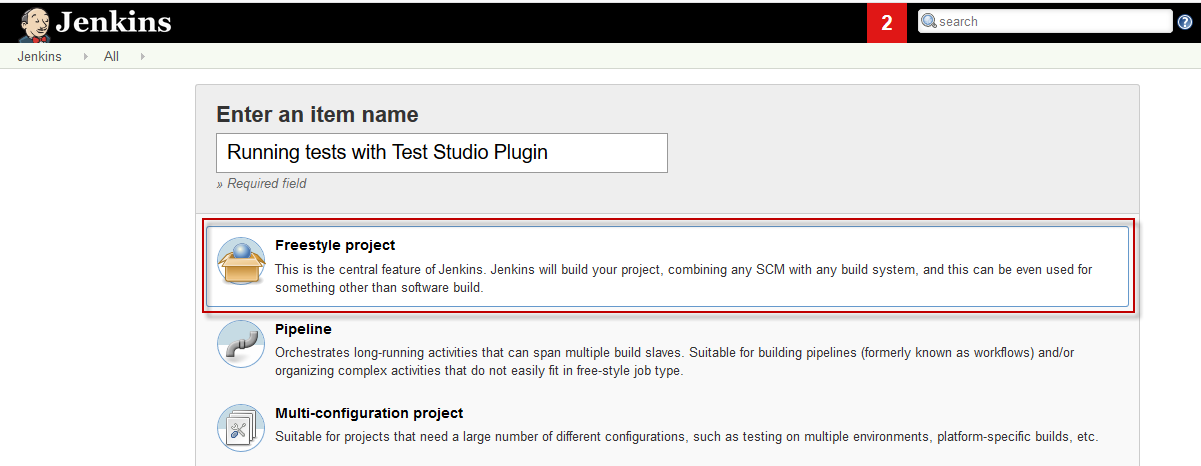
3. **Create a freestyle project**. Create an item and select 'Build a freestyle project'.
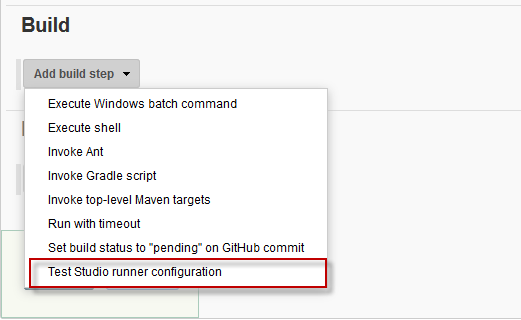
4. **Add a Test Studio runner configuration build step**. Under the 'Add build step menu' section select 'Test Studio runner configuration'.
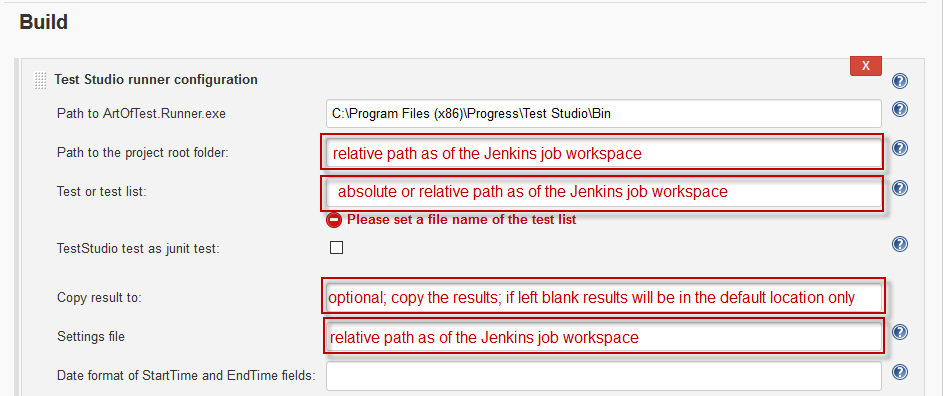
5. **Input the full path to ArtOfTest.Runner.exe**. The default path to find the Test Runner executable is C:\Program Files (x86)\Progress\Test Studio\Bin.
6. **Specify the test or test list to execute** using the absolute path to the file in the Jenkins CI workspace or its relative path according that same workspace.
The *project root folder* and *settings file* fields accept relative path to the Jenkins job workspace only.
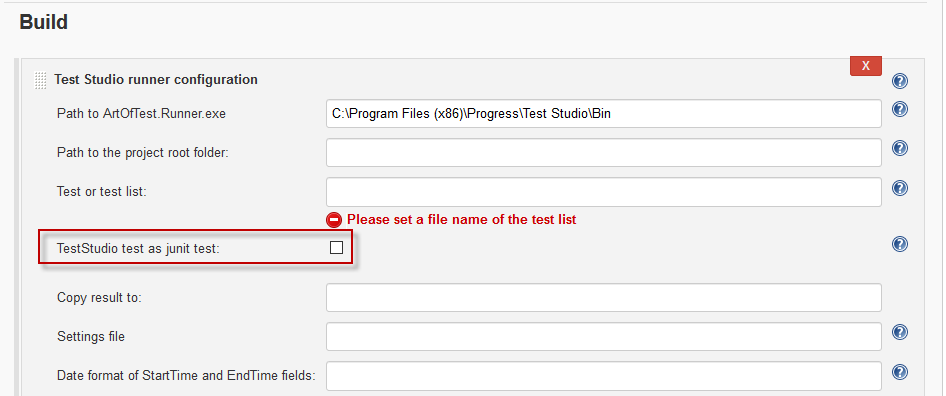
7. **Choose whether to convert test or test steps to JUnit test**. By enabling the checkbox a test list will be converted as a test suite and each including test will be converted to a JUnit test in the generated JUnit xml result file. Otherwise if disabling the checkbox each test will be converted to a test suite and each of its steps will be converted to a JUnit test in the generated JUnit xml result.
Your test execution step is now ready to save and run.