# Switching Themes at Runtime
> Before proceeding with this tutorial, please first read the [guide to setting a theme with implicit styles](https://www.telerik.com/products/wpf/documentation/styling-and-appearance/styling-apperance-setting-a-theme-overview).
By utilizing the theming mechanism with implicit styles, you can change the theme of Telerik UI for WPF controls at runtime without recreating the UI. All you need to do is remove the current merged dictionaries and then add the merged dictionaries of another theme to your application resources in code-behind:
**Merging resource dictionaries in code**
```C#
Application.Current.Resources.MergedDictionaries.Clear();
Application.Current.Resources.MergedDictionaries.Add(new ResourceDictionary() { Source = ......});
```
This will apply different implicit styles to your control at runtime.
In this help article we'll go through a quick example to demonstrate the approach.
1. Add the required assemblies from the **Binaries.NoXaml** folder located in the installation folder of the controls. You must also include the theme assemblies.
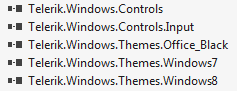
2. Add the needed resource dictionaries for the default theme in **App.xaml**.
**Merging ResourceDictionaries in XAML**
```XAML
...
```
3. Add a few controls of your choice to the page. In this example, we will add a **Grid**, **StackPanel**, **RadComboBox**, **RadDateTimePicker** and three **RadButtons** to switch between three of the themes.
**Defining the view**
```XAML
```
4. The example will use the simplest way to change the theme at runtime – it will use the **Click** event of each of the three buttons. Upon click, we will clear the merged dictionaries from the application resources and merge the new resource dictionaries from the theme assemblies.
**Merge the theme resources at runtime**
```C#
private void OfficeBlack_Click(object sender, RoutedEventArgs e)
{
Application.Current.Resources.MergedDictionaries.Clear();
Application.Current.Resources.MergedDictionaries.Add(new ResourceDictionary() {
Source = new Uri("/Telerik.Windows.Themes.Office_Black;component/Themes/System.Windows.xaml", UriKind.RelativeOrAbsolute)});
Application.Current.Resources.MergedDictionaries.Add(new ResourceDictionary() {
Source = new Uri("/Telerik.Windows.Themes.Office_Black;component/Themes/Telerik.Windows.Controls.xaml", UriKind.RelativeOrAbsolute)});
Application.Current.Resources.MergedDictionaries.Add(new ResourceDictionary() {
Source = new Uri("/Telerik.Windows.Themes.Office_Black;component/Themes/Telerik.Windows.Controls.Input.xaml", UriKind.RelativeOrAbsolute)});
}
private void Windows8_Click(object sender, RoutedEventArgs e)
{
Application.Current.Resources.MergedDictionaries.Clear();
Application.Current.Resources.MergedDictionaries.Add(new ResourceDictionary() {
Source = new Uri("/Telerik.Windows.Themes.Windows8;component/Themes/System.Windows.xaml", UriKind.RelativeOrAbsolute)});
Application.Current.Resources.MergedDictionaries.Add(new ResourceDictionary() {
Source = new Uri("/Telerik.Windows.Themes.Windows8;component/Themes/Telerik.Windows.Controls.xaml", UriKind.RelativeOrAbsolute)});
Application.Current.Resources.MergedDictionaries.Add(new ResourceDictionary() {
Source = new Uri("/Telerik.Windows.Themes.Windows8;component/Themes/Telerik.Windows.Controls.Input.xaml", UriKind.RelativeOrAbsolute)});
}
private void Windows7_Click(object sender, RoutedEventArgs e)
{
Application.Current.Resources.MergedDictionaries.Clear();
Application.Current.Resources.MergedDictionaries.Add(new ResourceDictionary() {
Source = new Uri("/Telerik.Windows.Themes.Windows7;component/Themes/System.Windows.xaml", UriKind.RelativeOrAbsolute)});
Application.Current.Resources.MergedDictionaries.Add(new ResourceDictionary() {
Source = new Uri("/Telerik.Windows.Themes.Windows7;component/Themes/Telerik.Windows.Controls.xaml", UriKind.RelativeOrAbsolute)});
Application.Current.Resources.MergedDictionaries.Add(new ResourceDictionary() {
Source = new Uri("/Telerik.Windows.Themes.Windows7;component/Themes/Telerik.Windows.Controls.Input.xaml", UriKind.RelativeOrAbsolute)});
}
```
5. The following pictures show the final result.
> caption Click the Office black button to show a black and grey theme.
```

```
> caption The Windows8 theme shows a different set of colors for all controls – the flat styling of Windows 8.
```

```
> caption And finally, the Windows7 theme shows a blue-grey gradient set of colors for the controls.
```

```
## See Also
* [Switch Theme Color Variations at Runtime](https://www.telerik.com/products/wpf/documentation/knowledge-base/kb-theming-change-theme-variation-runtime)
* [Switch Themes at Design-Time](https://www.telerik.com/products/wpf/documentation/styling-and-appearance/how-to/styling-apperance-switching-themes-design-time)
* [Switch Custom Styles with Themes at Runtime](https://www.telerik.com/products/wpf/documentation/styling-and-appearance/how-to/styling-apperance-custom-styles-themes-runtime)
* [Apply Telerik Themes to Native WPF Controls](https://www.telerik.com/products/wpf/documentation/styling-and-appearance/how-to/styling-apperance-themes-mscontrols)
* [Switch Icons at Runtime](https://www.telerik.com/products/wpf/documentation/styling-and-appearance/how-to/styling-apperance-switching-icons-at-runtime)