# Create a Menu Button with RadContextMenu and ToggleButton
## Environment
| Product Version |
2026.1.415 |
| Product |
RadContextMenu for WPF |
## Description
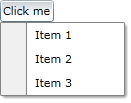
Create a drop-down menu button that displays additional options when the user clicks a ToggleButton.
## Solution
Attach a RadContextMenu to the ToggleButton and bind the ToggleButton.IsChecked property to the RadContextMenu.IsOpen property.
1. Define the ToggleButton and attach the RadContextMenu.
**Define the ToggleButton and RadContextMenu**
```XAML
```
The `IsChecked` binding keeps the ToggleButton state synchronized with the RadContextMenu.IsOpen property.
> caption RadContextMenu menu button
## See Also
* [Getting Started](https://www.telerik.com/products/wpf/documentation/controls/radcontextmenu/getting-started)
* [Menu Placement](https://www.telerik.com/products/wpf/documentation/controls/radcontextmenu/placement)
* [RadContextMenu Overview](https://www.telerik.com/products/wpf/documentation/controls/radcontextmenu/overview)