# Expand and Select Item with Load on Demand Enabled RadTreeView
This tutorial shows how to expand and select an item in `RadTreeView` with load on demand enabled (`IsLoadOnDemandEnabled` set to `True`).
Before you begin, configure a project with Progress® Telerik® UI for WPF. Follow the [TreeView getting started guide](https://www.telerik.com/products/wpf/documentation/controls/radtreeview/getting-started/getting-started) for references, licensing, the XAML namespace, and theme setup.
The example uses a data-bound `RadTreeView` and loads child items through the data model rather than the built-in `LoadOnDemand` event.
## Expand and Select an Item
Follow these steps to define the data hierarchy and navigate to an item:
1. Declare the data-bound `RadTreeView`:
```XAML
```
2. Define the `DataItem` class for the items in the data source:
```C#
public class DataItem : ViewModelBase
{
private string title;
private List children;
public String Title
{
get
{
return this.title;
}
set
{
if (this.title != value)
{
this.title = value;
this.OnPropertyChanged("Title");
}
}
}
public List Children
{
get
{
return this.children;
}
}
}
```
```VB.NET
Public Class DataItem
Inherits ViewModelBase
Private m_title As String
Private m_children As List(Of DataItem)
Public Property Title() As [String]
Get
Return Me.m_title
End Get
Set(value As [String])
If Me.m_title <> value Then
Me.m_title = value
Me.OnPropertyChanged("Title")
End If
End Set
End Property
Public ReadOnly Property Children() As List(Of DataItem)
Get
Return Me.m_children
End Get
End Property
End Class
```
3. Create the initial data and set the `ItemsSource` property of the `RadTreeView`:
```C#
this.treeView.ItemsSource = Enumerable.Range(1, 10).Select(i => new DataItem()
{
Title = string.Format("Item {0}", i)
}).ToList();
```
4. Implement load on demand in the getter of the `DataItem.Children` property:
The load on demand feature displays an expander icon in front of each `RadTreeViewItem`. This example does not use the built-in `LoadOnDemand` event to load items. Instead, the `HierarchicalDataTemplate` binding evaluates the `Children` getter on load. The getter loads a fixed number of items when the `children` field is not yet initialized.
```C#
public List Children2
{
get
{
if (this.children == null)
{
this.children = new List();
for (int i = 0; i < 5; i++)
{
DataItem item = new DataItem() { Title = string.Format("{0}.{1}", this.Title, i) };
this.children.Add(item);
}
}
return this.children;
}
}
```
```VB.NET
Public ReadOnly Property Children() As List(Of DataItem)
Get
If Me.children Is Nothing Then
Me.children = New List(Of DataItem)()
For i As Integer = 0 To 4
Dim item As New DataItem() With { _
Key .Title = String.Format("{0}.{1}", Me.Title, i) _
}
Me.children.Add(item)
Next
End If
Return Me.children
End Get
End Property
```
5. Implement the custom path-building logic for the [`BringPathIntoView()` method](https://www.telerik.com/products/wpf/documentation/controls/radtreeview/features/treeview-item/treeviewitem-bring-into-view-support):
For path matching, set Telerik's `TextSearch.TextPath` attached property to the data property used for each path segment. `BringPathIntoView()` traverses the data hierarchy and can bring an item into view before all item containers exist. Configure selection separately. For a selection-binding example, see [bringing an item into view and selecting it](https://www.telerik.com/products/wpf/documentation/controls/radtreeview/how-to/bring-path-into-view).
```C#
private void Button_Click_1(object sender, RoutedEventArgs e)
{
string[] headerAndIndexes = this.userInput.Text.Split(' ');
string[] indexes = headerAndIndexes.LastOrDefault().Split('.');
bool areIndexesValid = false;
int i;
if (headerAndIndexes != null && indexes != null)
{
foreach (string index in indexes)
{
areIndexesValid = int.TryParse(index, out i);
}
if (headerAndIndexes.FirstOrDefault().Contains("Item") && areIndexesValid)
{
RadTreeViewItem item = this.treeView.GetItemByPath(this.GenetatePath(this.userInput.Text));
if (item != null)
{
item.IsSelected = true;
item.IsExpanded = true;
}
}
}
}
private string GenetatePath(string itemToExpand)
{
string path = string.Empty;
string buffer;
string[] header = itemToExpand.Split(' ');
string[] indexes = header.LastOrDefault().Split('.');
header[0] = string.Format("{0} {1}", header[0], indexes[0]);
path = string.Format("{0}\\", header[0]);
for (int i = 1; i < indexes.Length; i++)
{
buffer = string.Format("{0}.{1}", header[0], indexes[i]);
header[0] = buffer;
path += string.Format("{0}\\", buffer);
}
return path.TrimEnd('\\');
}
```
```VB.NET
Private Sub Button_Click_1(sender As Object, e As RoutedEventArgs)
Dim headerAndIndexes As String() = Me.userInput.Text.Split(" "c)
Dim indexes As String() = headerAndIndexes.LastOrDefault().Split("."c)
Dim areIndexesValid As Boolean = False
Dim i As Integer
If headerAndIndexes IsNot Nothing AndAlso indexes IsNot Nothing Then
For Each index As String In indexes
areIndexesValid = Integer.TryParse(index, i)
Next
If headerAndIndexes.FirstOrDefault().Contains("Item") AndAlso areIndexesValid Then
Dim item As RadTreeViewItem = Me.treeView.GetItemByPath(Me.GenetatePath(Me.userInput.Text))
If item IsNot Nothing Then
item.IsSelected = True
item.IsExpanded = True
End If
End If
End If
End Sub
Private Function GenetatePath(itemToExpand As String) As String
Dim path As String = String.Empty
Dim buffer As String
Dim header As String() = itemToExpand.Split(" "c)
Dim indexes As String() = header.LastOrDefault().Split("."c)
header(0) = String.Format("{0} {1}", header(0), indexes(0))
path = String.Format("{0}\", header(0))
For i As Integer = 1 To indexes.Length - 1
buffer = String.Format("{0}.{1}", header(0), indexes(i))
header(0) = buffer
path += String.Format("{0}\", buffer)
Next
Return path.TrimEnd("\"c)
End Function
```
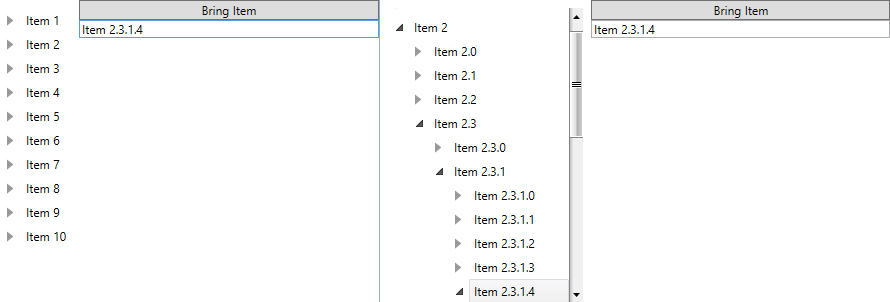
The following image shows the tree before and after navigation to **Item 2.3.1.4**.
## See Also
* [Get Item by Path](https://www.telerik.com/products/wpf/documentation/controls/radtreeview/how-to/get-item-by-path)
* [Selection](https://www.telerik.com/products/wpf/documentation/controls/radtreeview/features/feautres-treeviewitem-selection)
* [Get Previous, Next, Parent and Sibling Node of a Specific TreeView Item](https://www.telerik.com/products/wpf/documentation/controls/radtreeview/how-to/get-previous-next-parent-sibling-node)