# Implement Copy Drag
The purpose of this tutorial is to show you how to implement "Copy Drag".
## Copy Item When Dragging from One TreeView to Another
Using the new **DragDrop** mode, you can control the **DropAction** of a drop operation. You can do so through the **TreeViewDragDropOptions** object as described in the [DragDrop](https://www.telerik.com/products/wpf/documentation/controls/radtreeview/features/dragdrop/drag-and-drop) tutorial.
In this section you will see how to implement copy drag, when dragging items from one data-bound treeview to another. On the next figure you can see the initial staging.
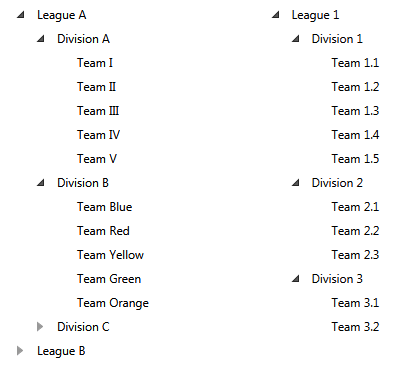
There are two treeviews populated with some hierarchical data. On the left side is the source treeview (the one from which the items will be copied). On the right side is the target treeview (the one in which the items will be dropped).
> tip Both **RadTreeViews** are data bound to a collection of business objects. For more information, read the [Binding to Object](https://www.telerik.com/products/wpf/documentation/controls/radtreeview/populating-with-data/data-binding-to-object) topic.
```XAML
```
In the current situation if you try to drag and drop from the left treeview to the right, the items will be moved (not copied). The same is valid if you try to drag and drop from the right treeview to the left. And in order to change that logic and implement a copy drag operation from the left to the right **RadTreeView** you need to:
* Attach a **DragDropManager DragOver** event handler for the right **RadTreeView**:
```C#
DragDropManager.AddDragOverHandler(radTreeView2, OnDragOver, true);
```
```VB.NET
DragDropManager.AddDragOverHandler(radTreeView2, OnDragOver, True)
```
> tip **RadTreeView** handles internally the **DragDropManager** events and in order to invoke a custom handler, you need to explicitly specify that you're adding a handler that should be invoked even for already handled events. This is done through the last - **bool** argument of the **DragDropManager.AddDragOverHandler** extension method.
* In the event handler you should use the following code:
```C#
private void OnDragOver(object sender, Telerik.Windows.DragDrop.DragEventArgs e)
{
var options = DragDropPayloadManager.GetDataFromObject(e.Data, TreeViewDragDropOptions.Key) as TreeViewDragDropOptions;
if (options != null)
{
options.DropAction = DropAction.Copy;
}
}
```
```VB.NET
Private Sub OnDragOver(sender As Object, e As Telerik.Windows.DragDrop.DragEventArgs)
Dim options = TryCast(DragDropPayloadManager.GetDataFromObject(e.Data, TreeViewDragDropOptions.Key), TreeViewDragDropOptions)
If options IsNot Nothing AndAlso TypeOf options.DropTargetItem.Items Is League Then
options.DropAction = DropAction.Copy
End If
End Sub
```
Here is the final result:
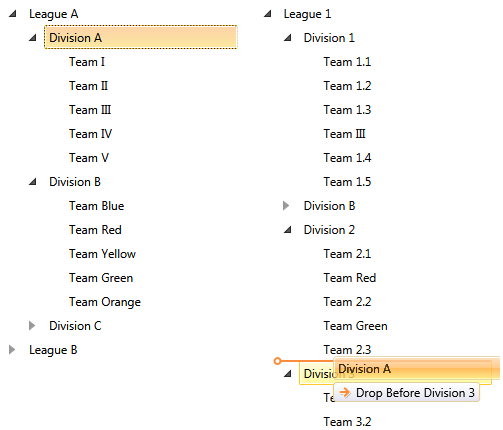
Now if you try to drag an item from the right **RadTreeView** and drop it in the left tree, the item will be moved. This is due to the fact that we changed the **DropAction** only while dragging over items of the right **RadTreeView**. If you need to implement a copy operation when dropping into the left **RadTreeView**, you'll have to attach an event handler for its **DragDropManager DragOver** event as well:
```C#
DragDropManager.AddDragOverHandler(xTreeView, OnDragOver, true);
```
```VB.NET
DragDropManager.AddDragOverHandler(xTreeView, OnDragOver, True)
```
> tip If you try to implement the above approach on two declaratively defined **RadTreeView** controls, you'll encounter an exception. This is due to the fact that the copy operation will try to add one object instance in two different **RadTreeView** controls. And if you're working with visual objects, then this would raise an exception as you can't use the same visual object multiple times in the VisualTree of the application. Therefore in this case, you'll have to implement a custom copy operation that creates a new object copying the settings of the dragged **RadTreeViewItem**.
## Copy Item When Dragging Within the Same TreeView
In this section you will see how to implement copy drag, when dragging items within the same **RadTreeView**. On the next figure you can see the initial staging.
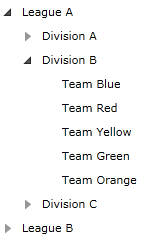
Here is a treeview populated with some hierarchical data. This is the initial XAML declaration:
```XAML
```
> tip The **RadTreeView** is data bound to a collection of business objects. For more information, read the [Binding to Object](https://www.telerik.com/products/wpf/documentation/controls/radtreeview/populating-with-data/data-binding-to-object) topic.
Before setting a copy **DropAction** within one **RadTreeView**, you need to consider the fact that in the **RadTreeView** once you add the same instance of an object, all item manipulation operations will be applied on every instance of the object found within the **RadTreeView** control. This basically means that if you follow the approach described in the previous section of the article, you will get multiple **RadTreeViewItems** wrapping the same object instance. Once you do so, you'll have to work with all items as one as the **RadTreeView** can't differentiate them. If this is something you;d like to avoid, then you'll have to reconfigure the default **RadTreeView** drag/drop operation to make a **real copy** of the dragged item and drop the copy.
In order to implement a **real copy** drag operation, you need to perform the following steps:
* Attach **DragDropManager Drop and DragDropCompleted** handlers on the **RadTreeView**:
```C#
DragDropManager.AddDropHandler(xTreeView, OnDrop, true);
DragDropManager.AddDragDropCompletedHandler(xTreeView, OnDragDropCompleted, true);
```
```VB.NET
DragDropManager.AddDropHandler(xTreeView, OnDrop, True)
DragDropManager.AddDragDropCompletedHandler(xTreeView, OnDragDropCompleted, True)
```
> tip **RadTreeView** handles internally the **DragDropManager** events and in order to invoke a custom handler, you need to explicitly specify that you're adding a handler that should be invoked even for already handled events. This is done through the last - **bool** argument of the **DragDropManager.AddDragOverHandler** extension method.
* In the **OnDrop** event handler you should stop the drop operation. You can do so by setting the **DropAction** to **None**:
```C#
private void OnDrop(object sender, Telerik.Windows.DragDrop.DragEventArgs e)
{
var options = DragDropPayloadManager.GetDataFromObject(e.Data, TreeViewDragDropOptions.Key) as TreeViewDragDropOptions;
if (options != null)
{
options.DropAction = DropAction.None;
}
}
```
```VB.NET
Private Sub OnDrop(sender As Object, e As Telerik.Windows.DragDrop.DragEventArgs)
Dim options = TryCast(DragDropPayloadManager.GetDataFromObject(e.Data, TreeViewDragDropOptions.Key), TreeViewDragDropOptions)
If options IsNot Nothing Then
options.DropAction = DropAction.None
End If
End Sub
```
* In the **OnDragDropCompleted** event handler you should implement a custom drop operation. However, as this drop operation will have to create a **real copy** of the dragged item, you will need to create methods to copy your objects. For example, here are sample methods which copy respectively the **Team**, the **Division** and the **League** objects:
```C#
private Team CopyTeam(Team team)
{
return new Team(team.Name);
}
private Division CopyDivision(Division division)
{
Division copyDivision = new Division(division.Name);
foreach (Team team in division.Teams)
{
copyDivision.Teams.Add(this.CopyTeam(team));
}
return copyDivision;
}
private League CopyLeague(League league)
{
League copyLeague = new League(league.Name);
foreach (Division division in league.Divisions)
{
copyLeague.Divisions.Add(this.CopyDivision(division));
}
return copyLeague;
}
```
```VB.NET
Private Function CopyTeam(team As Team) As Team
Return New Team(team.Name)
End Function
Private Function CopyDivision(division As Division) As Division
Dim div As New Division(division.Name)
For Each team As Team In division.Teams
div.Teams.Add(Me.CopyTeam(team))
Next
Return div
End Function
Private Function CopyLeague(league As League) As League
Dim l As New League(league.Name)
For Each division As Division In league.Divisions
l.Divisions.Add(Me.CopyDivision(division))
Next
Return l
End Function
```
* Next, you need to implement a custom drop operation in the **OnDragDropCompleted** event handler. This means that you need to define a logic that tracks the type of the dragged item as well as the type of the drop destination to make sure that the drop is actually allowed. This logic will also have to track the **DropPosition** to decide where to insert the **real copy** of the dragged item.
```C#
private void OnDragDropCompleted(object sender, DragDropCompletedEventArgs e)
{
var options = DragDropPayloadManager.GetDataFromObject(e.Data, TreeViewDragDropOptions.Key) as TreeViewDragDropOptions;
if (options != null)
{
var item = options.DraggedItems.FirstOrDefault();
if (options.DropTargetItem != null)
{
if (item is Team)
{
if (options.DropPosition == Telerik.Windows.Controls.DropPosition.Inside && options.DropTargetItem.Item is Division)
{
(options.DropTargetItem.Item as Division).Teams.Add(CopyTeam((Team)item));
}
else if (options.DropPosition != Telerik.Windows.Controls.DropPosition.Inside && options.DropTargetItem.Item is Team)
{
Division parentDivision = options.DropTargetItem.ParentItem.Item as Division;
switch (options.DropPosition)
{
case Telerik.Windows.Controls.DropPosition.After:
parentDivision.Teams.Insert(options.DropTargetItem.Index + 1, CopyTeam((Team)item));
break;
case Telerik.Windows.Controls.DropPosition.Before:
parentDivision.Teams.Insert(options.DropTargetItem.Index, CopyTeam((Team)item));
break;
}
}
}
else if (item is Division)
{
if (options.DropPosition == Telerik.Windows.Controls.DropPosition.Inside && options.DropTargetItem.Item is League)
{
(options.DropTargetItem.Item as League).Divisions.Add(CopyDivision((Division)item));
}
else if (options.DropPosition != Telerik.Windows.Controls.DropPosition.Inside && options.DropTargetItem.Item is Division)
{
League parentLeague = options.DropTargetItem.ParentItem.Item as League;
switch (options.DropPosition)
{
case Telerik.Windows.Controls.DropPosition.After:
parentLeague.Divisions.Insert(options.DropTargetItem.Index + 1, CopyDivision((Division)item));
break;
case Telerik.Windows.Controls.DropPosition.Before:
parentLeague.Divisions.Insert(options.DropTargetItem.Index, CopyDivision((Division)item));
break;
}
}
}
else if (item is League)
{
if (options.DropTargetItem == null && options.DropTargetTree != null)
{
(options.DropTargetTree.ItemsSource as IList).Add(CopyLeague((League)item));
}
else if (options.DropPosition != Telerik.Windows.Controls.DropPosition.Inside && options.DropTargetItem.Item is League)
{
IList source = options.DropTargetItem.ParentTreeView.ItemsSource as IList;
switch (options.DropPosition)
{
case Telerik.Windows.Controls.DropPosition.After:
source.Insert(options.DropTargetItem.Index + 1, CopyLeague((League)item));
break;
case Telerik.Windows.Controls.DropPosition.Before:
source.Insert(options.DropTargetItem.Index, CopyLeague((League)item));
break;
}
}
}
}
}
}
```
```VB.NET
Private Sub OnDragDropCompleted(sender As Object, e As DragDropCompletedEventArgs)
Dim options = TryCast(DragDropPayloadManager.GetDataFromObject(e.Data, TreeViewDragDropOptions.Key), TreeViewDragDropOptions)
If options IsNot Nothing Then
Dim item = options.DraggedItems.FirstOrDefault()
If options.DropTargetItem IsNot Nothing Then
If TypeOf item Is Team Then
If options.DropPosition = Telerik.Windows.Controls.DropPosition.Inside AndAlso TypeOf options.DropTargetItem.Item Is Division Then
TryCast(options.DropTargetItem.Item, Division).Teams.Add(CopyTeam(DirectCast(item, Team)))
ElseIf options.DropPosition <> Telerik.Windows.Controls.DropPosition.Inside AndAlso TypeOf options.DropTargetItem.Item Is Team Then
Dim parentDivision As Division = TryCast(options.DropTargetItem.ParentItem.Item, Division)
Select Case options.DropPosition
Case Telerik.Windows.Controls.DropPosition.After
parentDivision.Teams.Insert(options.DropTargetItem.Index + 1, CopyTeam(DirectCast(item, Team)))
Exit Select
Case Telerik.Windows.Controls.DropPosition.Before
parentDivision.Teams.Insert(options.DropTargetItem.Index, CopyTeam(DirectCast(item, Team)))
Exit Select
End Select
End If
ElseIf TypeOf item Is Division Then
If options.DropPosition = Telerik.Windows.Controls.DropPosition.Inside AndAlso TypeOf options.DropTargetItem.Item Is League Then
TryCast(options.DropTargetItem.Item, League).Divisions.Add(CopyDivision(DirectCast(item, Division)))
ElseIf options.DropPosition <> Telerik.Windows.Controls.DropPosition.Inside AndAlso TypeOf options.DropTargetItem.Item Is Division Then
Dim parentLeague As League = TryCast(options.DropTargetItem.ParentItem.Item, League)
Select Case options.DropPosition
Case Telerik.Windows.Controls.DropPosition.After
parentLeague.Divisions.Insert(options.DropTargetItem.Index + 1, CopyDivision(DirectCast(item, Division)))
Exit Select
Case Telerik.Windows.Controls.DropPosition.Before
parentLeague.Divisions.Insert(options.DropTargetItem.Index, CopyDivision(DirectCast(item, Division)))
Exit Select
End Select
End If
ElseIf TypeOf item Is League Then
If options.DropTargetItem Is Nothing AndAlso options.DropTargetTree IsNot Nothing Then
TryCast(options.DropTargetTree.ItemsSource, IList).Add(CopyLeague(DirectCast(item, League)))
ElseIf options.DropPosition <> Telerik.Windows.Controls.DropPosition.Inside AndAlso TypeOf options.DropTargetItem.Item Is League Then
Dim source As IList = TryCast(options.DropTargetItem.ParentTreeView.ItemsSource, IList)
Select Case options.DropPosition
Case Telerik.Windows.Controls.DropPosition.After
source.Insert(options.DropTargetItem.Index + 1, CopyLeague(DirectCast(item, League)))
Exit Select
Case Telerik.Windows.Controls.DropPosition.Before
source.Insert(options.DropTargetItem.Index, CopyLeague(DirectCast(item, League)))
Exit Select
End Select
End If
End If
End If
End If
End Sub
```
With this the **real copy DragDrop** implementation is ready. The final result can be seen on the next snapshots.
Copy Team:
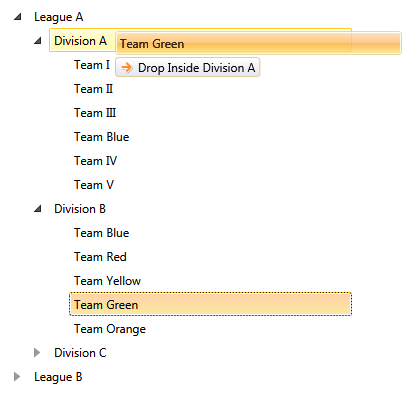
Copy Division:
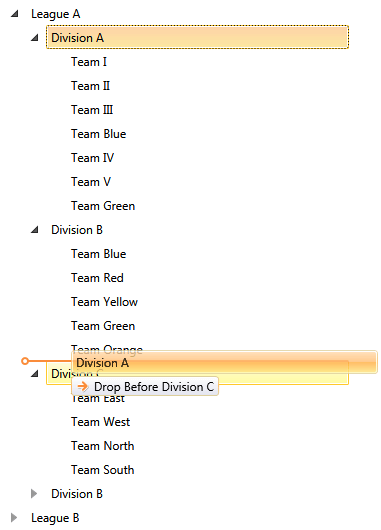
Copy League:
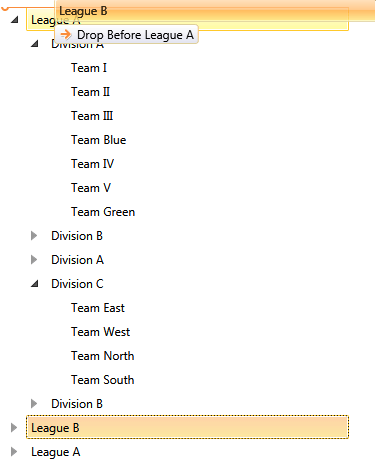
You can further customize this solution by applying a logic that determines the **DropAction** based on the type of the item the drag operation is currently over:
```C#
private void OnDrop2(object sender, Telerik.Windows.DragDrop.DragEventArgs e)
{
var options = DragDropPayloadManager.GetDataFromObject(e.Data, TreeViewDragDropOptions.Key) as TreeViewDragDropOptions;
if (options != null)
{
options.DropAction = DropAction.None;
}
}
```
```VB.NET
Private Sub OnDrop(sender As Object, e As Telerik.Windows.DragDrop.DragEventArgs)
Dim options = TryCast(DragDropPayloadManager.GetDataFromObject(e.Data, TreeViewDragDropOptions.Key), TreeViewDragDropOptions)
If options IsNot Nothing Then
options.DropAction = DropAction.None
End If
End Sub
```
## See Also
* [Drag and Drop](https://www.telerik.com/products/wpf/documentation/controls/radtreeview/features/dragdrop/drag-and-drop)
* [Implement Drag and Drop Between TreeView and ListBox](https://www.telerik.com/products/wpf/documentation/controls/radtreeview/how-to/drag-and-drop/implement-between-treeview-and-listbox)
* [Enable Only Drop Inside](https://www.telerik.com/products/wpf/documentation/controls/radtreeview/how-to/drag-and-drop/enabled-drop-inside-only)
* [Disable Drop at Specific Location](https://www.telerik.com/products/wpf/documentation/controls/radtreeview/how-to/drag-and-drop/disable-drop-specific-location)
* [Auto Expand on Drag Over](https://www.telerik.com/products/wpf/documentation/controls/radtreeview/how-to/drag-and-drop/enable-auto-expand-drag-over)