# How to Edit an Item
**RadTreeView** supports editing the displayed text of the item. The purpose of this tutorial is to show you:
* How to enable/disable the item editing behavior.
* How to start, end and cancel editing declaratively and programmatically.
* What kind of events the treeview API offers you for managing the edit process.
> caption RadTreeView with several items
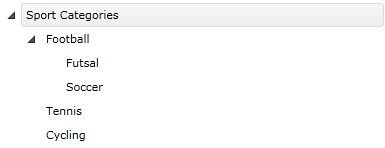
**Example 1: RadTreeView populate with several items**
```XAML
```
## Enable Editing
By default the treeview is not editable. In order to enable editing you need to set the **IsEditable** property of RadTreeView to **True**. The default value is False.
**Example 2: Enable editing in XAML**
```XAML
```
**Example 3: Enable editing in code**
```C#
radTreeView.IsEditable = true;
```
```VB.NET
radTreeView.IsEditable = True
```
## Toggle Editing by Using Keyboard
Once the edit behavior is enabled, you can start the editing process by selecting an item and pressing the **F2** key.
If you want to cancel the current edit operation and to preserve any text changes, you should press the **Esc** key.
## Toggle Editing Programmatically
You can manually enter or exit the edit mode of RadTreeViewItem by setting its **IsInEditMode**.
**Example 4: Start editing via code**
```C#
radTreeViewItem.IsInEditMode = true;
```
```VB.NET
radTreeViewItem.IsInEditMode = True
```
> caption RadTreeViewItem in edit mode
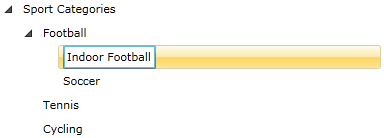
**Example 5: Exit editing via code**
```C#
radTreeViewItem.IsInEditMode = false;
```
```VB.NET
radTreeViewItem.IsInEditMode = False
```
> Setting the **IsInEditMode** property to False don't save the changes explicitly. To do so call the CommintEdit() method.
## Saving the Changes by Using the Keyboard
After entering the new text, in order to save your changes you should press the **Enter** key.
## Saving the Changes Programmatically
If you want to finish the process of editing in code-behind and to save the changes manually, you need to call the **CommitEdit()** method of the corresponding RadTreeViewItem.
**Example 6: Commit changes**
```C#
radTreeViewItem.CommitEidt();
```
```VB.NET
radTreeViewItem.CommitEidt();
```
## Cancelling the Edit Operation Programmatically
In order to cancel the edit process in the code-behind you need to invoke the **CancelEdit()** method of the editing treeview item. This method discards modifications to data since the last save.
**Example 5: Cancel editing**
```C#
radTreeViewItemFutsal.CancelEdit();
```
```VB.NET
radTreeViewItemFutsal.CancelEdit()
```
## Events
The Telerik RadTreeView and RadTreeViewItem classes offer you several events for managing the edit process. These events are available both on the RadTreeView and on the RadTreeViewItem classes.
**Example 6: Subscribing to edit events**
```XAML
```
The **PreviewEditStarted** event occurs when the treeview item is about to be edited. The **EditStarted** event is fired when the treeview item is already in edit mode. The type of the passed event arguments for both of the events is RadRoutedEventArgs.
**Example 7: Accessing the editing RadTreeViewItem in the PreviewEditStarted event handler**
```C#
private void radTreeView_PreviewEditStarted(object sender, RadRoutedEventArgs e)
{
RadTreeViewItem targetItem = e.Source as RadTreeViewItem;
}
```
```VB.NET
Private Sub radTreeView_PreviewEditStarted(ByVal sender As Object, ByVal e As RadRoutedEventArgs)
Dim targetItem As RadTreeViewItem = TryCast(e.Source, RadTreeViewItem)
End Sub
```
The **PreviewEdited** event is fired just before the new **Header** text of the item is applied. If the treeview is data bound you can update the data source with the new value. The **Edited** event is fired once the new **Header** text for the item is applied. You can get access to the new text of the **Header** property, as well as to the old one, via the **RadTreeViewItemEditedEventArgs** of the **PreviewEdited** and **Edited** events.
> caption Getting the header text
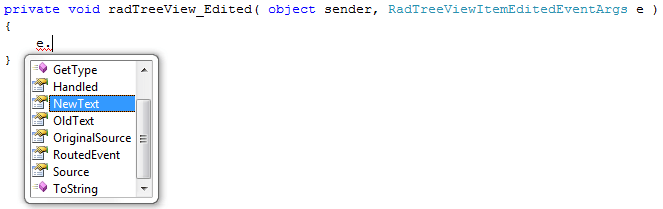
> If the the **ItemEditTemplate** property is set and it does not contain a **TextBox**, then the **NewText** and **OldText** properties will not be used.
In the event handler you can place some code that has to be executed when the item is edited. For example, change the background color of the edited item:
**Example 8: Setting the background of the edited RadTreeViewItem**
```C#
private void radTreeView_Edited(object sender, RadTreeViewItemEditedEventArgs e)
{
(e.Source as RadTreeViewItem).Background = new SolidColorBrush(Colors.Red);
}
```
```VB.NET
Private Sub radTreeView_Edited(ByVal sender As Object, ByVal e As RadTreeViewItemEditedEventArgs)
TryCast(e.Source, RadTreeViewItem).Background = New SolidColorBrush(Colors.Red)
End Sub
```
> caption RadTreeViewItem with its background changed on edit
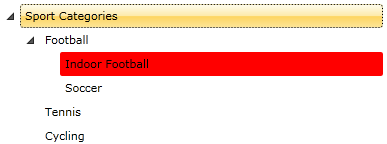
## ItemEditTemplate and ItemEditTemplateSelector
Telerik RadTreeView also supports ItemEditTemplate and ItemEditTemplateSelector. To learn more on how to do that, visit the [Item Edit Template](https://www.telerik.com/products/wpf/documentation/controls/radtreeview/populating-with-data/item-edit-template) and [Item Edit Template Selector](https://www.telerik.com/products/wpf/documentation/controls/radtreeview/populating-with-data/item-edit-template-selector) topics.
## See Also
* [Item Images](https://www.telerik.com/products/wpf/documentation/controls/radtreeview/features/treeview-item/feautres-treeviewitem-item-images)
* [Enable and Disable Items](https://www.telerik.com/products/wpf/documentation/controls/radtreeview/features/treeview-item/feautres-treeviewitem-enable-disable-items)
* [Working with Selections](https://www.telerik.com/products/wpf/documentation/controls/radtreeview/features/feautres-treeviewitem-selection)
* [Expanding and Collapsing Items](https://www.telerik.com/products/wpf/documentation/controls/radtreeview/features/treeview-item/feautres-treeviewitem-expanding-and-collapsing-items)
* [BringIntoView Support](https://www.telerik.com/products/wpf/documentation/controls/radtreeview/features/treeview-item/treeviewitem-bring-into-view-support)