# Enable and Disable Items
By using the API of the **RadTreeView** control you can easily disable or enable a node. You can set the boolean property **IsEnabled** to each one of the following objects:
* **RadTreeView**
* **RadTreeViewItem**
This tutorial will walk you through the common tasks of **enabling** and **disabling** treeview item(s) declaratively and programmatically.
## Enable and Disable Items Declaratively
This is a snapshot of a regular **RadTreeView** with a couple of items.
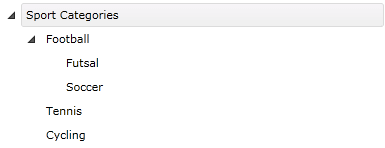
And here is the XAML declaration:
```XAML
```
By default all items in the treeview are enabled (their **IsEnabled** property is set to **True**). That means you can select, expand, collapse, drag and drop these items. If you want to disable a specific item, just add the following attribute to the treeview item declaration:
```XAML
```
If you want to disable the whole treeview then add the same attribute to the treeview declaration. On the next snapshot the whole treeview is disabled.

Here is the XAML declaration. Note that if you set the **IsEnabled** property to **False** for the **RadTreeView** object then all treeview items will be disabled.
```XAML
```
## Enable and Disable Items Programmatically
In order to disable a treeview item, you have to set the **IsEnabled** property of an instance of the **RadTreeViewItem** class.
```C#
private void DisableTreeViewItem()
{
radTreeViewItemSoccer1.IsEnabled = false;
}
```
```VB.NET
Private Sub DisableTreeViewItem()
radTreeViewItemSoccer.IsEnabled = False
End Sub
```
If you want to disable the whole treeview then you have to set the **IsEnabled** property of an instance of the **RadTreeView** class.
```C#
private void DisableTreeView()
{
radTreeView.IsEnabled = false;
}
```
```VB.NET
Private Sub DisableTreeView()
radTreeView.IsEnabled = False
End Sub
```
> tip Consider disabling treeview items in XAML instead of code-behind whenever it's possible. This includes situations when you know what items you need to disable at design time.
## Events
Both **RadTreeView** and **RadTreeViewItem** offer you **IsEnabledChanged** event which is raised, when the tree or an item is enabled/disabled.
```XAML
```
You can also attach to the **IsEnabledChanged** event in the code-behind.
```C#
this.radTreeViewItemSoccer1.IsEnabledChanged += new DependencyPropertyChangedEventHandler(radTreeViewItemSoccer_IsEnabledChanged);
```
```VB.NET
AddHandler Me.radTreeViewItemSoccer.IsEnabledChanged, AddressOf radTreeViewItemSoccer_IsEnabledChanged
```
## See Also
* [How to Edit An Item](https://www.telerik.com/products/wpf/documentation/controls/radtreeview/features/treeview-item/feautres-treeviewitem-item-editing)
* [Item Images](https://www.telerik.com/products/wpf/documentation/controls/radtreeview/features/treeview-item/feautres-treeviewitem-item-images)
* [Working with selection](https://www.telerik.com/products/wpf/documentation/controls/radtreeview/features/feautres-treeviewitem-selection)
* [Expanding and Collapsing Items](https://www.telerik.com/products/wpf/documentation/controls/radtreeview/features/treeview-item/feautres-treeviewitem-expanding-and-collapsing-items)
* [BringIntoView Support](https://www.telerik.com/products/wpf/documentation/controls/radtreeview/features/treeview-item/treeviewitem-bring-into-view-support)