# Load on Demand
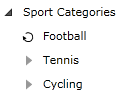
The performance of the Telerik **RadTreeView** control when operating with huge amount of items is significantly optimized through its load on demand feature. This mechanism lets the nodes load their child nodes as the user expands the parent by clicking on the expander icon.
This tutorial will walk you through the following common tasks:
* Enable load on demand behavior declaratively and programmatically.
* Using events to manage the load on demand process.
* Using the **IsLoadingOnDemand** property.
For the purpose of this tutorial will be used the following treeview declaration:
```XAML
```
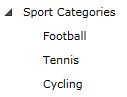
## Enable Load on Demand Declaratively
To enable this feature you can set the **IsLoadOnDemandEnabled** property to the **RadTreeViewItem** to **True**.
```XAML
```
## Enable Load on Demand Programmatically
The same effect can be achieved if you set the **IsLoadOnDemandEnabled** property of an instance of the **RadTreeViewItem** class in the code-behind:
```C#
private void EnableLoadOnDemand(RadTreeViewItem radTreeViewItem)
{
radTreeViewItem.IsLoadOnDemandEnabled = true;
}
```
```VB.NET
Private Sub EnableLoadOnDemand(ByVal radTreeViewItem As RadTreeViewItem)
radTreeViewItem.IsLoadOnDemandEnabled = True
End Sub
```
## Events
When the expand icon is clicked the **LoadOnDemand** event is fired. This event provides the opportunity to add new items based on the identity of the clicked-on Item.
* Here is an example of how to handle the **LoadOnDemand** event when attached to a **RadTreeViewItem**:
```XAML
```
```C#
private void RadTreeViewItem_LoadOnDemand(object sender, Telerik.Windows.RadRoutedEventArgs e)
{
// get the clicked Item
RadTreeViewItem clickedItem = sender as RadTreeViewItem;
// add the new items
RadTreeViewItem newItem = new RadTreeViewItem()
{
Header = "Soccer"
};
clickedItem.Items.Add(newItem);
}
```
```VB.NET
Private Sub RadTreeViewItem_LoadOnDemand(ByVal sender As Object, ByVal e As Telerik.Windows.RadRoutedEventArgs)
' get the clicked Item '
Dim clickedItem As RadTreeViewItem = TryCast(sender, RadTreeViewItem)
' add the new items '
Dim newItem As New RadTreeViewItem()
clickedItem.Items.Add(newItem)
End Sub
```
* If you want to enable the Load on demand functionality globally for the entire **RadTreeView** you can set the **IsLoadOnDemandEnabled** property to the **RadTreeView**. This will make all Items in the **RadTreeView** to have the expander icon enabled.
Here is an example of how to handle the **LoadOnDemand** event when attached to the **RadTreeView**:
```XAML
```
```C#
private void radTreeView_LoadOnDemand(object sender, RadRoutedEventArgs e)
{
// get the treeview
Telerik.Windows.Controls.RadTreeView tree = sender as Telerik.Windows.Controls.RadTreeView;
// get the clicked Item
RadTreeViewItem clickedItem = e.OriginalSource as RadTreeViewItem;
// add the new items
RadTreeViewItem newItem = new RadTreeViewItem()
{
Header = "New Item"
};
clickedItem.Items.Add(newItem);
clickedItem.IsLoadOnDemandEnabled = false;
}
```
```VB.NET
Private Sub radTreeView_LoadOnDemand(sender As Object, e As RadRoutedEventArgs)
' get the treeview '
Dim tree As Telerik.Windows.Controls.RadTreeView = TryCast(sender, Telerik.Windows.Controls.RadTreeView)
' get the clicked Item '
Dim clickedItem As RadTreeViewItem = TryCast(e.OriginalSource, RadTreeViewItem)
' add the new items '
Dim newItem As New RadTreeViewItem()
clickedItem.Items.Add(newItem)
clickedItem.IsLoadOnDemandEnabled = False
End Sub
```
> tip The **RadRoutedEventArgs** expose both the **Source** and the **OriginalSource** of the event.The **Source** property points to the **RadTreeView** control that is currently handling the event, but the **OriginalSource** property points to the **RadTreeViewItem** that was clicked.
## The IsLoadingOnDemand Property
When there are no items to add, and you want to stop the loading animation, set the **IsLoadingOnDemand** property to **False** to the **RadTreeViewItem** that has fired the **LoadOnDemand** event.
> tip When there are no items to add, and you want to prevent the **LoadOnDemand** event to fire again, set the **IsLoadOnDemandEnabled** property to **False** to the **RadTreeViewItem** that has fired the **LoadOnDemand** event.
## See Also
* [Data Binding](https://www.telerik.com/products/wpf/documentation/controls/radtreeview/features/data-binding)
* [CheckBox Support](https://www.telerik.com/products/wpf/documentation/controls/radtreeview/features/check-box-support)
* [Keyboard Support](https://www.telerik.com/products/wpf/documentation/controls/radtreeview/features/keyboard-support)