# Lines Support
The **RadTreeView** allows you to enable connected lines between the nodes of a treeview. By default the connecting lines between the nodes are not enabled (they are not visible). You should use a single property to do so - **IsLineEnabled** and set it to **True**.
```XAML
```
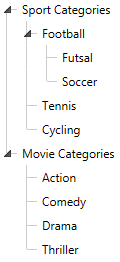
You can also control the visibility of the lines between the root items (the items on the first level) of the treeview. This can be done with the **IsRootLinesEnabled** property of the treeview. The default value of this property is **True**
```XAML
```
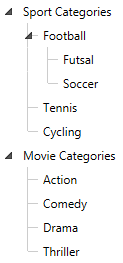
> tip For more information about the visual structure of the **RadTreeView**, check out the [Visual Structure](https://www.telerik.com/products/wpf/documentation/controls/radtreeview/visual-structure) topic.
## Change the LineColor
To change the line color, extract the `RadTreeViewItem` control template and modify its `TreeView_LineColor` resource. See [Editing Control Templates](https://www.telerik.com/products/wpf/documentation/styling-and-appearance/styling-apperance-editing-control-templates) for extraction instructions.
## See Also
* [Selection](https://www.telerik.com/products/wpf/documentation/controls/radtreeview/features/feautres-treeviewitem-selection)
* [Drag and Drop](https://www.telerik.com/products/wpf/documentation/controls/radtreeview/features/dragdrop/drag-and-drop)
* [UI Virtualization](https://www.telerik.com/products/wpf/documentation/controls/radtreeview/features/ui-virtualization)