# Drag and Drop Support
The Telerik **RadTreeView** control enhances further your application's capabilities through the rich drag-and-drop functionality. Your users can create and re-order any hierarchical structures and easily perform various drag-and-drop operations.
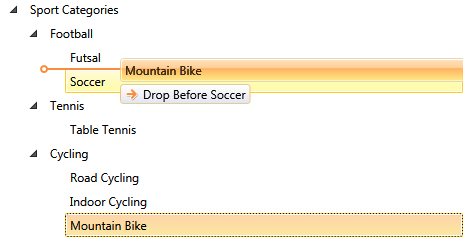
The following example shows a basic RadTreeView definition and enabled drag/drop feature. To enable the drag and drop, set the **IsDragDropEnabled** property to True.
**Example 1: Enabling the drag and drop feature**
```XAML
```
> caption Drag drop in action
**Example 2: Enabling the Drag/Drop functionality in code-behind**
```C#
private void EnableDragAndDrop()
{
radTreeView.IsDragDropEnabled = true;
}
```
```VB.NET
Private Sub EnableDragAndDrop()
radTreeView.IsDragDropEnabled = True
End Sub
```
> tip In data binding scenario it is recommended to assign an INotifyCollectionChanged implementation (like ObservableCollection\) to the ItemsSource of RadTreeView. Otherwise, the drag/drop actions won't be reflected properly in the UI. Additionally, the **ItemsSource** of the treeview items where drag/drop action will happen should be initialized. In case, the corresponding ItemsSource is null, the drop action won't get executed. Also, if the ItemsSource of RadTreeView or RadTreeViewItem is not an **IList** implementation, then the drop operation is not allowed.
## Enable Drag of Multiple Items
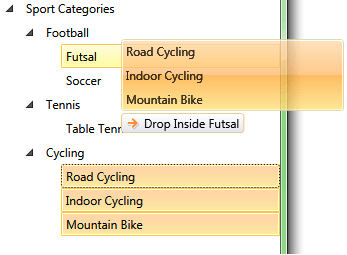
The drag operation is based on the selected items in RadTreeView. To enable dragging of multiple items you will need to enable the multiple selection feature. To do so, set the **SelectionMode** property of RadTreeView to **Multiple** or **Extended**.
**Example 3: Turn on multi-selection**
```XAML
```
**Example 4: Turn on multi-selection in code-behind**
```C#
private void EnableDragOfMultipleNodes()
{
radTreeView.SelectionMode = SelectionMode.Multiple;
}
```
```VB.NET
Private Sub EnableDragOfMultipleNodes()
radTreeView.SelectionMode = Telerik.Windows.Controls.SelectionMode.Multiple
End Sub
```
> caption Dragging multiple items
## DragDrop AutoScrolling Behavior
Since Q2 2013, you can take advantage of the built-in auto-scrolling functionality. Moreover, there are a set of properties exposed to allow you to customize the auto-scrolling functionality to better fit your needs.
The auto-scrolling functionality is controlled through the following attached properties:
* **ScrollingSettingsBehavior.IsEnabled**: Gets or sets a **bool** value indicating whether the auto-scrolling behavior is enabled.
* **ScrollingSettingsBehavior.ScrollStep**: Gets or sets a **double** value defining the scrolling offset used to define a single step during the scroll operation.
* **ScrollingSettingsBehavior.ScrollStepTime**: Gets or sets a **TimeSpan** value defining the timeout period between two scroll steps.
This feature is not available with the [legacy DragDropExecutionMode](https://www.telerik.com/products/wpf/documentation/controls/radtreeview/features/dragdrop/drag-drop-legacy).
## Drag and Drop Between TreeViews
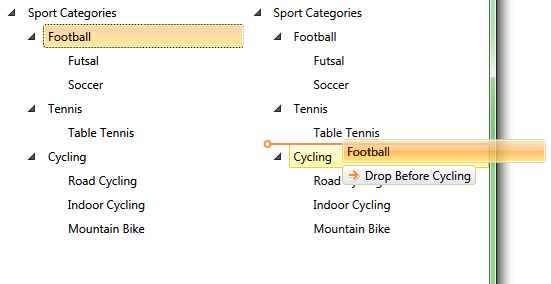
RadTreeView allows you to automatically drag and drop between two or more RadTreeView instances without the need to implement additional code. To do so, set IsDragDropEnabled property of the corresponding treeview instances.
In order for the drag and drop to work automatically the treeviews should work directly with RadTreeViewItem elements. Or if the ItemsSource is set, the treeviews should contain the same type of objects. Otherwise, some custom conversion code should be implemented.
The following example shows how to use the feature with two RadTreeView instances.
**Example 5: Define two RadTreeView controls**
```XAML
```
> caption Dragging items between two treeviews
To enable **drag/drop between RadTreeView and another control** (such as ListBox), you can customize the default drag/drop actions using the [DragDropManager](https://www.telerik.com/products/wpf/documentation/controls/dragdropmanager/overview). Read more about this in the [How To Implement Drag and Drop Between TreeView and ListBox](https://www.telerik.com/products/wpf/documentation/controls/radtreeview/how-to/drag-and-drop/implement-between-treeview-and-listbox) article.
## See Also
* [Enable Only Drop Inside](https://www.telerik.com/products/wpf/documentation/controls/radtreeview/how-to/drag-and-drop/enabled-drop-inside-only)
* [Disable Drop at Specific Location](https://www.telerik.com/products/wpf/documentation/controls/radtreeview/how-to/drag-and-drop/disable-drop-specific-location)
* [Implement Copy Drag](https://www.telerik.com/products/wpf/documentation/controls/radtreeview/how-to/drag-and-drop/implement-copy-drag)
* [Auto Expand on Drag Over](https://www.telerik.com/products/wpf/documentation/controls/radtreeview/how-to/drag-and-drop/enable-auto-expand-drag-over)