# Minimizing And Maximizing
Each **RadTileViewItem** can be in **Restored**, **Minimized** or **Maximized** state. The state is controlled by the **TileState** property. It is an enumeration and contains the following values:
* **Restored**
* **Minimized**
* **Maximized**
When one of the items is **Maximized**, the rest of the items are in **Minimized** state. When there is no **Maximized** item all items are in **Restored** state.
Minimized area can be placed on any side of the **RadTileView** by using the **MinimizedItemsPosition** property. It is an enumeration containing the following values:
* **Left**
* **Top**
* **Bottom**
* **Right** (the default value)
The size of the minimized area is controlled by the **MinimizedColumnWidth** and **MinimizedRowHeight** properties of the **TileView**.
## MaximizedItem
The **RadTileView\.MaximizedItem** property holds a reference to the currently maximized tile, if there is any. It can be used to either check if there is a maximized item, get a reference to it, or set the property in order to maximize an item that is currently not maximized. Note, however, that if the **RadTileView** is data bound, the **MaximizedItem** will point to a business object from the original items source and not to the dynamically generated **RadTileViewItem** that wraps it. If you need to get a reference to the container of that item, you should use the **RadTileView\.ItemContainerGenerator.ContainerFromItem()** method.
## MaximizedItem Docking
The **RadTileView** control allows you to drag a **RadTileViewItem** and dock it thus maximizing it in the desired position. In order to take advantage of the functionality, you need to set the **RadTileView IsDockingEnabled** property to **True:**
**Example 1: Enabling docking**
```XAML
```
> caption Item docking started
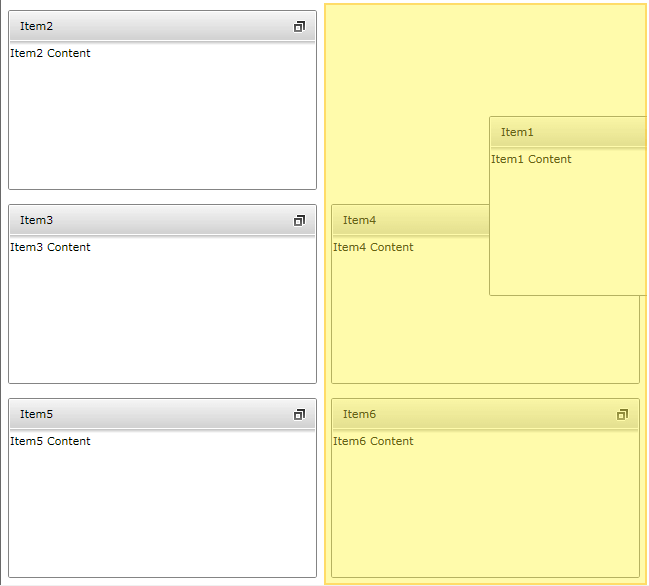
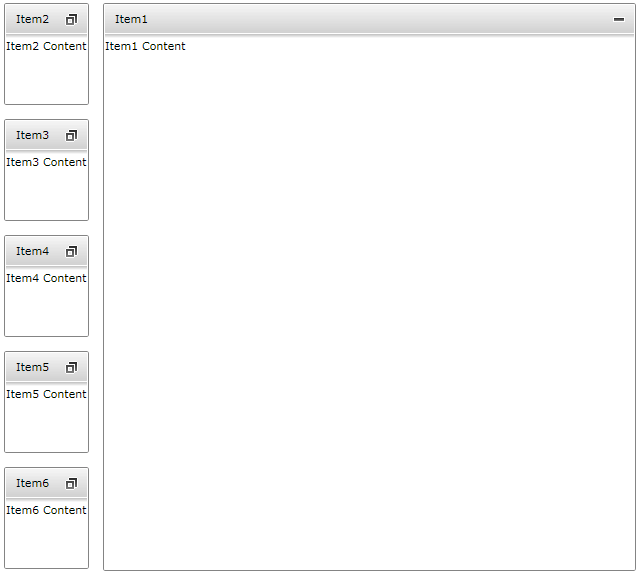
You can see the result after you drop the item on that position in **Figure 2**.
> caption Item docking complete
## Maximize Mode
You can control the maximize behavior by using the **MaximizeMode** property. It is an enumeration that has the following properties:
* **One**: There will be always one item maximized. In this mode the items can't go into restored state.
* **ZeroOrOne**: This is the default mode. There can be zero or one item maximized
* **Zero**: In this mode there can't be a maximized item. Items are always in **Restored** state.
**Example 2: Setting maximize mode**
```XAML
```
## Minimized Columns and Rows Count
You can control the number of rows or columns in the minimized area of the tileview by using the **MinimizedColumnsCount** and **MinimizedRowsCount** properties of **RadTileView**.
The **MinimizedColumnsCount** will affect the columns count only if the **MinimizedItemsPosition** is set to **Left** or **Right**.
The **MinimizedRowsCount** will affect the rows count only if the **MinimizedItemsPosition** is set to **Top** or **Bottom**.
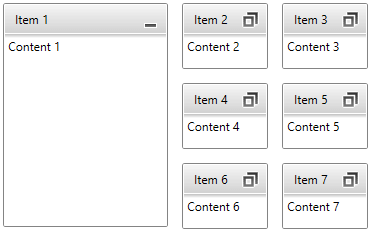
**Example 3: Setting minimized area with 2 columns**
```XAML
```
> caption Minimized area with 2 columns
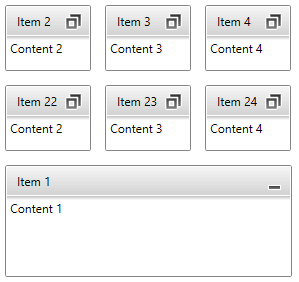
**Example 4: Setting minimized area with 2 rows**
```XAML
```
> caption Minimized area with 2 rows
## Preserve MaximizedItem Position
Each **RadTileViewItem** is associated with a position within the **RadTileView**. However by default as soon as you start maximizing items, their positions are changing. This means that you can maximize Tile1 that was on position 1 and as soon as you maximize Tile3 on position 3, Tile1 will be minimized and placed on position 3.
If you need to ensure that tiles keep their original positions in the **RadTileView Items** collection, then you need to set the **PreservePositionWhenMaximized** property to **True** as the default value of this property is **False**.
## See Also
* [Getting Started](https://www.telerik.com/products/wpf/documentation/controls/radtileview/getting-started/getting-started)
* [Fluid Content Control](https://www.telerik.com/products/wpf/documentation/controls/radtileview/features/fluid-content-control)
* [Events](https://www.telerik.com/products/wpf/documentation/controls/radtileview/features/events)