# Working with Selection
This article aims to present the API of the `Selection` class and demonstrate how to retrieve and change the current selection and also store and restore its state.
## What is Selection?
In order to interact with the working surface of `RadSpreadsheet`, the user creates a UI selection. The selection can be two types: cell selection and shape selection.
The cell selection designates a region(s) of cells and performs a given action onto these cells. The selection can be a single cell, a rectangular region of cells, or a composition of rectangular regions. The UI selection can contain numerous selected cells, however, only one of the cells is active at a time.
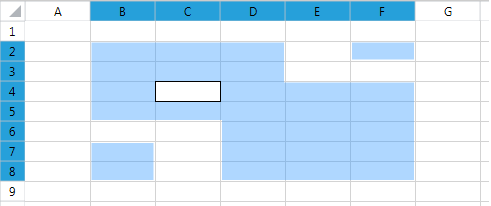
The shape selection can contain one or more shapes.
## Selection Properties
The [RadWorksheetEditor](https://docs.telerik.com/devtools/wpf/api/telerik.windows.controls.spreadsheet.worksheets.radworksheeteditor) class exposes a `Selection` property of type `Selection` that provides rich API for retrieving and changing the UI Selection of the `RadSpreadsheet`.
The class `Selection` exposes several properties that provide information about the selected cells. The following list outlines the properties of Selection:
* `ActiveCell`—Returns a `CellSelection` instance containing the active cell.
* `ActiveCellMode`—Gets or sets the `ActiveCellMode` to either `Display` or `Edit`.
* `ActiveCellIndex`—The CellIndex of the ActiveCell.
* `ActiveRange`—The CellRange containing the ActiveCell.
* `SelectedRanges`—The collection of selected ranges.
* `IsRowSelection`—A Boolean value indicating if the selection is a single row selection.
* `IsColumnSelection`—A Boolean value indicating if the selection is a single column selection.
* `Cells`—Returns an object that represents the cells contained in the selection.
* `Rows`—Returns object that describes the contained rows.
* `Columns`—Returns object that describes the contained columns.
* `IsCellSelection`—Gets a value indicating whether the active selection at the moment is cell selection or shape selection.
* `FillSelection`—Gets the fill selection.
* `ShapeSelection`—Returns an object that represents the shapes contained in the selection.
* `CurrentRegion`—Returns a `CellRange` object containing all adjacent non-empty cells around the active cell of the selection. The current range ends when it reaches blank cells in each direction around the active cell.
The cell selection and the properties related to it can be accessed and used, also when the current active selection is shape selection. In such case, while the shape selection is the one which is visible, the underlying cell selection continues to exist.
## Retrieving the Active Cell and All Selected Cells
To get the region of cells that are currently selected, first you need to get the `Selection` property of the `RadWorksheetEditor`. Once you have an instance of the Selection class, you can use its `Cells` property to retrieve the selected regions.
The `Selection` class also exposes an `ActiveCell` property that designates the current active cell.
**Change ActiveCellMode to Edit**
```C#
Selection selection = this.radSpreadsheet.ActiveWorksheetEditor.Selection;
selection.ActiveCellMode = ActiveCellMode.Edit;
```
```VB.NET
Dim selection As Selection = Me.radSpreadsheet.ActiveWorksheetEditor.Selection
selection.ActiveCellMode = ActiveCellMode.Edit
```
## Getting the Values of the Selected Cells
The selection can be accessed via the `Selection` property of the worksheet editor object. To get the values, call the `GetValue` method of each cell in the selection.
```C#
Selection selection = this.spreadsheet.ActiveWorksheetEditor.Selection;
CellRange selectedCells = selection.ActiveRange.SelectedCellRange;
CellIndex startIndex = selectedCells.FromIndex;
CellIndex endIndex = selectedCells.ToIndex;
for (int column = startIndex.ColumnIndex; column <= endIndex.ColumnIndex; column++)
{
for (int row = startIndex.RowIndex; row <= endIndex.RowIndex; row++)
{
object value = worksheet.Cells[row, column].GetValue().Value.RawValue;
// execute your logic here
}
}
```
## Changing the UI Selection
The UI cell selection can be a single cell or a rectangular region of cells. If you hold down the `Ctrl` key, you can select multiple rectangular regions of cells. Note that these cell ranges do not have to be adjacent. In fact, they can be dispersed across the worksheet and can even intersect. The next several examples aim to illustrate how to create one and multiple-region selection through the API of the `RadSpreadsheet`.
The UI shape selection can consist of a single shape or more. If you hold down the `Ctrl` key you can add multiple shapes to the selection or remove them from it. If you remove all shapes from the shape selection, the cell selection will become the active selection automatically. The cells included in the selection will be the cells which were selected when this selection was used last.
The `Selection` class exposes an additional overloads of the `Select()` method, that offers flexible ways to change the UI selection. All of the overloads have an optional `bool` parameter named `clearSelection`. The parameter indicates whether the current selection will be cleared. When set to `true`, the parameter will cause the current selection to be wiped out. When set to `false`, the newly selected region will be added to the existing selection.
One of the `Select()` overloads provides a `CellIndex` parameter that points to the cell to be selected (or added to the selection).
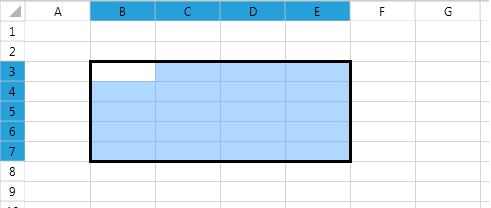
**Using the clearSelection parameter of Select()**
```C#
Selection selection = this.radSpreadsheet.ActiveWorksheetEditor.Selection;
selection.Select(new CellIndex(0, 0), false);
```
```VB.NET
Dim selection As Selection = Me.radSpreadsheet.ActiveWorksheetEditor.Selection
selection.Select(New CellIndex(0, 0), False)
```
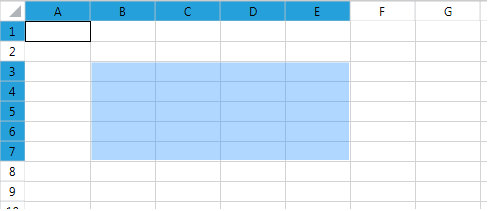
The `Selection` class also offers a `Select()` method that takes a `CellRange` object as an argument. The overload selects (or adds to the current selection) the designated region and makes the top left cell to be the active one.
**Select the C3:D4 cell region**
```C#
Selection selection = this.radSpreadsheet.ActiveWorksheetEditor.Selection;
selection.Select(new CellRange(0, 0, 2, 2));
```
```VB.NET
Dim selection As Selection = Me.radSpreadsheet.ActiveWorksheetEditor.Selection
selection.Select(New CellRange(0, 0, 2, 2))
```
Another overload of the Select() method takes as input two **CellIndex** instances that indicate the start and the end cell indexes of the selected region. Note that unlike the Select(CellRange) method, this overload makes the cell with the start CellIndex the active one. The following snippet illustrates how use the method to select the region B7 to E3. Note that the active cell is B7, not B3.
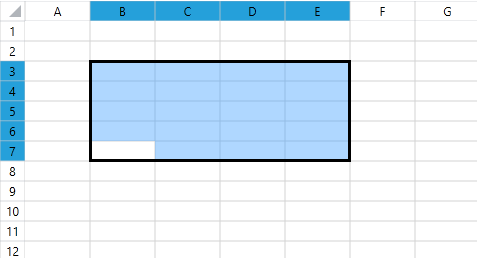
The following example shows how to achieve the result from the above image through the RadSpreadsheet API.
**Select a region with a specific active cell**
```C#
Selection selection = this.radSpreadsheet.ActiveWorksheetEditor.Selection;
selection.Select(6, 1, 2, 4);
```
```VB.NET
Dim selection As Selection = Me.radSpreadsheet.ActiveWorksheetEditor.Selection
selection.Select(6, 1, 2, 4)
```
A similar logic applies to the `Select` method overloads which take shape objects as parameters.
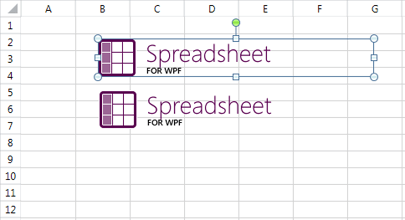
The result from the image can be achieved with the following sample code.
**Select a shape**
```C#
Selection selection = this.radSpreadsheet.ActiveWorksheetEditor.Selection;
FloatingImage image = this.radSpreadsheet.ActiveWorksheet.Images.First() as FloatingImage;
selection.Select(image);
```
```VB.NET
Dim selection As Selection = Me.radSpreadsheet.ActiveWorksheetEditor.Selection
Dim image As FloatingImage = TryCast(Me.radSpreadsheet.ActiveWorksheet.Images.First(), FloatingImage)
selection.Select(image)
```
If you would like to select the second image while deselecting the first one, this can be achieved with the following code:
**Select a shape and clear the previous selection**
```C#
Selection selection = this.radSpreadsheet.ActiveWorksheetEditor.Selection;
FloatingImage image2 = this.radSpreadsheet.ActiveWorksheet.Images.ElementAt(1) as FloatingImage;
selection.Select(image2, true);
```
```VB.NET
Dim selection As Selection = Me.radSpreadsheet.ActiveWorksheetEditor.Selection
Dim image2 As FloatingImage = TryCast(Me.radSpreadsheet.ActiveWorksheet.Images.ElementAt(1), FloatingImage)
selection.Select(image2, True)
```
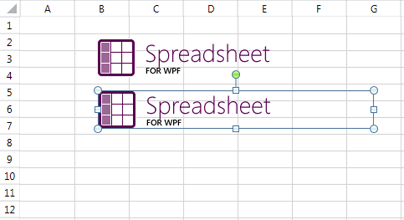
Note that even though the `clearSelection` parameter is set to `true`, this will clear only the shape selection. The underlying cell selection will remain intact and will become visible in its previous state if the shape selection becomes empty.
## Selecting All Cells in a Worksheet
The `Selection` class exposes a `SelectAll()` method that selects all cells in the worksheet. Keep in mind, though, that each worksheet contains over 16 000 columns and 1 000 000 rows. That said, performing a computationally intensive task on all cells may slow down the performance of `RadSpreadsheet`. To avoid such issues in performance crucial scenarios we highly recommend you to select only the `UsedCellRange` of the worksheet. This is a property of `Worksheet` class that returns a `CellRange` starting from **A1** to the bottom-right cell that comprises all cells containing a value. You can read more about it in the [Iterating Used Cells](https://docs.telerik.com/devtools/document-processing/libraries/radspreadprocessing/working-with-cells/iterating-used-cells) topic.
**Using SelectAll() and UsedCellRange with the Select(CellRange) method**
```C#
Selection selection = this.radSpreadsheet.ActiveWorksheetEditor.Selection;
selection.SelectAll();
CellRange usedRange = this.radSpreadsheet.ActiveWorksheet.UsedCellRange;
selection.Select(usedRange);
```
```VB.NET
Dim selection As Selection = Me.radSpreadsheet.ActiveWorksheetEditor.Selection
selection.SelectAll()
Dim usedRange As CellRange = Me.radSpreadsheet.ActiveWorksheet.UsedCellRange
selection.Select(usedRange)
```
## Selection Events
`RadSpreadsheet` has several selection events exposed by ActiveWorksheetEditor you can subscribe to:
* `SelectionUpdate`—Raised when the selection is updated in any way, this may mean that a change has only begun or it has finished.
* `SelectionChanging`—Raised when an update of the selection has begun.
* `SelectionChanged`—Raised when the update of the selection has finished.
* `SelectionChangingCanceled`—Raised when an update was started but subsequently cancelled.
* `ActiveCellModeChanged`—Raised when the mode of the active cell changes, from Display to Edit or vice versa.
* `SelectionTypeChanged`—Raised when the active selection changes between cell selection and shape selection.
**Subscribe to SelectionChanged**
```C#
this.radSpreadsheet.ActiveWorksheetEditor.Selection.SelectionChanged += this.Selection_SelectionChanged;
```
```VB.NET
Me.radSpreadsheet.ActiveWorksheetEditor.Selection.SelectionChanged += Me.Selection_SelectionChanged
```
In some scenarios when you make a complex selection and want an event to be fired only once (at the end of this complex selection) it is convenient to use `BeginUpdate` and `EndUpdate` methods.
**Make a complex selection from three parts while triggering SelectionChanged only once**
```C#
Selection selection = this.radSpreadsheet.ActiveWorksheetEditor.Selection;
selection.BeginUpdate();
selection.Select(new CellRange(4, 3, 8, 5));
selection.Select(new CellRange(5, 2, 3, 3), clearSelection: false);
selection.Select(new CellIndex(2, 1), clearSelection: false);
selection.EndUpdate();
```
```VB.NET
Dim selection As Selection = Me.radSpreadsheet.ActiveWorksheetEditor.Selection
selection.BeginUpdate()
selection.Select(New CellRange(4, 3, 8, 5))
selection.Select(New CellRange(5, 2, 3, 3), clearSelection:=False)
selection.Select(New CellIndex(2, 1), clearSelection:=False)
selection.EndUpdate()
```
## Saving and Restoring the Selection
With the Spreadsheet API you have the ability to save the current selection in a `SelectionState` instance and later easily restore the selection with a single method call. For such scenarios the `Selection` class exposes two methods: `CreateSelectionState` and `RestoreSelectionState` that save and restore the selection, respectively.
The following example makes a single `CellRange` selection and saves it in a `SelectionState` object. After adding some new cells to the selection the old selection is restored through the `RestoreSelectionState` method
**Save and restore Selection**
```C#
Selection selection = this.radSpreadsheet.ActiveWorksheetEditor.Selection;
selection.Select(new CellRange(4, 3, 8, 5));
SelectionState selectionState = selection.CreateSelectionState();
selection.Select(new CellRange(5, 2, 3, 3), clearSelection: false);
selection.Select(new CellIndex(2, 1), clearSelection: false);
selection.RestoreSelectionState(selectionState);
```
```VB.NET
Dim selection As Selection = Me.radSpreadsheet.ActiveWorksheetEditor.Selection
selection.Select(New CellRange(4, 3, 8, 5))
Dim selectionState As SelectionState = selection.CreateSelectionState()
selection.Select(New CellRange(5, 2, 3, 3), clearSelection:=False)
selection.Select(New CellIndex(2, 1), clearSelection:=False)
selection.RestoreSelectionState(selectionState)
```
## Filling the Selection with Data
The automatic filling of data in the Spreadsheet can also be performed through the selection to ease the access to the feature. This is done by using the fill handle, which can be found at the bottom right corner of the current selection, provided that this selection consists of only one range.
> tip More information concerning automatically filling data is available in `RadSpreadProcessing`s documentation that represents the model of `RadSpreadsheet`. Check the [Repeat Values](https://docs.telerik.com/devtools/document-processing/libraries/radspreadprocessing/features/fill-data-automatically/repeat-values) and [Series](https://docs.telerik.com/devtools/document-processing/libraries/radspreadprocessing/features/fill-data-automatically/series) articles.
In order to use the fill handle, select the initial set of data, click and hold the handle and drag it in the desired direction.
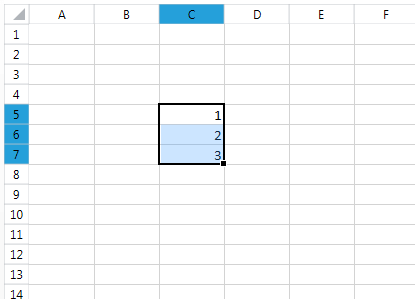
The initially selected area will remain marked while the part of selection you are dragging will be colored in grey.
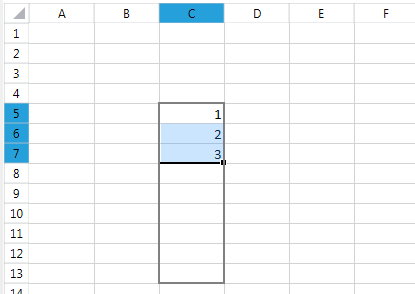
Once you've selected the desired range, you can drop the selection. The selected range will be filled with data the same way as it would be if you had used the autofill data series.
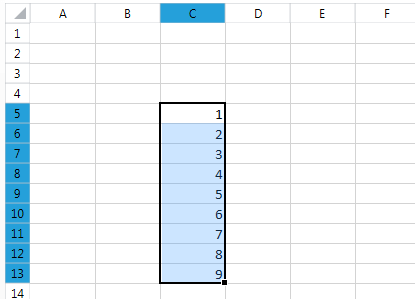
With the Spreadsheet API you have the ability to listen and to manipulate the automatic filling of data process.
### FillSelection properties
* `IsEnabled**`—Gets or sets a value indicating whether to enable or disable the Fill Handle feature.
* `IsStarted**`—Gets or sets a value indicating whether the fill selection is started or not.
* `SelectedRange`—Gets a value returning the selected CellRange.
* `LastActivePosition`—Gets a value returning the cell index of the last active position of the pointer.
### FillSelection Events
* `FillSelectionChanged`—Occurs when the FillSelection is changed.
* `IsEnabledChanged`—Occurs when the IsEnabled is changed.
**Disable Fill Selection**
```C#
Selection selection = this.radSpreadsheet.ActiveWorksheetEditor.Selection;
FillSelection fillSelection = selection.FillSelection;
fillSelection.IsEnabled = false;
```
```VB.NET
Dim selection As Selection = Me.radSpreadsheet.ActiveWorksheetEditor.Selection
Dim fillSelection As FillSelection = selection.FillSelection
fillSelection.IsEnabled = False
```
## Customizing the Selection Appearance
`RadSpreadsheet` exposes several properties that enable you to control the way the selection is rendered:
* **SelectionStroke**: A *dependency property* of type *Brush* that gets or sets the stroke of the selection.
* **SelectionStrokeThickness**: A *dependency property* of type *double* that gets or sets the stroke thickness of the selection.
* **SelectionFill**: A *dependency property* of type *Brush* that gets or sets the fill of the selection.
* **FillHandleSelectionStroke**: A *dependency property* of type *Brush* that gets or sets the fill handle selection stroke.
The following image shows an example of a customized selection.
> caption Customized selection

The examples below demonstrate one way to customize the properties of the selection in XAML and in code-behind in order to achieve the result shown in the picture above.
**Customizing the Selection**
```XAML
```
**Customizing the Selection**
```C#
Brush strokeBrush = new SolidColorBrush(Colors.Green);
Brush fillBrush = new SolidColorBrush(Colors.GreenYellow);
fillBrush.Opacity = 0.5;
this.radSpreadsheet.SelectionFill = fillBrush;
this.radSpreadsheet.SelectionStroke = strokeBrush;
this.radSpreadsheet.SelectionStrokeThickness = 2;
```
```VB.NET
Dim strokeBrush As Brush = New SolidColorBrush(Colors.Green)
Dim fillBrush As Brush = New SolidColorBrush(Colors.GreenYellow)
fillBrush.Opacity = 0.5
Me.radSpreadsheet.SelectionFill = fillBrush
Me.radSpreadsheet.SelectionStroke = strokeBrush
Me.radSpreadsheet.SelectionStrokeThickness = 2
```
## Using Selection to Complete Formulas
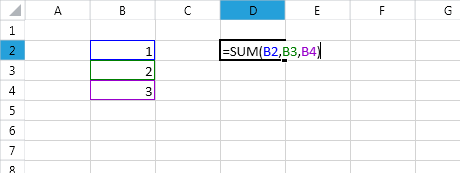
The selection object can be used to help entering formulas and to give visual cues for understanding these which are already there.
In order to use the selection to enter a formula, start typing it by entering the equals (=) sign. Then, use the mouse to select other cells and enter operators between them. On each click references to the cells or ranges will be entered in the formula. Just as with the regular mode of the selection, holding down the `Ctrl` key selects multiple ranges and the `Shift` key can be used to expand the current selection.
This mode of the selection can be also used when entering the arguments of a function and is available both in the cell editor and the formula bar.
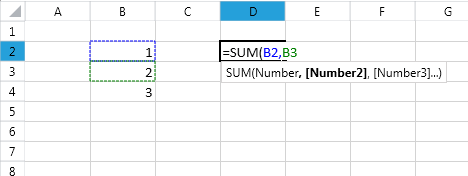
When a formula is already entered and you would like to see the references used in it, enter edit mode and they will be selected automatically.
## Working with the Current Region
The current region concept is represented by a `CellRange` object that contains all adjacent non-empty cells around the active cell of the `Selection` object. The range expands around the active cell in all directions, until it reaches empty cells.
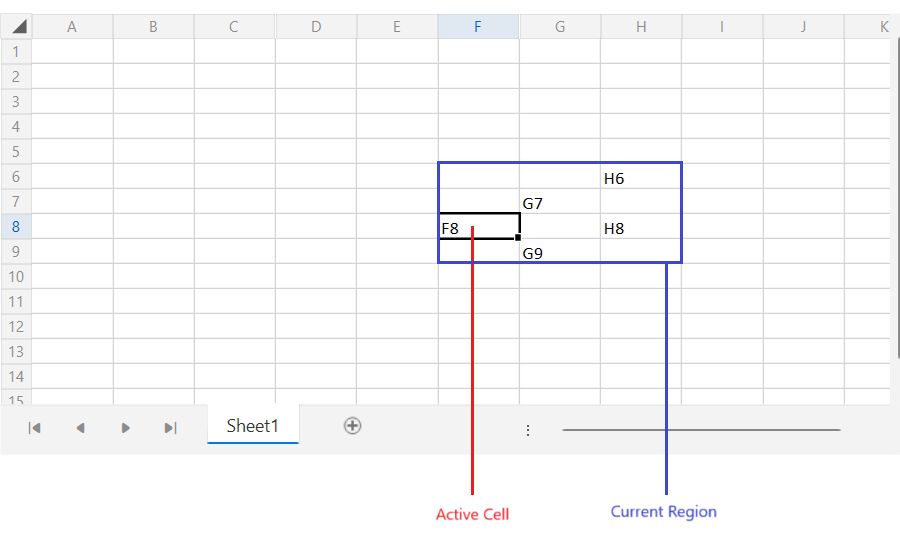
The range can be accessed with the `CurrentRegion` property of the `Selection` instance.
**Getting the current region**
```C#
Selection selection = this.radSpreadsheet.ActiveWorksheetEditor.Selection;
CellRange currentRegion = selection.CurrentRegion;
```
To select the current region, call the `SelectCurrentRegion` method of the `CellPosition` instance.
**Selecting the current region programmatically**
```C#
Selection selection = this.radSpreadsheet.ActiveWorksheetEditor.Selection;
CellPosition activePosition = selection.ActiveRange.ActivePosition;
bool result = activePosition.SelectCurrentRegion();
//or
selection.Select(selection.CurrentRegion);
```
The current region can be selected also using the `Ctrl+Shift+*` keyboard combination.
## Expand Header Click Selection to Merged Cells Range
The header click selection will selected the corresponding row or column only. Setting the `SpreadsheetSelectionExtensions.ExpandHeaderSelectionToMergedRange` attached property to `True` will automatically expand the selection to adjacent headers, if the clicked row/column contains merged cells.
```XAML
```
## See Also
* [Row and Column Headers](https://www.telerik.com/products/wpf/documentation/controls/radspreadsheet/row-and-column-headers)