# Customize the Application Menu Button

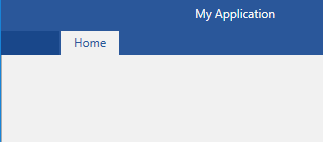
The default look of the [application menu](https://www.telerik.com/products/wpf/documentation/controls/radribbonview/features/ribbon-controls/applicationmenu) button is an empty rectangle as shown in **Figure 1**.

> caption RadRibbonView application button in the Office2016 theme
![RadRibbonView Application Button in the Office2016 theme](https://www.telerik.com/products/wpf/documentation/assets/bd370fa61bf6205f26ec0ca9be73a0df/radribbonview_howto_styletheapplicationbutton_02.png)

## Set the ApplicationButtonImageSource

In order to add an image as the application button's content, you can use the **ApplicationButtonImageSource** property.

**Example 1: Setting the ApplicationButtonImageSource**

```XAML
<telerik:RadRibbonView ApplicationButtonImageSource="Images/test.png">
    <telerik:RadRibbonView.Items>
        <telerik:RadRibbonTab Header="Home" />
    </telerik:RadRibbonView.Items>
</telerik:RadRibbonView>
```

> caption RadRibbonView application button with an image in the Office2016 theme

![Rad Ribbon View How To Style The Application Button](https://www.telerik.com/products/wpf/documentation/assets/48203686562f95cbc023c4fe4257ea18/radribbonview_howto_styletheapplicationbutton.png)

## Add custom Content to the Application Button

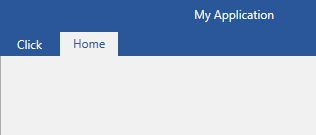
You can add custom Content to the Application Button via the **ApplicationButtonContent** property.

**Example 2: Setting the ApplicationButtonContent**

```XAML
<Grid>
    <Grid.Resources>
        <TextBlock x:Key="clickTextBlock" Text="Click" />
    </Grid.Resources>
    <telerik:RadRibbonView ApplicationButtonContent="{StaticResource clickTextBlock}">
        <telerik:RadRibbonView.Items>
            <telerik:RadRibbonTab Header="Home" />
        </telerik:RadRibbonView.Items>
    </telerik:RadRibbonView>
</Grid>
```

> caption RadRibbonView application button with custom content
![RadRibbonView Application Button with custom content](https://www.telerik.com/products/wpf/documentation/assets/68842613b54b0ec922320fecc812d864/radribbonview_howto_styletheapplicationbutton_applicationbuttoncontent.png)

## Disabling the ApplicationButton

In order to disable the application button, you can set the **IsApplicationButtonEnabled** property to False.

**Example 3: Disabling the Application Button**

```XAML
<telerik:RadRibbonView IsApplicationButtonEnabled="False" />
```

## Hide the Application Button

In order to hide the application button, you can set the **ApplicationButtonVisibility** property to **Collapsed**.

**Example 4: Setting the ApplicationButtonVisibility**

```XAML
<telerik:RadRibbonView ApplicationButtonVisibility="Collapsed" />
```
