# Data Binding

**RadPanelBar** can be bound to a collection of objects and dynamically create its collection of items. The collection that is provided as ItemsSource can contain either **RadPanelBarItems** or any other type of objects. If the ItemsSource collection contains **RadPanelBarItems**, they are directly made children of the **RadPanelBar** control. Otherwise, the objects in the ItemsSource collection are wrapped in **RadPanelBarItem** objects and are pushed into the **Items** collection of the **RadPanelBar** control.

Naturally, if the collection you are binding to implements the **INotifyCollectionChanged** interface, whenever your source collection is changed, the change would be immediately reflected in the **Items** collection of the **RadPanelBar**.

## Binding ItemsSource to a Collection of Strings

The following examples demonstrate how you can bind the **RadPanelBar** to a collection of strings:

**RadPanelBar Definition**

```XAML
<telerik:RadPanelBar ItemsSource="{Binding}" />
```

**Binding RadPanelBar to a List of Strings**

```C#
public partial class MainWindow : Window
    {
        public MainWindow()
        {
            InitializeComponent();

            List<string> myListDataSource = new List<string>();
            myListDataSource.Add("Item 1");
            myListDataSource.Add("Item 2");
            myListDataSource.Add("Item 3");

            this.DataContext = myListDataSource;
        }
    }
```

```VB.NET
Partial Public Class MainWindow
	Inherits Window

	Public Sub New()
		InitializeComponent()

		Dim myListDataSource As New List(Of String)()
		myListDataSource.Add("Item 1")
		myListDataSource.Add("Item 2")
		myListDataSource.Add("Item 3")

		Me.DataContext = myListDataSource
	End Sub
End Class
```

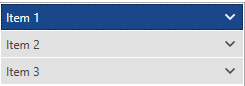
By default, the string values from the ItemsSource collection will be assigned to the **Header** property of each **RadPanelBarItem** in the **RadPanelBar** control you are populating.

> caption Result from the previous example in the Office2016 theme
![RadPanelBar binding to strings](https://www.telerik.com/products/wpf/documentation/assets/c396d280e372b5c542c0c9abf67a8492/panelbar_bindingtostrings.png)

## Binding ItemsSource to a Collection of Objects

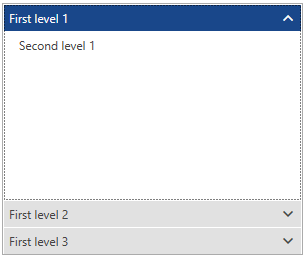
In case you want to display (in the item headers) a specific property of an object in a source collection, you can use either the **DisplayMemberPath**, or the **ItemTemplate** property of **RadPanelBar**. The approach of using an ItemTemplate is demonstrated in the following examples:

**RadPanelBar Definition with ItemTemplate**

```XAML
<HierarchicalDataTemplate x:Key="headerTemplate" ItemsSource="{Binding Items}">
	<TextBlock Text="{Binding Text}" />
</HierarchicalDataTemplate>

<telerik:RadPanelBar ItemsSource="{Binding}" 
					 ItemTemplate="{StaticResource headerTemplate}"/>
```

**Displaying a Specific Property as a Header**

```C#
public class SampleItem : ViewModelBase
    {
        private string text;
        private ObservableCollection<SampleItem> items;

        public string Text
        {
            get
            {
                return this.text;
            }

            set
            {
                if (this.text != value)
                {
                    this.text = value;
                    this.OnPropertyChanged("Text");
                }
            }
        }

        public ObservableCollection<SampleItem> Items
        {
            get
            {
                return this.items;
            }

            set
            {
                if (this.items != value)
                {
                    this.items = value;
                    this.OnPropertyChanged("Items");
                }
            }
        }
    }

public partial class MainWindow : Window
    {
        public MainWindow()
        {
            InitializeComponent();

		var source = new ObservableCollection<SampleItem>();
		for (int i = 1; i <= 3; i++)
		{
			var secondLevelItems = new ObservableCollection<SampleItem>() { new SampleItem() { Text = "Second level " + i } };
			source.Add(new SampleItem() { Text = "First level " + i, Items = secondLevelItems });
		}

		this.DataContext = source;
        }
    }
```

```VB.NET
Public Class SampleItem
	Inherits ViewModelBase

	Private _text As String
	Private _items As ObservableCollection(Of SampleItem)

	Public Property Text() As String
		Get
			Return Me._text
		End Get

		Set(ByVal value As String)
			If Me._text <> value Then
				Me._text = value
				Me.OnPropertyChanged("Text")
			End If
		End Set
	End Property

	Public Property Items() As ObservableCollection(Of SampleItem)
		Get
			Return Me._items
		End Get

		Set(ByVal value As ObservableCollection(Of SampleItem))
			If Me._items IsNot value Then
				Me._items = value
				Me.OnPropertyChanged("Items")
			End If
		End Set
	End Property
End Class

Partial Public Class MainWindow
Inherits Window

	Public Sub New()
		InitializeComponent()

		Dim source = New ObservableCollection(Of SampleItem)()
		For i As Integer = 1 To 3
			Dim secondLevelItems = New ObservableCollection(Of SampleItem)() From {
				New SampleItem() With {.Text = "Second level " & i}
			}
			source.Add(New SampleItem() With {
				.Text = "First level " & i,
				.Items = secondLevelItems
			})
		Next i

		Me.DataContext = source
	End Sub
End Class

```

> caption Result from the previous example in the Office2016 theme
![RadPanelBar binding to object](https://www.telerik.com/products/wpf/documentation/assets/b609e1360bd76bc27011847bf34416c8/panelbar_binding.png)

## Binding to Hierarchical Data

**RadPanelBarItem** inherits from **HeaderedItemsControl** therefore it can display hierarchical data, e.g. collections that contain other collections.

The **HierarchicalDataTemplate** class is designed to be used with **HeaderedItemsControl** types to display such data. There should be virtually no differences between the usage of **HierarchicalDataTemplate** in **RadPanelBar** and other controls.

The following example demonstrates how to create a hierarchical data source and bind a **RadPanelBar** to it, using a **HierarchicalDataTemplate**. The **ItemsSource** property of the **HierarchicalDataTemplate** specifies the **binding** that has to be applied to the **ItemsSource** property of each item. The **DataTemplate** property specifies the template that has to be applied on each item, while the **ItemTemplate** is the template applied on its child items.

1. Create a new class and name it **MyViewModel**:

   ```C#
   public class MyViewModel
   {
       public MyViewModel()
       {
           this.RelatedItems = new ObservableCollection<object>();
       }
       public string Title { get; set; }
       public DateTime DateCreated { get; set; }
       public double Price { get; set; }
       public IList<object> RelatedItems { get; set; }
   }
   ```

   ```VB.NET
   Public Class MyViewModel
       Public Sub New()
           Me.RelatedItems = New ObservableCollection(Of Object)()
       End Sub
       Public Property Title() As String
           Get
               Return _Title
           End Get
           Set(ByVal value As String)
               _Title = value
           End Set
       End Property
       Private _Title As String
       Public Property DateCreated() As DateTime
           Get
               Return _DateCreated
           End Get
           Set(ByVal value As DateTime)
               _DateCreated = value
           End Set
       End Property
       Private _DateCreated As DateTime
       Public Property Price() As Double
           Get
               Return _Price
           End Get
           Set(ByVal value As Double)
               _Price = value
           End Set
       End Property
       Private _Price As Double
       Public Property RelatedItems() As IList(Of Object)
           Get
               Return _RelatedItems
           End Get
           Set(ByVal value As IList(Of Object))
               _RelatedItems = value
           End Set
       End Property
       Private _RelatedItems As IList(Of Object)
   End Class
   ```

   The class has four properties:

   * Property **Price** which is of type double.

   * Property **CreatedOn** which is of type DateTime.

   * Property **Title** which is of type string.

   * Property **RelatedItems** which is a collection of objects. These are the child items. Add a static method to the class which aims to create some mock-up data:

   **Adding a Method to Generate Mock-up Hierarchical Data**

   ```C#
   public static IList<object> GenerateItems()
   {
       var result = new ObservableCollection<object>();
       foreach (var num in Enumerable.Range(1, 5))
       {
           var item = new MyViewModel();
           item.DateCreated = DateTime.Today.AddDays(-num % 15);
           item.Price = num * 100 + Convert.ToDouble(num) / 100;
           item.Title = String.Format("Item {0}", num);
           for (int i = 0; i < 5; i++)
           {
               var child = new MyViewModel();
               child.DateCreated = DateTime.Today.AddDays(-num % 5 - i);
               child.Price = num * 100 + Convert.ToDouble(num + i) / 100;
               child.Title = String.Format("Item {0}.{1}", num, i);
               item.RelatedItems.Add(child);
           }
           result.Add(item);
       }
       return result;
   }
   ```

   ```VB.NET
   Public Shared Function GenerateItems() As IList(Of Object)
       Dim result = New ObservableCollection(Of Object)()
       For Each num In Enumerable.Range(1, 5)
           Dim item = New MyViewModel()
           item.DateCreated = DateTime.Today.AddDays(-num Mod 15)
           item.Price = num * 100 + Convert.ToDouble(num) / 100
           item.Title = [String].Format("Item {0}", num)
           For i As Integer = 0 To 4
               Dim child = New MyViewModel()
               child.DateCreated = DateTime.Today.AddDays(-num Mod 5 - i)
               child.Price = num * 100 + Convert.ToDouble(num + i) / 100
               child.Title = [String].Format("Item {0}.{1}", num, i)
               item.RelatedItems.Add(child)
           Next
           result.Add(item)
       Next
       Return result
   End Function
   ```

2. Declare a **HierarchicalDataTemplate**

   ```XAML
   <Window.Resources>
       <DataTemplate x:Key="PanelBarItemTemplate">
           <StackPanel>
               <TextBlock Text="{Binding Title}"/>
               <TextBlock Text="{Binding DateCreated}"/>
               <TextBlock Text="{Binding Price}"/>
           </StackPanel>
       </DataTemplate>

       <HierarchicalDataTemplate x:Key="PanelBarHeaderTemplate"
                  ItemsSource="{Binding RelatedItems}"
                  ItemTemplate="{StaticResource PanelBarItemTemplate}">
           <TextBlock Text="{Binding Title}" />
       </HierarchicalDataTemplate>
   </Window.Resources>
   ```

3. Define the **RadPanelBar** and set its **ItemTemplate** property

   ```XAML
   <telerik:RadPanelBar x:Name="radPanelBar" Width="200" 
                  HorizontalAlignment="Center" VerticalAlignment="Top"
                  ItemTemplate="{StaticResource PanelBarHeaderTemplate}">
   </telerik:RadPanelBar>
   ```

4. Set the **ItemsSource** property of the **RadPanelBar**

   ```C#
   this.radPanelBar.ItemsSource = MyViewModel.GenerateItems();
   ```

   ```VB.NET
   Me.radPanelBar.ItemsSource = MyViewModel.GenerateItems()
   ```

   ![WPF RadPanelBar Hierarchical Data](https://www.telerik.com/products/wpf/documentation/assets/885d17840c3435af88996dcb9cc64397/panelbar_hierarchicaldata.png)

## See Also

* [Getting Started](https://www.telerik.com/products/wpf/documentation/controls/radpanelbar/populating)
