# Peek Popup
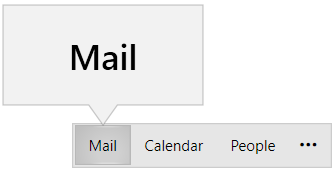
The `RadOfficeNavigationBar` control provides a popup preview window for its elements when the mouse is over one of them. This functionality is disabled by default. To enable it, set the `IsPeekPopupEnabled` property to **True**.
**Setting the IsPeekPopupEnabled property**
```XAML
```
**Setting the IsPeekPopupEnabled property in code**
```C#
this.radOfficeNavigationBar.IsPeekPopupEnabled = true;
```
```VB.NET
Me.radOfficeNavigationBar.IsPeekPopupEnabled = True
```
> caption Displayed peek popup
## Setting the Peek Popup Content
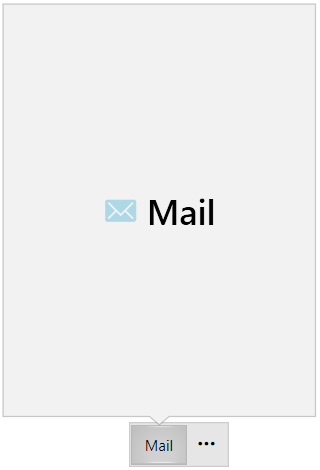
Each `RadOfficeNavigationBarItem` element allows you to customize the content that will be displayed. To do so, you can use its `PeekPopupContent`, `PeekPopupContentTemplate`, and `PeekPopupContentTemplateSelector` properties.
**Setting the peek popup content**
```XAML
```
> caption Peek popup with custom content
## Customizing the Appearance of the Peek Popup
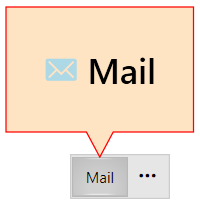
The peek popup's appearance can be customized for each RadOfficeNavigationBarItem element. To apply a custom style, you can utilize the `PeekPopupStyle` property. The custom Style has to target the `RadCallout` element as this element is used as the popup.
The following example is based on the RadOfficeNavigationBarItem's implementation from the above code snippet.
**Customizing the appearance of the peek popup**
```XAML
```
> caption Peek popup with custom style
## Setting a String Format to the Peek Popup Content
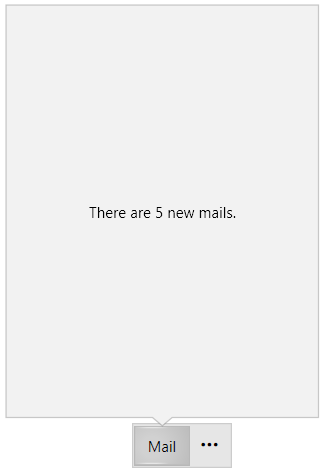
The RadOfficeNavigationBarItem element allows you to apply a string format to the value that is set to the PeekPopupContent property. To set a string format, you can set the `PeekPopupContentStringFormat` property.
**Applying a string format to the peek popup content**
```XAML
```
> caption Peek popup content with applied string format
## Controlling the Show/Close Popup Delay
You can control the show/close delay of the peek popup. To do so, you can set the `PeekPopupShowDelay` and `PeekPopupCloseDelay` properties of RadOfficeNavigationBar.
**Setting the PeekPopupShowDelay and PeekPopupCloseDelay properties**
```XAML
```
## PeekPopupOpening Event
The RadOfficeNavigationBar exposes the `PeekPopupOpening` event that will occur when peek popup is about to be opened. The event handler receives two arguments:
* The sender parameter contains the RadOfficeNavigationBar element. This argument is of type **object**, but can be cast to the RadOfficeNavigationBar type.
* The event arguments are of the type `PeekPopupOpeningEventArgs`. They expose the following properties:
* `RadCallout`—This property contains the peek popup element, which is of the type RadCallout.
* `CalloutPopupSettings`—The CalloutPopupSettings property contains information regarding the RadCallout element. This property is of the type CalloutPopupSettings.
* `OfficeNavigationBarItem`—This property contains the RadOfficeNavigationBarItem that the peek popup belongs to.
* `Cancel`—The Cancel property can be used to prevent the peek popup from opening. To stop the popup from opening, set this property to **false**.
**Prevent the peek popup from showing for a certain item**
```C#
private void radOfficeNavigationBar_PeekPopupOpening(object sender, PeekPopupOpeningEventArgs e)
{
if (e.OfficeNavigationBarItem.Content.ToString() == "Mail")
{
e.Cancel = true;
}
}
```
**Prevent the peek popup from showing for a certain item**
```VB.NET
Private Sub radOfficeNavigationBar_PeekPopupOpening(ByVal sender As Object, ByVal e As PeekPopupOpeningEventArgs)
If e.OfficeNavigationBarItem.Content.ToString() Is "Mail" Then
e.Cancel = True
End If
End Sub
```
## See Also
* [Custom Content](https://www.telerik.com/products/wpf/documentation/controls/radofficenavigationbar/custom-content)
* [Navigation Options](https://www.telerik.com/products/wpf/documentation/controls/radofficenavigationbar/navigation-options)
* [Overflow Menu](https://www.telerik.com/products/wpf/documentation/controls/radofficenavigationbar/overflow-menu)