# Tooltip
You can configure the tooltip that is displayed when the user hovers over the icon with the **TooltipContent** property. By default a styled custom tooltip is shown. If you want to show the native tooltip, set the **UseNativeTooltip** property to **True**.
## Native ToolTip
To display a native tooltip, set the **UseNativeTooltip** property as demonstrated in **Example 1**. When this property is **True** the ToString() value of the **TooltipContent** will be shown in the tooltip.
**Example 1: Setting TooltipContent**
```XAML
```
> caption RadNotifyIcon with tooltip
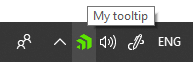
> In order for theming to be applied, you can ommit the setting of the **UseNativeTooltip** property.
## TooltipContent and TooltipContentTemplate
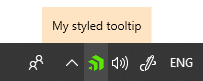
The RadNotifyIcon provides a default TooltipContentTemplate that will be styled according to your theme. You can also customize it as per your requirements. The DataContext inside the **TooltipContentTemplate** property will be whatever is set to the **TooltipContent**.
**Example 2: Setting TooltipContent and TooltipContentTemplate**
```XAML
```
> caption RadNotifyIcon with customized tooltip
## IsTooltipOpen
The **IsTooltipOpen** property allows you to check whether a styled tooltip is currently open.
**Example 3: Using the IsTooltipOpen property**
```C#
var isOpen = this.icon.IsTooltipOpen;
```
```VB.NET
Dim isOpen = Me.icon.IsTooltipOpen
```
## See Also
* [Events](https://www.telerik.com/products/wpf/documentation/controls/radnotifyicon/events)
* [Popup](https://www.telerik.com/products/wpf/documentation/controls/radnotifyicon/features/popup)
* [ContextMenu](https://www.telerik.com/products/wpf/documentation/controls/radnotifyicon/features/contextmenu)
* [Balloon Notifications](https://www.telerik.com/products/wpf/documentation/controls/radnotifyicon/features/balloon-notifications)