# Getting Started with WPF MultiColumnComboBox
This tutorial will walk you through the required steps for using **RadMultiColumnComboBox**.
* [Adding Telerik Assemblies Using NuGet](https://www.telerik.com/products/wpf/documentation/controls/radmulticolumncombobox/getting-started#adding-telerik-assemblies-using-nuget)
* [Adding Assembly References Manually](https://www.telerik.com/products/wpf/documentation/controls/radmulticolumncombobox/getting-started#adding-assembly-references-manually)
* [Adding RadMultiColumnComboBox to the Project](https://www.telerik.com/products/wpf/documentation/controls/radmulticolumncombobox/getting-started#adding-radmulticolumncombobox-to-the-project)
## Adding Telerik Assemblies Using NuGet
To use **RadMultiColumnComboBox** when working with NuGet packages, install the `Telerik.Windows.Controls.GridView.for.Wpf.Xaml` package. The [package name may vary](https://www.telerik.com/products/wpf/documentation/installation/manual-setup-guides/nuget/available-packages) slightly based on the Telerik dlls set - [Xaml or NoXaml](https://www.telerik.com/products/wpf/documentation/styling-and-appearance/xaml-vs-noxaml)
Read more about NuGet installation in the [Installing UI for WPF from NuGet Package](https://www.telerik.com/products/wpf/documentation/installation/manual-setup-guides/nuget/nuget-installation) article.
> tip With the 2025 Q1 release, the Telerik UI for WPF has a new licensing mechanism. You can learn more about it [here](https://www.telerik.com/products/wpf/documentation/installation/licensing/installing-license-key).
## Adding Assembly References Manually
If you are not using NuGet packages, you can add a reference to the following assemblies:
* **Telerik.Licensing.Runtime**
* **Telerik.Windows.Controls**
* **Telerik.Windows.Controls.GridView**
* **Telerik.Windows.Controls.Input**
* **Telerik.Windows.Data**
## Adding RadMultiColumnComboBox to the Project
**Example 1: Defining RadMultiColumnComboBox Declaratively**
```XAML
```
> caption Defining RadMultiColumnComboBox
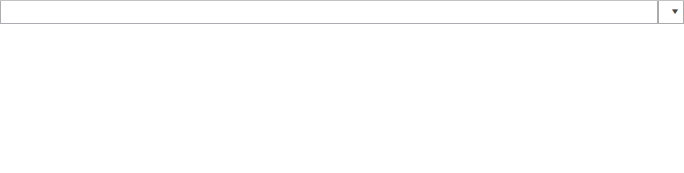
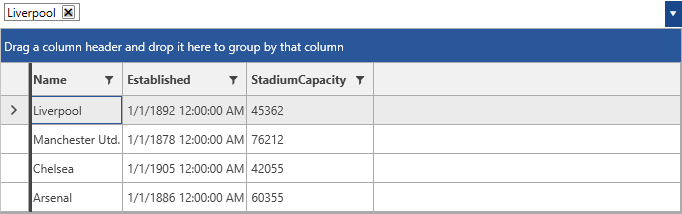
Note, that such definition would simply result in having an AutoComplete box. In order to have the actual **RadGridView** populated as a Content of the DropDown the **GridViewItemsSourceProvider** needs to be set as an **ItemsSourceProvider**. Note, that the **DisplayMemberPath** property of **RadMultiColumnComboBox** is also set. Its purpose is to point to a property of the bound data item present in the source collection of the ItemsSourceProvider. Thus, the control will be aware what value to display in the **AutoCompleteBox**. If not set, the control would simply call the **ToString** method of the bound item.
#### \_\_\[XAML] Example 2: Setting the GridViewItemsSourceProvider
```XAML
```
This definition will have the following output.
> caption Setting the GridViewItemsSourceProvider
## Telerik UI for WPF Learning Resources
* [Telerik UI for WPF MultiColumnComboBox Component](https://www.telerik.com/products/wpf/multicolumncombobox.aspx)
* [Getting Started with Telerik UI for WPF Components](https://www.telerik.com/products/wpf/documentation/getting-started/first-steps-nuget)
* [Telerik UI for WPF Installation](https://www.telerik.com/products/wpf/documentation/installation/manual-setup-guides/installation-guide)
* [Telerik UI for WPF and WinForms Integration](https://www.telerik.com/products/wpf/documentation/common-information/winforms-integration/overview)
* [Telerik UI for WPF Visual Studio Templates](https://www.telerik.com/products/wpf/documentation/installation/manual-setup-guides/visual-studio-templates)
* [Setting a Theme with Telerik UI for WPF](https://www.telerik.com/products/wpf/documentation/styling-and-appearance/styling-apperance-setting-a-theme-overview)
* [Telerik UI for WPF Virtual Classroom (Training Courses for Registered Users)](https://learn.telerik.com/learn/course/external/view/elearning/16/telerik-ui-for-wpf)
* [Telerik UI for WPF License Agreement](https://www.telerik.com/purchase/license-agreement/wpf-dlw-s)
## See Also
* [Overview](https://www.telerik.com/products/wpf/documentation/controls/radmulticolumncombobox/overview)