# LayoutControlToolBoxView
**LayoutControlToolBoxView** is the control that represents the toolbox. This article demonstrates how to set it up and associate it with RadLayoutControl.
**Example 1: Setting up the toolbox**
```XAML
```
The toolbox can be associated with RadLayoutControl through its **LayoutControl** property (see **Example 1**).
> caption Final result
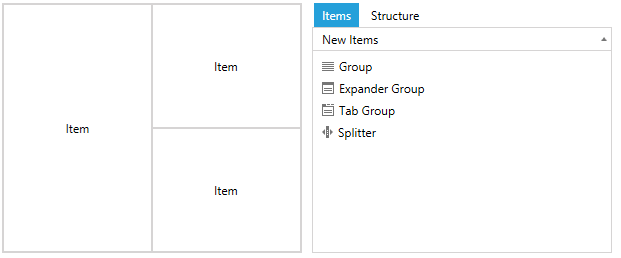
> Dropping items from the toolbox into the layout control is allowed only if the layout control is in [edit mode](https://www.telerik.com/products/wpf/documentation/controls/radlayoutcontrol/features/edit-the-layout).
You can **get, add or remove** the elements from the toolbox using the **NewItems** and **DeletedItems** collections of the **LayoutControlToolBoxView** control.
## Tracking the deleted items
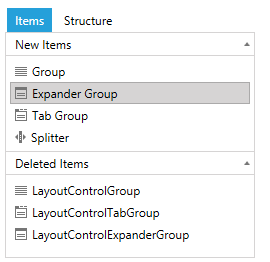
The toolbox allows you to track and restore the items that was removed from the layout. Once an item is deleted, it is added in the **DeletedItems** collection of the LayoutControlToolBoxView. You can restore the element back in the layout by drag/droping it from the Deleted Items to the **RadLayoutControl**.
> important This feature is disabled by default. You can enable it by setting the **TrackDeletedItems** property to **True**.
**Example 2: Enabling the deleted items tracking**
```XAML
```
> caption Deleted items
## LayoutControlHierarchicalNodeProxy
**LayoutControlHierarchicalNodeProxy** is the model of the toolbox items. The **LayoutControlToolBoxView** element exposes two collections – one with the elements displayed in the **New Items** section and another one displayed in the **Deleted Items** section. The collections can be accessed respectively through the **NewItems** and **DeletedItems** properties which are of type **ObservableCollection\**.
The proxy object contains information about the elements in the toolbox.
* **Header**: You can use this property to set a string that represents the header of the toolbox item.
* **OriginalItemType**: This property holds the type of the associated element.
* **OriginalItem**: This property holds the associated element.
By default the toolbox is populated with a collection that contains all available layout controls. But you can use the **NewItems** collection and the **LayoutControlHierarchicalNodeProxy** class to add custom **UIElements** in the toolbox. Read more about this in the [Add Custom Element in the ToolBox](https://www.telerik.com/products/wpf/documentation/controls/radlayoutcontrol/how-to/add-custom-element-in-toolbox) article.
## See Also
* [Getting Started](https://www.telerik.com/products/wpf/documentation/controls/radlayoutcontrol/getting-started/getting-started)
* [LayoutControlToolBox](https://www.telerik.com/products/wpf/documentation/controls/radlayoutcontrol/features/toolbox/layoutcontroltoolbox)
* [Layout Groups Overview](https://www.telerik.com/products/wpf/documentation/controls/radlayoutcontrol/features/layoutgroups/overview)
* [Layout Panel](https://www.telerik.com/products/wpf/documentation/controls/radlayoutcontrol/getting-started/layout-panel)