# Orientation
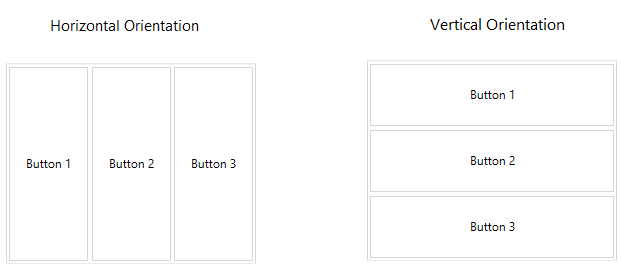
**RadLayoutControl** and *the *layout groups** are ordering their children with a horizontal orientation by default. You can change this and arrange the child items in a vertical order by setting the control's **Orientation** property to Vertical.
The property is an enumeration of type **System.Windows.Controls.Orientation** and exposes the following values:
* **Horizontal**: The layout will be oriented horizontally.
* **Vertical**: The layout will be oriented vertically.
**Example 1: Setting the Orientation property of RadLayoutControl**
```XAML
```
**Example 2: Setting the Orientation property of LayoutControlGroup**
```XAML
```
> caption Horizontal and vertical orientations
> The **Orientation** property doesn't affect the **LayoutControlTabGroup**.
## See Also
* [Getting Started](https://www.telerik.com/products/wpf/documentation/controls/radlayoutcontrol/getting-started/getting-started)
* [Edit the Layout](https://www.telerik.com/products/wpf/documentation/controls/radlayoutcontrol/features/edit-the-layout)
* [Layout Groups Overview](https://www.telerik.com/products/wpf/documentation/controls/radlayoutcontrol/features/layoutgroups/overview)