# Zooming
RadImageEditor provides out of the box zooming functionality.
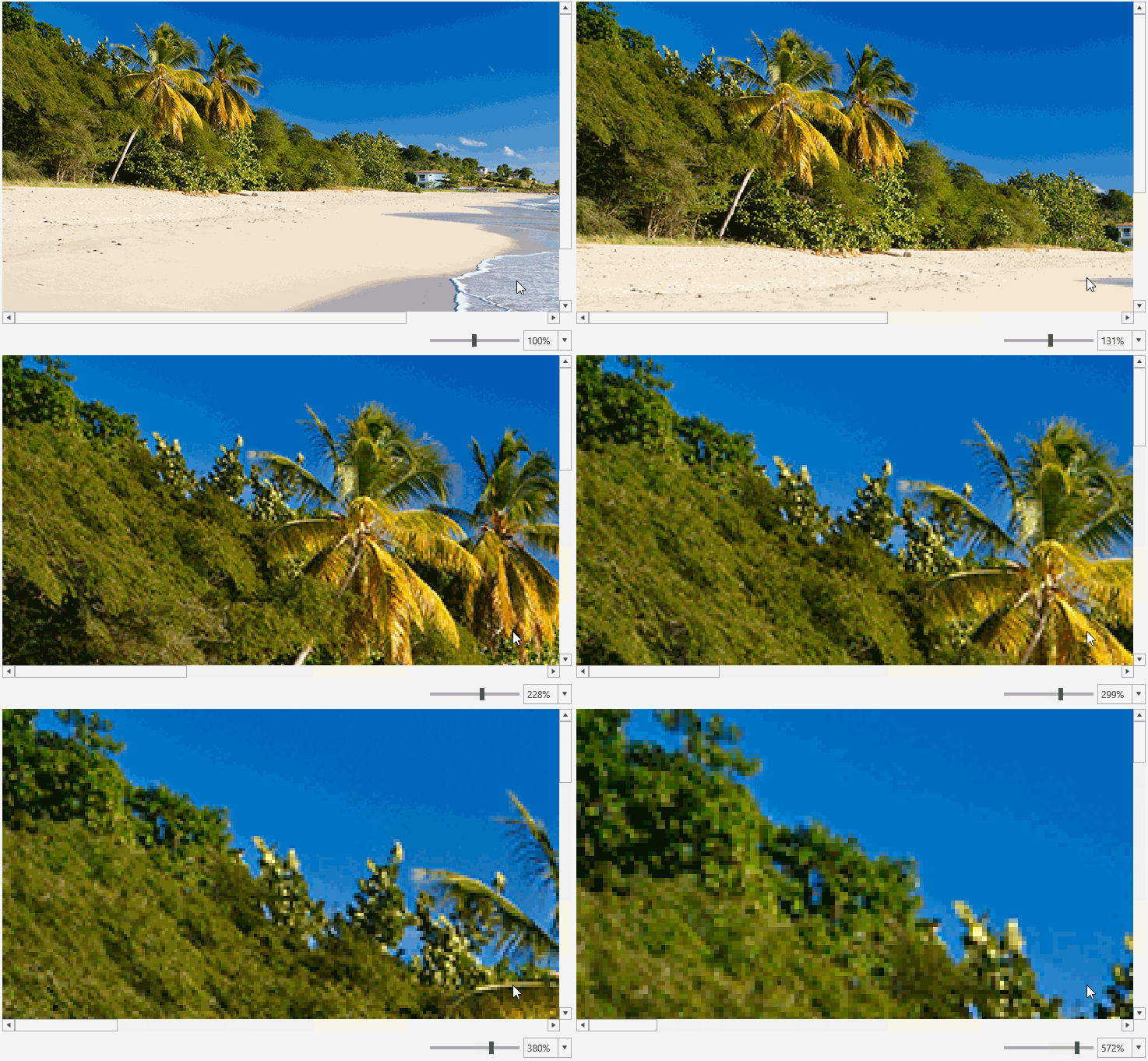
You can zoom in the opened image by holding **Ctrl** and spinning the **mouse wheel** or by using the slider and dropdown of the **ZoomController** provided by the [RadImageEditorUI](https://www.telerik.com/products/wpf/documentation/controls/radimageeditor/features/radimageeditorui).
> caption Default zoom capabilities
## Disabling the MouseWheel Zooming
In order to disable the zooming with the mouse wheel, you can set the **AllowMouseWheelScaling** property to **False** as demonstrated in **Example 1**.
**Example 1: Setting the AllowMouseWheelScaling property**
```XAML
```
## Zoom to Mouse Cursor
As can be seen in **Figure 1**, the default zooming mechanism does not take into account the position of the mouse cursor.
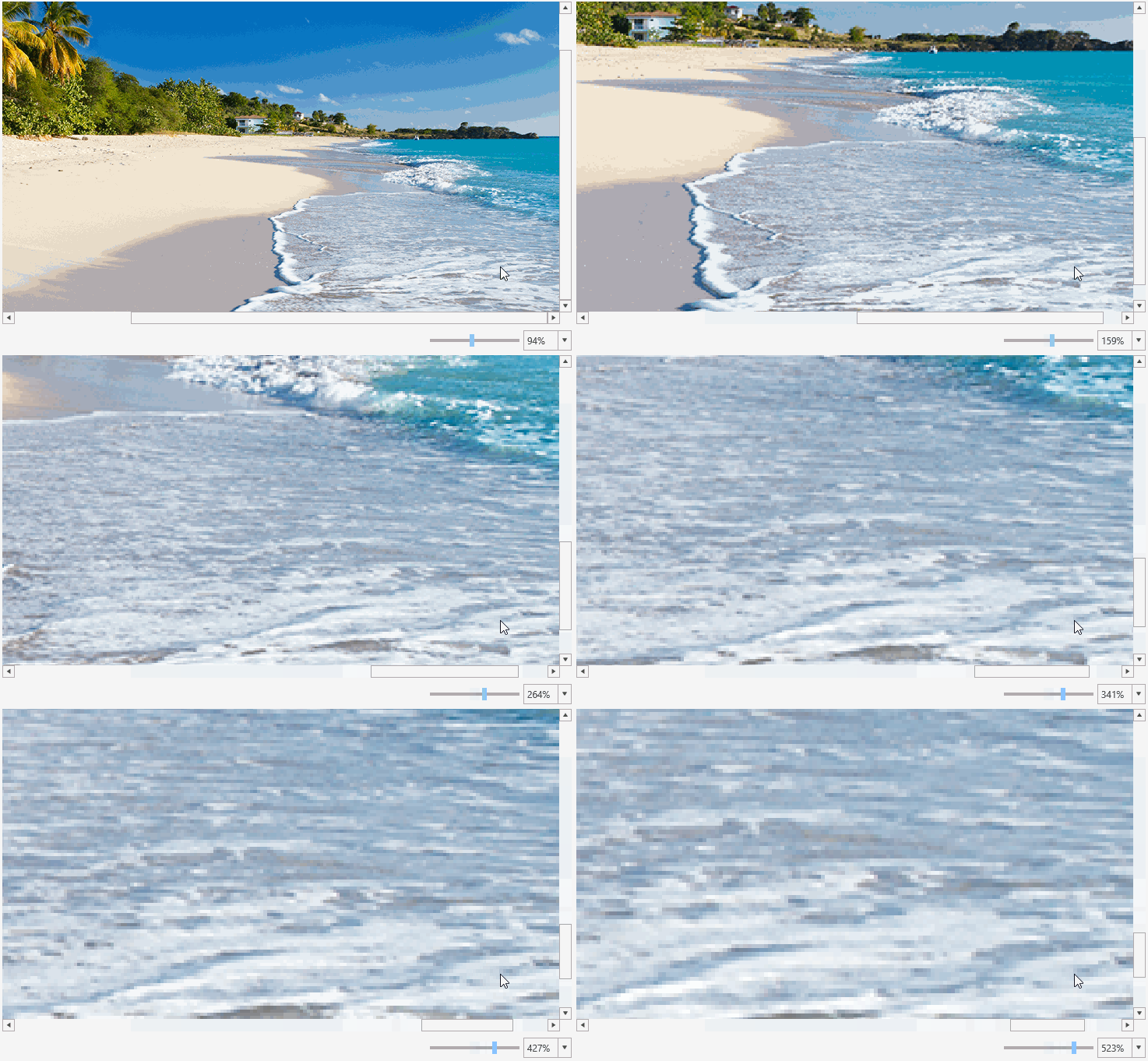
As of version **2018.2.716**, both RadImageEditor and RadImageEditorUI controls expose a **ZoomToCursor** property. By setting this property to **True**, holding **Ctrl** and spinning the **mouse wheel** will zoom towards the position of the mouse cursor. The result can be observed in **Figure 2**.
> caption Zooming to the mouse cursor
## Zooming Programmatically
The RadImageEditor API allows you to zoom programmatically via the **ScaleFactor** property.
The minimum allowed scale factor is 0, which is the default value. Setting ScaleFactor to 0 **autoscales** the image. You can also do this by calling the RadImageEditor's **AutoScaleImage** method.
The **value of 1** means that the image is not zoomed-in and its original size is used. A value **less than 1**, zooms-out the image. A value **greater than 1**, zooms-in the image.
**Example 2: Setting ScaleFactor to zoom-in the image**
```XAML
```
To get the actual scale factor, when the picture is autoscaled, check the **ActualScaleFactor** property.
To listen for changes in the zoom level, use the **ScaleFactorChanged** event of RadImageEditor.
**Example 3: Subscribing to the ScaleFactorChanged event**
```XAML
```
**Example 4: Defining ScaleFactorChanged event handler**
```C#
private void RadImageEditor_ScaleFactorChanged(object sender, EventArgs e)
{
}
```
## Using the Zoom Controller
The [RadImageEditorUI](https://www.telerik.com/products/wpf/documentation/controls/radimageeditor/features/radimageeditorui) control has a built-in zoom controller (a slider) element that allows you to zoom in and out. The slider is shown in **Figure 1**.
To use the control separately with **RadImageEditor**, you can define the **ZoomController** element, and set its **ImageEditor** control.
**Example 5: Using ZoomController**
```XAML
```
> caption ZoomController

## See Also
* [History](https://www.telerik.com/products/wpf/documentation/controls/radimageeditor/features/history)
* [Panning](https://www.telerik.com/products/wpf/documentation/controls/radimageeditor/tools/panning)