# CellTemplateSelector and CellEditTemplateSelector
This article will show you how to conditionally apply a different data template to RadGridView cells using the **CellTemplateSelector** and **CellEditTemplateSelector** properties.
> tip To learn the basics about **TemplateSelectors** please check [this article](https://www.telerik.com/products/wpf/documentation/controls/radgridview/template-selectors/overview).
Assume we have a GridView bound to a collection of clubs. Each club has a property StadiumCapacity. What we want to achieve is to apply one data template if the capacity is greater than 50 000 and another otherwise:
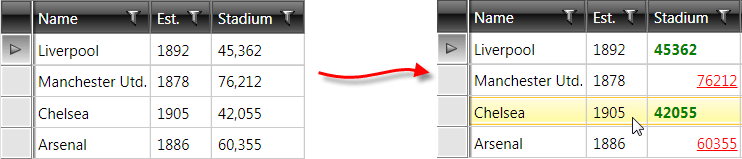
To do so follow these steps:
**1**. Create a new class which inherits the **DataTemplateSelector** class.
**2**. Override its **SelectTemplate** method. Based on your conditions - you return the proper DataTemplate that will be applied to the framework element (cell in our case).
```C#
public class MyCellTemplateSelector : DataTemplateSelector
{
public override System.Windows.DataTemplate SelectTemplate(object item, System.Windows.DependencyObject container)
{
if (item is Club)
{
Club club = item as Club;
if (club.StadiumCapacity > 50000)
{
return bigStadium;
}
else
{
return smallStadium;
}
}
return null;
}
public DataTemplate bigStadium { get; set; }
public DataTemplate smallStadium { get; set; }
}
```
```VB.NET
Public Class MyCellTemplateSelector
Inherits DataTemplateSelector
Public Overrides Function SelectTemplate(item As Object, container As System.Windows.DependencyObject) As System.Windows.DataTemplate
If TypeOf item Is Club Then
Dim club As Club = TryCast(item, Club)
If club.StadiumCapacity > 50000 Then
Return bigStadium
Else
Return smallStadium
End If
End If
Return Nothing
End Function
Public Property bigStadium() As DataTemplate
Get
Return m_bigStadium
End Get
Set(value As DataTemplate)
m_bigStadium = value
End Set
End Property
Private m_bigStadium As DataTemplate
Public Property smallStadium() As DataTemplate
Get
Return m_smallStadium
End Get
Set(value As DataTemplate)
m_smallStadium = value
End Set
End Property
Private m_smallStadium As DataTemplate
End Class
```
In this case we have two different DataTemplates that could be applied - bigStadium and smallStadium. Depending on the underlying data we choose / select which template to apply.
**3**. In the XAML file define the template selector as a resource and set the properties of the bigStadium and smallStadium:
```XAML
```
**4**. Finally, set the **CellTemplateSelector** property of the data column which represents the StadiumCapacity field:
```XAML
```
You can use the **CellEditTemplateSelector** property in a similar manner with the only difference that the custom controls you define in the template will be displayed only once it enters edit mode.
> Since the virtualization of the GridView is turned on by default, it is not recommended to work with the visual elements (i.e. GridViewCell) and their properties. **You should not set properties of the GridViewCell inside the SelectTemplate method**. Please check [this help article](https://www.telerik.com/products/wpf/documentation/controls/radgridview/features/ui-virtualization) for a reference.
## See Also
* [CellTemplate and CellEditTemplate](https://www.telerik.com/products/wpf/documentation/controls/radgridview/columns/celltemplate-and-celledittemplate)
* [UI Virtualization](https://www.telerik.com/products/wpf/documentation/controls/radgridview/features/ui-virtualization)