# Styling Column Footers
## Targeting the GridViewFooterRow Element
If you want to style all footer rows of your application, you should create an appropriate style targeting the **GridViewFooterRow** element.
You have two options:
* To create an empty style and set it up on your own.
* To copy the default style of the control and modify it.
> To modify the default style, see [Editing Control Templates](https://www.telerik.com/products/wpf/documentation/styling-and-appearance/styling-apperance-editing-control-templates).
**Example 1: Styling all footer rows of an application**
```XAML
```
> If you're using [Implicit Styles](https://www.telerik.com/products/wpf/documentation/styling-and-appearance/styling-apperance-setting-a-theme-overview), you should base your style on the **GridViewFooterRowStyle**.
## Setting RadGridView's FooterRowStyle
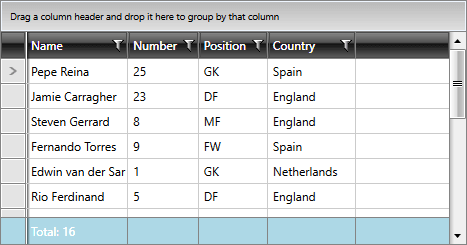
RadGridView's footer rows can also be styled by creating an appropriate **Style** for the **GridViewFooterRow** element and setting it as RadGridView's **FooterRowStyle** property.
**Example 2: Setting RadGridView's FooterRowStyle**
```XAML
```
> caption RadGridView with styled footer rows
## Targeting the GridViewFooterCell Element
In order to style all RadGridView cells of an application, you should create an appropriate style targeting the **GridViewFooterCell** element.
**Example 3: Styling all footer cells of an application**
```XAML
```
> If you're using [Implicit Styles](https://www.telerik.com/products/wpf/documentation/styling-and-appearance/styling-apperance-setting-a-theme-overview), you should base your style on the **GridViewFooterCellStyle**.
## Setting a Column's FooterCellStyle
RadGridView's footer cells can also be styled by creating an appropriate **Style** for the **GridViewFooterCell** element and setting it as the **FooterCellStyle** property of the respective **GridViewColumn**.
**Example 4: Setting a column's CellStyle**
```XAML
```
> caption RadGridView with styled footer cells

## See Also
* [Styling a Cell](https://www.telerik.com/products/wpf/documentation/controls/radgridview/styles-and-templates/styling-cell)
* [Styling the Column Headers](https://www.telerik.com/products/wpf/documentation/controls/radgridview/styles-and-templates/styling-column-headers)