# CellStyleSelector
This article shows how to style RadGridView's cells conditionally by applying **CellStyleSelector**.
> tip To download a runnable project with the example from this article, visit [our SDK repository](https://github.com/telerik/xaml-sdk/). You can find the example in the **GridView/CellStyleSelector** folder.
> The `CellStyle` property of the column has a higher priority than `CellStyleSelector`. This means, if the `CellStyle` is set, the `CellStyleSelector` won't be invoked.
Assume we have RadGridView bound to a collection of sports clubs. Each club has a **StadiumCapacity** property. What we want to achieve is to set the background color of the StadiumCapacity cells to **Red if the capacity > 50 000 or Yellow if the capacity < 50 000**:
> caption The expected result
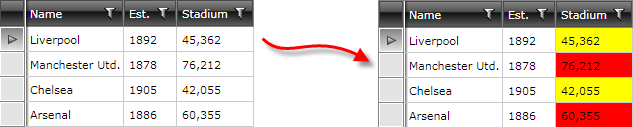
Follow these steps to configure **CellStyleSelector**:
1. Create a new class that inherits the **StyleSelector** class.
2. Override its default **SelectStyle** method. Return the style that will be applied to the framework element (GridViewCell in our case).
In this example, we declare two styles that will be applied depending on the underlying data:
* **BigStadiumStyle**
* **SmallStadiumStyle**
**Example 1: The StadiumCapacityStyle class**
```C#
public class StadiumCapacityStyle : StyleSelector
{
public override Style SelectStyle(object item, DependencyObject container)
{
if (item is Club)
{
Club club = item as Club;
if (club.StadiumCapacity > 50000)
{
return BigStadiumStyle;
}
else
{
return SmallStadiumStyle;
}
}
return null;
}
public Style BigStadiumStyle { get; set; }
public Style SmallStadiumStyle { get; set; }
}
```
```VB.NET
Public Class StadiumCapacityStyle
Inherits StyleSelector
Public Overrides Function SelectStyle(item As Object, container As DependencyObject) As Style
If TypeOf item Is Club Then
Dim club As Club = TryCast(item, Club)
If club.StadiumCapacity > 50000 Then
Return BigStadiumStyle
Else
Return SmallStadiumStyle
End If
End If
Return Nothing
End Function
Public Property BigStadiumStyle() As Style
Get
Return m_BigStadiumStyle
End Get
Set
m_BigStadiumStyle = Value
End Set
End Property
Private m_BigStadiumStyle As Style
Public Property SmallStadiumStyle() As Style
Get
Return m_SmallStadiumStyle
End Get
Set
m_SmallStadiumStyle = Value
End Set
End Property
Private m_SmallStadiumStyle As Style
End Class
```
3. In the XAML file, define the style selector as a resource and set the properties of **BigStadiumStyle** and **SmallStadiumStyle**:
**Example 2: Set the different styles for the style selector**
```XAML
```
> The **"my:"** prefix before **StadiumCapacityStyle** specifies the mapping for the namespace of the project: **xmlns:my="**.
If you use our [Implicit Themes](https://www.telerik.com/products/wpf/documentation/styling-and-appearance/styling-apperance-setting-a-theme-overview), base the conditional style on the style that is defined for the corresponding theme:
**Example 3: Set the style when using implicit styles**
```XAML
```
> tip The **GridViewCellStyle** resource is accessible when you use the NoXaml dlls and you merged the associated .xaml files. The Style is defined in the **Telerik.Windows.Controls.GridView\.xaml** file which is why you can access it using the `StaticResource` keyword.
4. Finally, set the **CellStyleSelector** property of the data column that represents the StadiumCapacity field:
**Example 4: Set CellStyleSelector for the column**
```XAML
```
> Since the virtualization of the GridView is turned on by default, it is not recommended to work with the visual elements (i.e. GridViewCell) and their properties. You should not set properties of GridViewCell inside SelectStyle method. [Read more on UI Virtualization](https://www.telerik.com/products/wpf/documentation/controls/radgridview/features/ui-virtualization).
## See Also
* [Styling Cells](https://www.telerik.com/products/wpf/documentation/controls/radgridview/styles-and-templates/styling-cell)
* [UI Virtualization](https://www.telerik.com/products/wpf/documentation/controls/radgridview/features/ui-virtualization)