# Multiple Selection
**RadGridView** allows users to select more than one item from the displayed data. By default only a single row/cell can be selected at a time but you can set the **SelectionMode** property to either **Multiple** or **Extended** to enable multiple selection.
**Example 1: Set SelectionMode**
```XAML
```
**Example 1: Set SelectionMode**
```C#
this.radGridView.SelectionMode = System.Windows.Controls.SelectionMode.Extended;
```
```VB.NET
Me.radGridView.SelectionMode = System.Windows.Controls.SelectionMode.Extended
```
The **Multiple** value of the **SelectionMode** enumeration allows the user to add an item to the selection just by clicking on it. It will be removed when it gets clicked again.
The **Extended** selection on the other hand, allows users to select multiple records using the common key modifiers - **Shift** and **Ctrl**. Holding **Shift** while selecting a row will select the range of rows between the newly-selected row and the previously-selected one. By holding **Ctrl** upon selection, the selected row will be added to the current selection or removed from it if it has already been selected. The same rules apply to the cells if the [SelectionUnit](https://www.telerik.com/products/wpf/documentation/controls/radgridview/selection/basics) property is set to **Cell**. If no modifiers are pressed when selecting a unit only that unit will be selected.
> tip Pressing **Ctrl+A** will select all items.
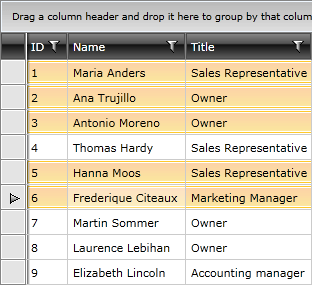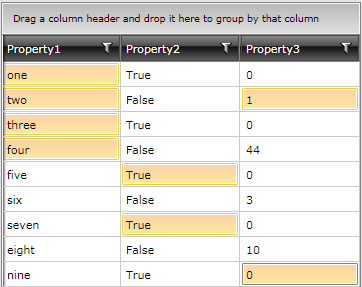
You can access all selected rows (or data items) through the **SelectedItems** collection and all the selected cells through the **SelectedCells** collection. The following example demonstrates how to bind a **ListBox** to the selected items of a grid:
**Example 2: Use the SelectedItems property**
```XAML
```
**Example 2: Use the SelectedItems property**
```C#
listBoxSelectedItems.ItemsSource = this.radGridView.SelectedItems;
```
```VB.NET
listBoxSelectedItems.ItemsSource = Me.radGridView.SelectedItems
```
> When multiple items are selected the **SelectedItem** property has the value of the first selected one.
## See Also
* [Basic Selection](https://www.telerik.com/products/wpf/documentation/controls/radgridview/selection/basics)
* [Programmatic Selection](https://www.telerik.com/products/wpf/documentation/controls/radgridview/selection/programmatic-selection)
* [Basic Filtering](https://www.telerik.com/products/wpf/documentation/controls/radgridview/filtering/basic)
* [Programmatic Filtering](https://www.telerik.com/products/wpf/documentation/controls/radgridview/filtering/programmatic)
* [Multiple-column Sorting](https://www.telerik.com/products/wpf/documentation/controls/radgridview/sorting/multiple-column-sorting)