# Updating an Entry
Using the **RadGridView**, you can edit the data displayed in it. The data is edited in rows, which means that when a row is in edit mode, you can edit all of the fields that it contains.
There are three ways for the row to enter edit mode. The first one is when the user presses **F2 (or double clicks the cell),** the second is when the **BeginEdit()** method of the **RadGridView** is called and the third is when the user starts typing over the cell. This behavior is controled by the **EditTriggers** enumeration either on gridview or column level.
```C#
this.radGridView.BeginEdit();
```
```VB.NET
Me.radGridView.BeginEdit()
```
For example, you can use a button to call this method.
```XAML
```
And in the event handler call the method for the Click event.
```C#
private void Button_Click(object sender, RoutedEventArgs e)
{
this.radGridView.BeginEdit();
}
```
```VB.NET
Private Sub Button_Click(ByVal sender As Object, ByVal e As RoutedEventArgs)
Me.radGridView.BeginEdit()
End Sub
```
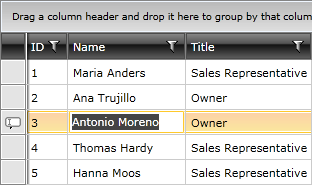
> If the **IsReadOnly** property of the **RadGridView** is set to **True** you won't be able to bring the row into edit mode.
> When entering edit mode the row to be edited represents the **CurrentItem** (the currently focused item) of the **RadGridView**. As it is a single object, at most one row can be edited at a time.
The next step in implementing the adding functionality is to attach event handlers to the **BeginningEdit** and the **RowEditEnded** events.
```XAML
```
The **BeginningEdit** event is raised before the row enters edit mode. In the event handler you can cancel the operation or modify the cell being edited via the **Cancel** and **Cell** properties of the **GridViewBeginningEditRoutedEvenArgs**.
```C#
private void radGridView_BeginningEdit(object sender, GridViewBeginningEditRoutedEventArgs e)
{
}
```
```VB.NET
Private Sub radGridView_BeginningEdit(ByVal sender As Object, ByVal e As GridViewBeginningEditRoutedEventArgs)
End Sub
```
There are several ways to commit the edited data and all of them will raise the **RowEditEnded** event. The first one occurs when the user presses **Enter**, the second when the **CommitEdit()** method is called and the last one when another row is selected. The editing operation can also be cancelled by pressing **Escape.** The first time you press **Escape** only the cell cancels the edit. By pressing the **Escape** second time, the whole row leaves edit mode. Another way to make the row cancel the edit is by calling the **CancelEdit()** method. In this case the **RowEditEnded** event will be raised again.
Via the **GridViewRowEditEndedEventArgs** class you can access the **EditAction** (**Commit** or **Cancel**) and the **GridViewEditOperationType** (**Insert** or **Edit**) . The event arguments class also allows you to access the updated data via the **NewData** property. On the other hand the **OldValues** property contains the old data. To be sure that the appropriate data will be submitted (as this handler will be used by the add operations too), you have to assure that the action is **Commit** and the operation type is **Edit**.
```C#
private void radGridView_RowEditEnded(object sender, GridViewRowEditEndedEventArgs e)
{
if (e.EditAction == GridViewEditAction.Cancel)
{
return;
}
if (e.EditOperationType == GridViewEditOperationType.Edit)
{
//Update the entry in the data base based on your logic.
}
}
```
```VB.NET
Private Sub radGridView_RowEditEnded(ByVal sender As Object, ByVal e As GridViewRowEditEndedEventArgs)
If e.EditAction = GridViewEditAction.Cancel Then
Exit Sub
End If
If e.EditOperationType = GridViewEditOperationType.Edit Then
'Edit the entry in the data base based on your logic.
End If
End Sub
```
> You can also use the **CellEditEnded** event to handle the committing or the cancelling actions and the logic in the event handler will be executed every time a cell gets edited. In some cases this might be inconvenient because different calls to a service might be made for each cell.
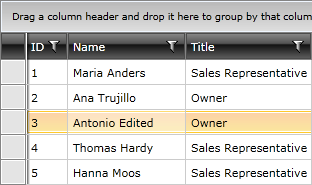
When the updated item is committed, it will be automatically added to the **RadGridView**'s **Items** collection, so you don't have to worry about anything on the client-side. If you have to save it to a data base use the event handler to call the appropriate method, as it is shown in the example above.
## See Also
* [Adding New Entries](https://www.telerik.com/products/wpf/documentation/controls/radgridview/managing-data/add-new-entries)
* [Deleting an Entry](https://www.telerik.com/products/wpf/documentation/controls/radgridview/managing-data/deleting-entry)
* [Validating](https://www.telerik.com/products/wpf/documentation/controls/radgridview/features/managing-data-validation)