# Programmatic Grouping
Besides the built-in grouping functionality you are able to use a programmatic approach to group the data in **RadGridView**. This is achieved via the control's **GroupDescriptors** collection. This collection of **IGroupDescriptor** objects allows you to use descriptors (**GroupDescriptor** or **ColumnGroupDescriptor**) to define grouping criteria and group's sorting direction for the bound data.
> The **GroupDescriptorsCollection** is an **ObservableItemCollection** which means you can not only add, but also remove descriptors from it as well as clear the collection.
This article will describe two implementations of the IGroupDescriptor interface.
* [GroupDescriptor](https://www.telerik.com/products/wpf/documentation/controls/radgridview/grouping/programmatic-grouping#groupdescriptor)
* [ColumnGroupDescriptor](https://www.telerik.com/products/wpf/documentation/controls/radgridview/grouping/programmatic-grouping#columngroupdescriptor)
* [Expanding and collapsing a group](https://www.telerik.com/products/wpf/documentation/controls/radgridview/grouping/programmatic-grouping#expanding-and-collapsing-a-group)
* [Check if a group is expanded](https://www.telerik.com/products/wpf/documentation/controls/radgridview/grouping/programmatic-grouping#check-if-a-group-is-expanded)
## GroupDescriptor
When you add a new descriptor to the collection, RadGridView's data is automatically grouped according it. **Example 1** demonstrates how to create and configure group descriptors.
**Example 1: Initiate and configure group descriptors**
```C#
GroupDescriptor descriptor = new GroupDescriptor();
descriptor.Member = "Country";
descriptor.SortDirection = ListSortDirection.Ascending;
```
```VB.NET
Dim descriptor As New GroupDescriptor()
descriptor.Member = "Country"
descriptor.SortDirection = ListSortDirection.Ascending
```
The **Member** property defines the property, by which the data will be grouped, and the **SortDirection** property allows you to define the direction in which the groups will be sorted.
**Example 2** illustrates how to create the group descriptor in XAML.
**Example 2: Define group descriptors in XAML**
```XAML
```
To use the created descriptor to group the data in the **RadGridView** you have to add it to the **GroupDescriptors** collection.
**Example 3: Add descriptor to GroupDescriptors collection**
```XAML
```
**Example 3: Add descriptor to GroupDescriptors collection**
```C#
this.radGridView.GroupDescriptors.Add(descriptor);
```
```VB.NET
Me.radGridView.GroupDescriptors.Add(descriptor)
```
After the descriptor is defined, the data will be grouped by the **Country** property and will look as if you have dragged and dropped the **Country** column header into the grouping area.
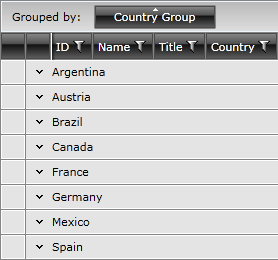
Except **Member** and **SortDirection** properties, the **GroupDescriptor** exposes a **DisplayContent** property which allows you to change the content of the rectangle representing the group in the grouping area.
**Example 4: Set the DisplayContent property**
```XAML
```
**Example 4: Set the DisplayContent property**
```C#
GroupDescriptor descriptor2 = new GroupDescriptor();
descriptor2.Member = "Country";
descriptor2.SortDirection = ListSortDirection.Ascending;
descriptor2.DisplayContent = "Country Group";
```
```VB.NET
Dim descriptor2 As New GroupDescriptor()
descriptor2.Member = "Country"
descriptor2.SortDirection = ListSortDirection.Ascending
descriptor2.DisplayContent = "Country Group"
```
> caption The box displayed in the group panel after the DisplayContent is set
> tip In the group rows you are able to display aggregate functions, which display information about the data contained in the group. To learn more about how to add aggregate functions to the group rows take a look at the [Group Aggregates](https://www.telerik.com/products/wpf/documentation/controls/radgridview/grouping/aggregates) topic.
## ColumnGroupDescriptor
An alternative way of manipulating the group descriptors of RadGridView is the new (added in Q3 2010) **ColumnGroupDescriptor** class. It has three important properties:
* **Column**: The column that will be grouped.
* **DisplayContent**: Allows you to change the content of the rectangle representing the group that appears in the grouping area.
* **SortDirection**: Allows you to define the direction in which the groups will be sorted.
As you see the last two properties are similar to the same properties of the GroupDescriptor class.
> As of **Q3 2011** you can add a **ColumnGroupDescriptor** both in **code behind and XAML**. With all the prior versions you can only set it in code behind.
**Example 5** shows how to add a ColumnGroupDescriptor to RadGridView which groups by the Name column in descending order.
**Example 5: Add ColumnGroupDescriptor to RadGridView**
```XAML
```
**Example 5: Add ColumnGroupDescriptor to RadGridView**
```C#
this.radGridView.GroupDescriptors.Add(new ColumnGroupDescriptor()
{
Column = this.radGridView.Columns["Name"],
SortDirection = ListSortDirection.Descending
});
```
```VB.NET
Me.radGridView.GroupDescriptors.Add(New ColumnGroupDescriptor() With {
.Column = Me.radGridView.Columns("Name"),
.SortDirection = ListSortDirection.Descending
})
```
## Expanding and Collapsing a Group
The groups of the control can be programmatically expanded and collapsed through the **ExpandGroup** and **CollapseGroup** methods of the control. Passing a group to them can be achieved by type casting a given group to the [IGroup](https://docs.telerik.com/devtools/wpf/api/telerik.windows.data.igroup) interface. The following example demonstrates how the **ExpandGroup** method can be called. The **CollapseGroup** one can be used in the same manner.
**Example 6: Call the ExpandGroup method of RadGridView**
```C#
var group = this.clubsGrid.Items.Groups[1] as IGroup;
this.clubsGrid.ExpandGroup(group);
```
```VB.NET
Dim group = TryCast(Me.clubsGrid.Items.Groups(1), IGroup)
Me.clubsGrid.ExpandGroup(group)
```
## Check if a group is expanded
> The **IsExpanded** method can also be used to check whether a hierarchy item is expanded. More information can be found in the [Basic Hierarchies](https://www.telerik.com/products/wpf/documentation/controls/radgridview/hierarchical-gridview/basic-hierarchies) topic.
When checking whether a given group is expanded, the **IsExpanded** method of **RadGridView** comes in handy. When a group is passed as a parameter to it, it will return a boolean value determining whether the group is expanded or not.
**Example 7: Call the IsExpanded method of RadGridView**
```C#
bool isExpanded = this.clubsGrid.IsExpanded(this.clubsGrid.Items.Groups[1]);
```
```VB.NET
Dim isExpanded As Boolean = Me.clubsGrid.IsExpanded(Me.clubsGrid.Items.Groups(1))
```
## See Also
* [Basic Grouping](https://www.telerik.com/products/wpf/documentation/controls/radgridview/grouping/basics)
* [Grouping Modes](https://www.telerik.com/products/wpf/documentation/controls/radgridview/grouping/groupingmodes)
* [Grouping events](https://www.telerik.com/products/wpf/documentation/controls/radgridview/events/grouping)
* [Multiple-column Grouping](https://www.telerik.com/products/wpf/documentation/controls/radgridview/grouping/multiple-column-grouping)
* [Group Aggregates](https://www.telerik.com/products/wpf/documentation/controls/radgridview/grouping/aggregates)
* [Group Footers](https://www.telerik.com/products/wpf/documentation/controls/radgridview/grouping/group-footers)
* [Modifying the Group Panel](https://www.telerik.com/products/wpf/documentation/controls/radgridview/grouping/modifying-group-panel)