# Basic Grouping
`RadGridView` provides a built-in grouping functionality, which allows the user to easily group the data by one or more columns.
> The groups of RadGridView can be programmatically expanded and collapsed. This is demonstrated in the [Programmatic Grouping](https://www.telerik.com/products/wpf/documentation/controls/radgridview/grouping/programmatic-grouping) topic.
In order to group data, the user has to just drag the desired column to the `GridViewGroupPanel` located at the top of RadGridView. If RadGridView is not grouped, a hint is shown in the GridViewGroupPanel.
> caption Dragging a column to the GridViewGroupPanel

After dropping the selected header in the grouping area, the text message will be replaced with a rectangle that represents the selected header, and the data will be properly grouped.
> caption RadGridView after grouping

To remove the grouping, just click the close button of the rectangle or drag it out of the grouping area.
> caption Removing the grouping

> tip The data can be grouped by more than one column. To do that, just drag another column into the grouping area, and the data will be grouped against these two criteria. To learn more about the multi-column grouping, take a look at the [Multi-Column Grouping](https://www.telerik.com/products/wpf/documentation/controls/radgridview/grouping/multiple-column-grouping) topic.
> tip GridViewColumn exposes a property `ShowColumnWhenGrouped`. It indicates whether the column should be visible or not when RadGridView is grouped by this same column. By default, its value is True, and the column will remain visible.
RadGridView also provides the user with a way to sort the groups of data. To do that, the user just has to click on the rectangle that represents the grouping column. By default, when the data is grouped, the groups are sorted **Ascending**. When the sort direction of the rectangle is None, the groups are sorted depending on the data they contain.
> caption Sorting RadGridView when grouping is applied

### Sort Group by Aggregate
You can download a **runnable project** on how to sort a group by defined aggregate functions from our online SDK repository: [SortGroupByAggregate](https://github.com/telerik/xaml-sdk/tree/master/GridView/SortGroupByAggregate).
### Sort Group by Different Property
> tip You can download a **runnable project** on how to sort a group by a different property from our online SDK repository: [SortGroupByDifferentProperty](https://github.com/telerik/xaml-sdk/tree/master/GridView/SortGroupByDifferentProperty).
> You can also check the [SDK Samples Browser](https://www.telerik.com/products/wpf/documentation/developer-focused-examples/sdk-samples-browser) that provides a more convenient approach to exploring and executing the examples in the Telerik XAML SDK repository.
## GroupMemberPath
Each GridViewColumn has a property called GroupMemberPath. This property can be used to specify the column to group on a property different from the bound one.
For example, you can configure the column to be grouped on the Name property, although the bound property is Title:
**Set GroupMemberPath for a certain column**
```XAML
```
## Grouping Modes
The RadGridView control provides two grouping modes that are controlled via the `GroupRenderMode` property:
**Nested Mode**—It is the default one and it will nest GridViewGroupRows into one another when you have grouping on many levels. This may lead to a poor performance when the grid is grouped on several levels and has a lot of data. The visual element representing the grouped row is GridViewGroupRow.
**Flat Mode**—This mode simply renders rows one below the other. This leads to a very good performance when the grid is grouped on several levels and has a lot of data. The visual element representing the grouped row is GroupHeaderRow.
> Please note that when you use the **Flat Mode**, you should work with `GroupHeaderRow`, and not with `GridViewGroupRow`.
## Reorder Columns when Ungrouping
The `ShouldReorderColumnsOnUngrouping` property controls whether the columns' `DisplayIndex` will be changed when the user drags a group cell onto a header cell. The default value is **False** - when the user ungroups, the display indexes of the columns prior to the grouping will not be changed. When set to **True**, if the user drops the group cell onto one of RadGridView's header cells, the columns will be **reordered** based on the drop position.
> caption Dragging the group cell over a header cell
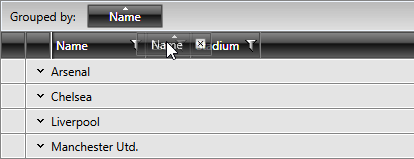
> caption The reordered columns when ShouldReorderColumnsOnUngrouping is true

## Disabling Grouping
RadGridView provides the ability to disable the grouping operations for all columns. This can be done through the `CanUserGroupColumns` property of RadGridView. If the property is set to **False** at runtime and there is a grouping applied prior to it, the user will not be able to either ungroup the control or reorder the group panel cells in the group panel.
There are two ways to disable the built-in grouping of RadGridView. The first one is at the RadGridView level via the `ShowGroupPanel` property. By setting it to **False**, the grouping area gets hidden, and the column headers have nowhere to be dropped. The default value is **True**.
**Disable Grouping**
```XAML
```
> caption RadGridView with disabled grouping

The second way is to disable it on the column level via the `IsGroupable` property. When set to **False**, the column is not allowed to be dropped in the grouping area.
**Disable grouping for specific column**
```XAML
```
**Disable grouping for a specific column**
```C#
this.radGridView.Columns["Title"].IsGroupable = false;
```
```VB.NET
Me.radGridView.Columns("Title").IsGroupable = False
```
> caption RadGridView with disabled grouping for a specific column

> important If an `IValueConverter` is applied to the `DataMemberBinding` of a certain column, Grouping will respect it and create Group names according to the converted values. Thus, the appearance of duplicated groups will be avoided. In the case of filtering the RadGridView control, on the other hand, the converted values would not be respected.
## Events
There are two events that are raised when the data in RadGridView is grouped. The first one is the `Grouping` event, and it is raised before the data is grouped. The second one is the `Grouped` event, and it is raised when the data has already been grouped. You can find more information about them [here](https://www.telerik.com/products/wpf/documentation/controls/radgridview/events/grouping).
## Styling and Appearance
RadGridView provides you with several ways to style the default look and appearance of the built-in grouping functionality. You can manipulate the grouping area at the top of RadGridView. To learn how to do this, take a look at the [Modifying the Grouping Panel](https://www.telerik.com/products/wpf/documentation/controls/radgridview/grouping/modifying-group-panel) topic.
You can easily change the appearance of the group row by just setting the `GroupRowStyle` property. To learn how to use it, take a look at the [Styling the Group Row](https://www.telerik.com/products/wpf/documentation/controls/radgridview/styles-and-templates/styling-group-row) topic.
You can also manipulate the visual appearance of the group footers. Just set the `GroupFooterCellStyle` property of the `GridViewColumn` to an appropriate style.
You can also manipulate the visual appearance of the group footers. Just configure the `GroupFooterCellStyle` property of the `GridViewColumn` to an appropriate style.
To learn more about the group footers, take a look at the [Group Footers](https://www.telerik.com/products/wpf/documentation/controls/radgridview/grouping/group-footers) topic.
To learn how to style the,m take a look at the [Styling the Group Footers](https://www.telerik.com/products/wpf/documentation/controls/radgridview/styles-and-templates/styling-group-footers) topic.
## See Also
* [Grouping Modes](https://www.telerik.com/products/wpf/documentation/controls/radgridview/grouping/groupingmodes)
* [Grouping events](https://www.telerik.com/products/wpf/documentation/controls/radgridview/events/grouping)
* [Programmatic Grouping](https://www.telerik.com/products/wpf/documentation/controls/radgridview/grouping/programmatic-grouping)
* [Multiple-column Grouping](https://www.telerik.com/products/wpf/documentation/controls/radgridview/grouping/multiple-column-grouping)
* [Group Aggregates](https://www.telerik.com/products/wpf/documentation/controls/radgridview/grouping/aggregates)
* [Group Footers](https://www.telerik.com/products/wpf/documentation/controls/radgridview/grouping/group-footers)
* [Modifying the Group Panel](https://www.telerik.com/products/wpf/documentation/controls/radgridview/grouping/modifying-group-panel)
* [Reevaluation of data operations](https://www.telerik.com/products/wpf/documentation/controls/radgridview/troubleshooting/reevaluation-dataoperations)