# Pinned Rows
Since **R2 2016**, RadGridView supports **Pinned Rows**. By using Pinned Rows, you can pin particular rows to the top or bottom of your **RadGridView** so that they do not participate in the vertical scrolling.
> important Currently, [RowDetails](https://www.telerik.com/products/wpf/documentation/controls/radgridview/row-details/overview), [Merged Cells](https://www.telerik.com/products/wpf/documentation/controls/radgridview/features/merged-cells) and [Extended selection](https://www.telerik.com/products/wpf/documentation/controls/radgridview/selection/multiple-selection) are not supported when pinning rows.
In this article, we will discuss the following topics:
* [PinnedRowsPosition property](https://www.telerik.com/products/wpf/documentation/controls/radgridview/features/pinned-rows#pinnedrowsposition)
* [Grouping](https://www.telerik.com/products/wpf/documentation/controls/radgridview/features/pinned-rows#grouping)
* [Sorting](https://www.telerik.com/products/wpf/documentation/controls/radgridview/features/pinned-rows#sorting)
* [Paging](https://www.telerik.com/products/wpf/documentation/controls/radgridview/features/pinned-rows#paging)
* [Filtering](https://www.telerik.com/products/wpf/documentation/controls/radgridview/features/pinned-rows#filtering)
* [Commands](https://www.telerik.com/products/wpf/documentation/controls/radgridview/features/pinned-rows#commands)
## PinnedRowsPosition
RadGridView's **PinnedRowsPosition** property lets you determine where the pinned rows will appear. It has three possible values:
* **Top**: Display the pinned rows on top.
* **Bottom**: Display the pinned rows at the bottom after the last standard row.
* **None**: Do not display the pinned rows.
**Example 1** shows that you can set the property either declaratively or at runtime, like this:
**Example 1: Setting the PinnedRowsPosition property**
```XAML
```
**Example 1: Setting the PinnedRowsPosition property**
```C#
this.RadGridView.PinnedRowsPosition = GridViewPinnedRowsPosition.Top;
```
```VB.NET
Me.RadGridView.PinnedRowsPosition = GridViewPinnedRowsPosition.Top
```
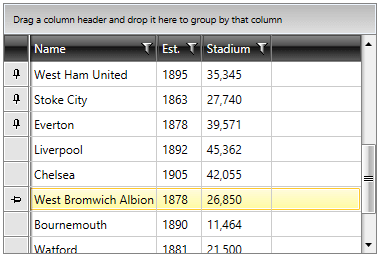
If the PinnedRowsPosition property is set to either Top or Bottom, a pin button will appear on hovering over the [row indicator](https://www.telerik.com/products/wpf/documentation/controls/radgridview/rows/customizing-rows).
> important Pinned rows are only supported when [GroupRenderMode](https://www.telerik.com/products/wpf/documentation/controls/radgridview/grouping/groupingmodes) is set to **Flat**.
Pressing the button will pin the respective row. Clicking on it again will remove it from the collection of the pinned rows.
> caption Pinning rows from the row indicator
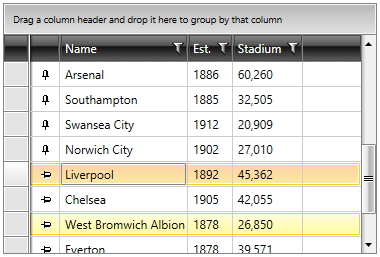
Another way to allow your users to pin rows with the click of a button is to define a **GridViewPinRowColumn**, which enables pinning and unpinning of the rows.
**Example 2: Defining a GridViewPinRowColumn**
```XAML
```
> caption Pinning rows from the GridViewPinRowColumn
## Grouping
Pinned items do not participate in grouping. Once the user applies grouping to RadGridView, either by [dragging a column header](https://www.telerik.com/products/wpf/documentation/controls/radgridview/grouping/basics) to the **GridViewGroupPanel**, or [programmatically](https://www.telerik.com/products/wpf/documentation/controls/radgridview/grouping/programmatic-grouping), the pinned items are placed back to the **Items** collection. On ungrouping, they reappear as pinned.
## Sorting
Sorting a column results in sorting the items in the pinned panel as well - only compared to each other.
## Paging
When the user pins rows in a page and moves to another page, the pinned rows are removed, as they are not a part of the source of the second page. Navigating back to the previous page would bring back the pinned rows for that page.
## Filtering
Filtering RadGridView displays all items (along with the pinned ones) in the filter descriptor.
## Commands
The **TogglePinnedRowState Command** toggles a row's **IsPinned** property. It takes as parameters the item to pin and the target RadGridView to pin that item to.
**Example 3: Using the TogglePinnedRowState Command**
```C#
var togglePinnedStateCommand = RadGridViewCommands.TogglePinnedRowState as RoutedUICommand;
togglePinnedStateCommand.Execute(this.RadGridView.Items[0], this.RadGridView);
```
```VB.NET
Dim togglePinnedStateCommand = TryCast(RadGridViewCommands.TogglePinnedRowState, RoutedUICommand)
togglePinnedStateCommand.Execute(Me.RadGridView.Items(0), Me.RadGridView)
```
## See Also
* [Defining Columns](https://www.telerik.com/products/wpf/documentation/controls/radgridview/columns/defining-columns)
* [Frozen Columns](https://www.telerik.com/products/wpf/documentation/controls/radgridview/columns/frozen-columns)