# Column Groups
Columns in RadGridView may be grouped in **column groups** visually represented by common column headers.
## Define Column Groups
To enable **column grouping** you need to add **GridViewColumnGroup** instances to RadGridView's **ColumnGroups** collection as illustrated in **Example 1**.
**Example 1: Define column groups**
```XAML
```
> caption RadGridView with column groups
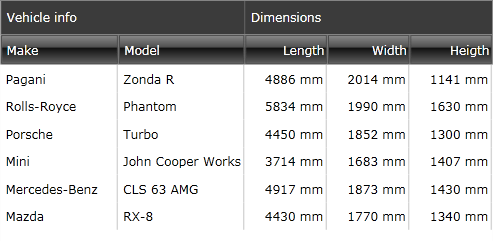
Please observe that to add a specific column to a certain column group, you need to set the **ColumnGroupName** property of the column to match the value of the **Name** property of the relevant **GridViewColumnGroup**.
Note also that the **GridViewColumnGroup** class has a **Header** property which defines the content to be shown inside the common header. It may be a simple string or a visual element.
> tip In case that no header is specified the **Name** of the **GridViewColumnGroup** will be displayed.
## Nested Column Groups
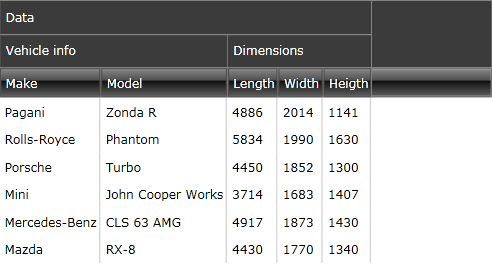
Column groups can also be **nested**. **Example 2** shows how this is achieved.
**Example 2: Nested column groups**
```XAML
```
> caption Nested column groups
## Define Custom Header
You can define a **custom header** for the **GridViewColumnGroup** through its **HeaderTemplate**.
**Example 3: Define GridViewColumnGroup.HeaderTemplate**
```XAML
```
In addition, you can style the headers by defining a style targeting the **CommonColumnHeader** element and setting it as the **HeaderStyle** for the **GridViewColumnGroup**. For information on how to apply an implicit style, have a look at the [Styling Column Groups](https://www.telerik.com/products/wpf/documentation/controls/radgridview/styles-and-templates/styling-merged-column-headers) article.
## Virtualization Modes
Column groups also support **UI virtualization** meaning that only the visual elements that are loaded in the viewable area are processed. This way, the performance of the control can be significantly enhanced.
This functionality can be configured through the **EnableColumnGroupsVirtualization** boolean property. Its default value is **True** in which case UI virtualization is enabled.
This mode is especially useful in more complicated scenarios where additional features such as [frozen columns](https://www.telerik.com/products/wpf/documentation/controls/radgridview/columns/frozen-columns), [reordering of columns](https://www.telerik.com/products/wpf/documentation/controls/radgridview/columns/reordering-columns), etc. are used.
> important When the column group virtualization feature is enabled, **column group names should be unique**.
## Add or Remove Multiple Column Groups at Once
As of **R3 2020 SP** the ColumnGroups property is of type [RadObservableCollection](https://www.telerik.com/products/wpf/documentation/common-information/consuming-data/radobservablecollection) which exposes the **AddRange** and **RemoveRange** methods that can be used when adding or removing multiple groups at once in order to improve performance.
**Example 4: Add or remove multiple column groups at once**
```C#
this.GridView.ColumnGroups.AddRange(groupsToAdd);
this.GridView.ColumnGroups.RemoveRange(groupsToRemove);
```
```VB.NET
Me.GridView.ColumnGroups.AddRange(groupsToAdd)
Me.GridView.ColumnGroups.RemoveRange(groupsToRemove)
```
An alternative is to use the **SuspendNotifications** and **ResumeNotifications** methods prior and after adding or removing the groups.
**Example 5: Suspend and resume notifications**
```C#
this.GridView.ColumnGroups.SuspendNotifications();
foreach (var group in groupsToAdd)
{
this.GridView.ColumnGroups.Add(group);
}
foreach (var group in groupsToRemove)
{
this.GridView.ColumnGroups.Remove(group);
}
this.GridView.ColumnGroups.ResumeNotifications();
```
```VB.NET
Me.GridView.ColumnGroups.SuspendNotifications()
For Each group In groupsToAdd
Me.GridView.ColumnGroups.Add(group)
Next group
For Each group In groupsToRemove
Me.GridView.ColumnGroups.Remove(group)
Next group
Me.GridView.ColumnGroups.ResumeNotifications()
```
## Specific Scenarios
This section will cover some specific scenarios when using column groups.
For the purpose of this demonstration we will define the following groups.
**Example 6: Sample column groups setup**
```XAML
```
In case the user moves the frozen column splitter in the middle of an existing column group, then it will be **divided into two separate groups**. **Figures 3 to 5** demonstrate this scenario.
> caption Initial setup with FrozenColumnSplitter at default position

> caption A duplicate column group is created when FrozenColumnSplitter moved after the first column
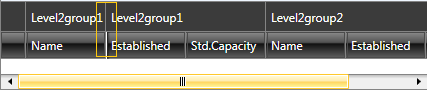
> caption ColumnGroup's header is still visible after scrolling to the right
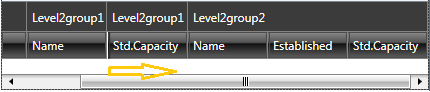
When scrolling horizontally, the column group header remains visible until there are still visible sub-columns under the specific group.
Defined column groups are now **drawn only if they are specified for at least one visible column**.
When some GridViewColumns do not have a **ColumnGroupName** specified, they are **placed under an empty ColumnGroup**. This is illustrated in **Figure 6**.
> caption Various setups illustrating the default space fill



## See Also
* [Styling Column Groups](https://www.telerik.com/products/wpf/documentation/controls/radgridview/styles-and-templates/styling-merged-column-headers)
* [Column Headers](https://www.telerik.com/products/wpf/documentation/controls/radgridview/columns/column-headers)
* [Reordering Columns](https://www.telerik.com/products/wpf/documentation/controls/radgridview/columns/reordering-columns)
* [Frozen Columns](https://www.telerik.com/products/wpf/documentation/controls/radgridview/columns/frozen-columns)